
Windows Clipboard History: How to See, Pin and Clear It
No time for long YouTube tutorials? Try Guidy and get it all done in minutes. It sits right on your screen and points you to exactly what to do in real time. And it works on any software or browser, in any language.
Try for free
You copy an address. Then you copy a phone number. Then you need the address again, and it is gone. Windows clipboard history solves exactly this, and it has been sitting behind a two-key shortcut on your machine the whole time.
It is switched off until you ask for it, which is why most people never find it.
How to see clipboard history in Windows
Press the Windows logo key + V. That combination is the clipboard history shortcut, and it is the same key press whether you want to see, check or view what you copied earlier.
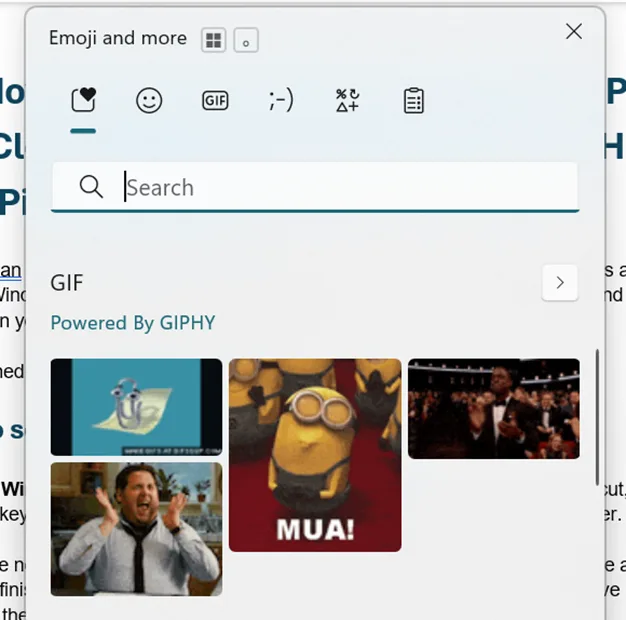
If you have never used it, a small panel opens with a Turn on button. Select it once and that is the setup finished. From then on, the same shortcut opens the list of things you have copied, newest at the top, and selecting any one of them pastes it wherever your cursor is.
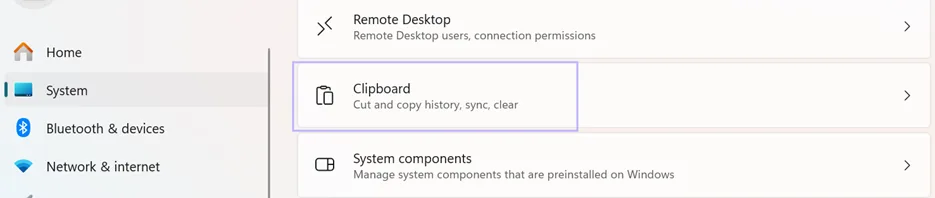
You can also reach the controls through Start, then Settings, then System, then Clipboard.
What it holds, and what it does not
Microsoft documents the limit plainly: clipboard history holds 25 copied entries. Older items drop off automatically to make room, unless you have pinned them.
There is also a size ceiling on individual items. Microsoft puts it at 4 MB per item, and lists Text, HTML and Bitmap as the supported formats. That is why copying a large image sometimes leaves nothing in the list at all.
Copying a file is not the same as copying its contents. The file itself does not land in clipboard history.
Pinning, which is the part worth learning
Everything in clipboard history is cleared when you restart your PC. Everything except pinned items.
Open the panel with Windows logo key + V, find the item, and select the pin icon on it. That entry now survives restarts and stays available until you remove it.
Pro tip: This turns clipboard history into something more useful than a scratchpad. Your address, a standard reply, a tracking link you paste twenty times a week: pin them once and they are permanently two keystrokes away.
Syncing it to your other machines
Go to Start, then Settings, then System, then Clipboard, and set Clipboard history across your devices to On. Choose Automatically sync text that I copy if you want everything to travel.
Sync is tied to your Microsoft account or your work account, so you have to sign in with the same account on every device you want included.
Warning. Sync means copied text is handled by Microsoft's cloud rather than staying on your machine. Think about that before you turn it on if you copy client data, credentials, or anything covered by a policy at work.
Clearing it, and clearing one item
Three routes, depending on how much you want gone.
- Everything except pinned items: press Windows logo key + V and select Clear all at the top
- From Settings: go to Start, then Settings, then System, then Clipboard, find Clear clipboard data, and select Clear
- One item only: press Windows logo key + V, select See more next to the item, which appears as three dots, and select Delete
When the shortcut does nothing
Two things to check before assuming it is broken.
First, confirm the feature is on under Settings, then System, then Clipboard. A new user profile starts with it off, and it can be switched off again without you noticing.
Second, if the setting appears but you cannot change it, you may be on a device managed by an employer or a school, where the feature can be controlled centrally. That is not something you can fix from the Settings app.
The limitation
Twenty-five items with no search box is a scratchpad, not a system. If you paste from a library of dozens of snippets all day, a dedicated clipboard manager will serve you better, and we would rather say so than pretend the built-in feature covers every case.
For everyone else, the built-in one is already installed, costs nothing, and does not need permission from IT.
Remembering that clipboard history in Windows exists is one problem. Finding the other settings you half remember is the same problem repeating. Guidy reads what is on your screen and points at the control instead of describing where it might be. Our AI assistant for work page covers where that helps most.
Key takeaways
- To see clipboard history in Windows, press the clipboard history shortcut, Windows logo key + V, and the first press offers a Turn on button
- Microsoft documents two limits, 25 entries and 4 MB per item, with Text, HTML and Bitmap the supported formats
- A restart clears everything except pinned items, which makes pinning the feature worth learning first
- Sync across devices is tied to your Microsoft or work account and routes copied text through the cloud
- Clear all in the panel and Clear clipboard data in Settings both leave pinned items untouched
FAQs
Does this work on Windows 10 as well as Windows 11?
Yes. The shortcut and the Settings location are the same on both. Microsoft documents the feature across the two, so a habit you build on one carries over.
Can I see items I copied before turning the feature on?
No. Nothing is recorded until the feature is switched on, and there is no archive sitting behind it waiting to be unlocked. Anything copied before that point is gone.
Is it safe to leave switched on if I copy passwords?
The history stays on your device unless you enable sync, but it is still readable by anyone who reaches your unlocked machine. If you copy credentials, clear the list afterward with Clear all, and think carefully before turning sync on.
Why do some things I copy never show up in the list?
Size or format. Microsoft caps items at 4 MB and supports Text, HTML and Bitmap, so anything larger or in a different format does not make it in. Copying a file is also not the same as copying its contents, and the file itself never lands in history.
Is clipboard history stored permanently?
No. A restart clears the list, and Microsoft documents a ceiling of 25 entries, so older items drop off as you keep copying even within a session. Pinned items are the exception: they survive both the restart and the 25-entry limit, and they stay until you unpin them. Anything you want to keep has to be pinned deliberately.