
Excel File Locked for Editing? How to Unlock It Fast
No time for long YouTube tutorials? Try Guidy and get it all done in minutes. It sits right on your screen and points you to exactly what to do in real time. And it works on any software or browser, in any language.
Try for free
You double-click the workbook and Excel tells you it is in use. When you see an Excel file locked for editing, you get two options in the dialog: open a read-only copy, or ask to be notified when the other person is finished. Neither one lets you work.
A quick insight: Microsoft's own guidance opens with the detail that saves the most time: sometimes the file is locked by another user, and sometimes that other user is you.
Check whether you are the other user
This is the first thing to rule out, because it is the fastest to fix and it accounts for the cases where nobody else has the file open at all.
Microsoft names two causes:
- The file is open on a different device of yours, perhaps a laptop you left running.
- Or a previous instance of Excel did not close properly, so the server still believes the file is open.
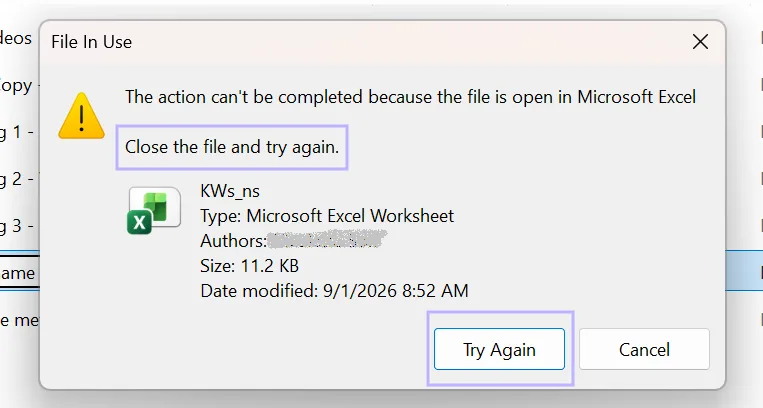
Close the file everywhere you might have it open, then try again. If the error persists, wait a few minutes. Microsoft is explicit that the server sometimes needs to catch up with what is actually happening.
If Excel closed badly, a hidden Excel process may still be running with the workbook attached. Open Task Manager, end any Excel processes, and reopen.
If somebody else genuinely has it
You have three options and none of them is a trick.
- Wait, and use the notify option in the dialog so Excel tells you when the file is released
- Open the read-only copy to look at the numbers while you wait
- Save a copy, make your changes there, and merge them back afterward
The third is the one people forget, and it is usually the right answer when the other person is out for the afternoon.
What the two buttons in the dialog actually do
Read Only opens the workbook so you can look at it, calculate in it, and copy from it. Nothing you change is written back to the original. If you want to keep anything you do there, use File, then Save As, and give it a new name before you start editing.
Notify opens the file read-only as well and adds a watch on top: Excel tells you when the document is no longer in use. On a workbook somebody has open for the afternoon, that is the option worth taking, because it saves you reopening the file every ten minutes to check whether they have finished.
Neither button unlocks anything. Both are ways of waiting without losing the thread, and the choice comes down to whether you expect the file back in minutes or in hours.
The version mismatch nobody expects
Microsoft notes that a file can lock if not everyone editing is on a version that supports co-authoring. To edit together, everyone involved needs the Microsoft 365 subscription version of Excel or Excel for the web.
It only takes one person on an older build to produce the error for everyone else. This is the cause that survives every other fix, because nothing about the file or the folder is wrong.
The folders that cause this every single time
If the same workbook locks constantly, the location is the problem rather than the file. Co-authoring only works when the file lives on OneDrive, OneDrive for Business, or SharePoint in Microsoft 365.
Microsoft lists the locations that do not support it:
- Server paths, written as \\server\folder or smb://server/folder
- Cloud storage from other providers, including DropBox, Box and Google Drive
- Libraries on SharePoint On-Premises sites
A shared drive at work is the classic example. It feels like collaboration and it is not. Excel falls back to a single-user lock, which is precisely the error you are reading about.
Where the storage location is what causes the lock, moving the workbook to OneDrive or SharePoint is the permanent fix.
Everything else in this article manages the symptom rather than removing it. It is not the only cause, so read the next section before you move anything.
Idea to try: Download Guidy to show you how to fix this issue and much more in a few seconds.
Two causes that have nothing to do with where the file lives
Worth ruling out before you conclude the folder is to blame.
Refresh data when opening the file. A workbook set to refresh external data on open holds the file while it does so. On a slow connection or a heavy query that window is long enough to lock everyone else out, and it repeats every time the file is opened. Check the connection properties on the workbook.
An add-in. An add-in can hold a workbook open in the background after you believe you closed it. If locks follow you across different files rather than sticking to one, look here, and use safe mode to test it quickly.
When the lock is deliberate
Two cases where nothing is broken and the file is doing what it was told.
Marked as Final. An author can mark a file as final, which makes Excel open it read-only with a notice across the top. It is advisory rather than protective: anyone can select Edit Anyway and carry on. It can be switched off in the desktop applications, though not from a mobile device.
Password protection. If the file is protected with a password, you cannot open it without one. Microsoft states plainly that there is no way around this, and neither will we.
When the locked file is PERSONAL.XLSB
If the file named in the dialog is PERSONAL.XLSB rather than the workbook you tried to open, nothing is wrong with your workbook.
That file is Excel's Personal Macro Workbook. It lives in the XLSTART folder and opens hidden whenever Excel starts, so it is already in use before you touch anything. When a second Excel process wants it while a first one holds it, the dialog names a file you never opened.
Closing every Excel instance and reopening releases it. Microsoft support threads also point at the File Explorer preview pane, which starts an Excel process of its own to render a preview and can take the lock that way, so turning the preview pane off is worth a try if the message keeps returning.
This is a narrow case rather than a general cause. If the dialog names your own workbook, the sections above are the ones that apply.
What we would not do
Search results for this error are full of instructions to open the server management console and force the file closed on another user. That works, and on a managed network it is a job for whoever administers the server, not for you. Forcing a file closed while somebody has unsaved changes in it loses their work.
Ask first. Escalate to IT second.
An Excel file locked for editing is one of those errors where the fix depends on which of five situations you are in, and the dialog tells you none of them.
Guidy reads the screen and works through it with you rather than handing you a list to try. Our AI for Excel page covers the wider set of spreadsheet problems it helps with.
Key takeaways
- When an Excel file is locked for editing, check first whether the other user is you on a second device or a crashed session
- Closing the file everywhere and waiting a few minutes releases most locks, because the server needs time to catch up
- One person on a version without co-authoring support produces the error for everyone
- Server paths, other cloud providers and SharePoint On-Premises do not support co-authoring, so files stored there lock by design
- Marked as Final is advisory and can be overridden with Edit Anyway; password protection is the one that genuinely stops you
FAQs
Why does it say another user when nobody else has the file?
Because the lock belongs to a session rather than a person. A crashed instance of Excel, a copy open on your other machine, or a server that has not yet released the file all present as another user. Microsoft describes this case directly.
Does opening read-only risk losing my changes?
No, but it does not save them either. A read-only copy lets you look and calculate without writing back. If you want to keep what you do there, use Save As to create a genuinely separate file first.
Will moving the workbook to OneDrive fix it permanently?
For locks caused by the storage location, yes, provided everyone editing is also on a version that supports co-authoring. It will not help if the file is marked as final or password protected.
Can two people edit the same workbook at the same time?
Yes, when the file is in OneDrive, OneDrive for Business or SharePoint in Microsoft 365 and everyone is using the subscription version of Excel or Excel for the web. That combination is what co-authoring requires.
What happens to my edits if the other person saves first?
In genuine co-authoring, changes merge as you both work. In a locked-file situation you are not co-authoring at all, which is why working in a copy and merging afterward is the safer route.