
Excel Showing Formula Instead of Result? 5 Causes and Fixes
No time for long YouTube tutorials? Try Guidy and get it all done in minutes. It sits right on your screen and points you to exactly what to do in real time. And it works on any software or browser, in any language.
Try for free
You type a formula, press Enter, and the formula sits there looking back at you. Excel showing the formula instead of the result, which people also describe as a formula showing as text, is not a syntax error and it is not a broken workbook. It is one of five things, and four of them take about ten seconds to fix.
Work down the list in order. The first check takes one keystroke and settles the whole-sheet case immediately.
1. Show Formulas is switched on
If every formula on the sheet is displaying instead of calculating, start here, because this is the cause that affects a whole sheet at once.
Press Ctrl and the backtick key, which sits above Tab on most keyboards and shares a key with the tilde. That toggles Show Formulas off. By the way, the reason for this to happen is usually that the backtick sits next to Tab, so it is easy to hit by accident on a laptop.
But anyways, on layouts where the backtick sits somewhere else, the same control is on the Formulas tab, in the Formula Auditing group, as Show Formulas.

Cool insight: if it is Show Formulas, the whole sheet is affected and column widths usually look wider than normal. If only one cell is misbehaving, continue to read the next points.
2. The cell is formatted as Text
This is the one that affects individual cells. When a cell carries the Text number format, Excel stores whatever you type as a string, including something that starts with an equals sign.
Select the cell, go to Home, and in the Number group change the format from Text to General. You can also press Ctrl+1 to open Format Cells and choose General on the Number tab.
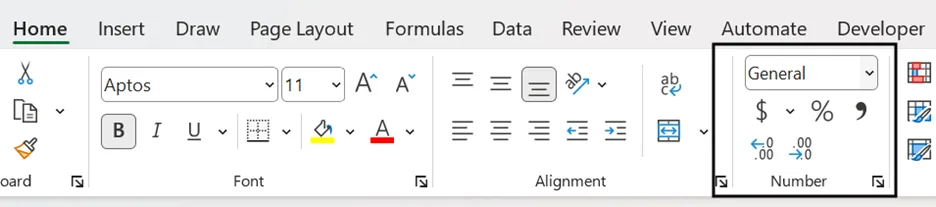
The part that most Excel guides leave out is that changing the format does not fix the cell on its own. Microsoft's own documentation is explicit that you have to re-enter the formula afterward. Press F2 to enter edit mode, then press Enter without changing anything. The formula calculates.
There is no safe one-keystroke way to do a whole column. Some guides suggest selecting the range and pressing Ctrl+Enter. Don’t. That combination enters the active cell's content into every selected cell, so on a range of formulas that are not identical it overwrites all of them.
3. The cell inherited the Text format from the cell it points at
Microsoft documents this one and almost nobody else mentions it.
When you write a formula that links to another cell, the format of the source cell is applied to the cell holding the formula. Point at a cell formatted as Text and your formula cell becomes text too, without you having formatted anything.
The fix is the same as cause 2, and so is the trap: change the format of the cell containing the formula, then re-enter it. Correcting the source cell alone does not undo the format that was already copied across.
The tell: you know you never set that cell to Text, and it started the moment you pointed the formula somewhere new.
4. There is an apostrophe in front of the formula
An apostrophe at the start of a cell tells Excel to treat everything after it as literal text. It does not display in the cell, which is what makes this one maddening.
Select the cell and look at the formula bar. If there is a single quote before the equals sign, delete it and press Enter.
This arrives with data exported from another system, where the apostrophe is added automatically to protect formatting on the way out.
5. The equals sign is missing, or something precedes it
A formula has to begin with an equals sign, and nothing can come before it. A single space before the = is enough to turn the whole thing into text, and a space is invisible.
Click into the formula bar and put your cursor at the very start. If the cursor lands anywhere other than immediately before the equals sign, that is your answer.
Telling the five apart in one pass
Before working through them individually, two observations narrow it down quickly.
Look at how much is affected. One cell points at the format, an apostrophe, or a missing equals sign. The whole sheet points at Show Formulas. A whole column that arrived from an import points at how Excel read those fields on the way in.
Look at the formula bar rather than the cell. The apostrophe and the leading space are both invisible in the sheet and both visible in the bar. Clicking into the bar and pressing Home to send the cursor to the very start settles two of the five causes in about two seconds.
If neither observation resolves it, the cell format is the likeliest remaining answer, and the F2 step is the part to get right.
Two things that feel like this and are not
Calculation set to Manual. Most guides list this as a cause of the problem and it is not one, because it does not display the formula. It leaves a stale result sitting in the cell, or stops updating when you change an input. Worth ruling out anyway, because the frustration is identical. Go to the Formulas tab, then Calculation Options, select Automatic, and press F9 to force a recalculation. Manual mode is sometimes deliberate on very large workbooks, so check before changing it on a shared file.
FORMULATEXT. If a cell shows a formula and you have ruled out all five causes, check whether it contains FORMULATEXT. That function exists to display a formula as text, which is exactly what you are looking at. It is doing its job.
A quicker way to work out which one you have
The five causes look identical on screen and have different fixes, which is why this takes longer than it should. Guidy reads the actual cell and the actual ribbon state rather than asking you to describe them, and points at the setting that is wrong. If you are weighing up tools for this kind of work, our comparison of the best AI for Excel covers the current options and where each one falls short, and our AI for Excel page covers what Guidy does in a spreadsheet.
Key takeaways
- If Excel is showing the formula instead of the result across the entire sheet, check Show Formulas first, toggled with Ctrl and the backtick key
- A single cell formatted as Text needs two steps: change the format to General, then press F2 and Enter to re-enter the formula
- A leading apostrophe forces text and does not appear in the cell, so check the formula bar rather than the sheet
- A space before the equals sign breaks the formula and is invisible
- Manual calculation produces stale results rather than displayed formulas, and is sometimes set deliberately on large workbooks
FAQs
Why did changing the cell format to General do nothing?
Because the formula was committed while the cell was still text, and reformatting does not re-evaluate what is already stored. Press F2 and then Enter on the cell. Microsoft documents this second step directly, and skipping it is why the fix appears not to work.
How do I fix an entire column at once?
Carefully, and not with Ctrl+Enter, which enters the active cell's content into every selected cell and will overwrite formulas that differ from each other. Set the format to General across the range, then recommit cells individually with F2 and Enter. Where a column is too long for that, rebuilding one correct formula and filling it down is safer than any bulk recommit.
Why is my Excel formula showing as text?
Because Excel stored what you typed as a string instead of evaluating it. That happens when the cell carries the Text number format, when the formula inherited that format from a cell it points at, when an apostrophe sits in front of the equals sign, or when anything at all precedes the equals sign. If every formula on the sheet is affected rather than one, the answer is Show Formulas instead of any of those.
Why does this keep happening to imported data?
Two different mechanisms get blamed on one. A CSV carries no cell formatting at all, so nothing travels in from the file itself; what happens is that Excel decides how to read each field as it imports and can settle on text. Separately, an export can contain a literal apostrophe at the start of a value, which is real data sitting in the file and behaves exactly like one you typed. The formula bar tells you which of the two you are looking at.
Does this affect Excel for the web the same way?
The causes are the same, though some of the ribbon locations differ between the web version and the desktop application. The keyboard route through F2 and Enter works in both.