
How to Compress a PowerPoint File That's Too Big to Send
No time for long YouTube tutorials? Try Guidy and get it all done in minutes. It sits right on your screen and points you to exactly what to do in real time. And it works on any software or browser, in any language.
Try for free
The deck is finished, the email bounces, and the attachment limit is not negotiable. Working out how to compress a PowerPoint and reduce PowerPoint file size takes about two minutes, because the weight in an oversized deck sits in the same two places: pictures and video.
Mail systems commonly cap attachments somewhere in the region of twenty to twenty-five megabytes, and the receiving server has a limit as well as yours, so the number that matters is the smaller of the two.
Start with the pictures
Select any picture in the deck. The Picture Format tab appears. In the Adjust group, select Compress Pictures.
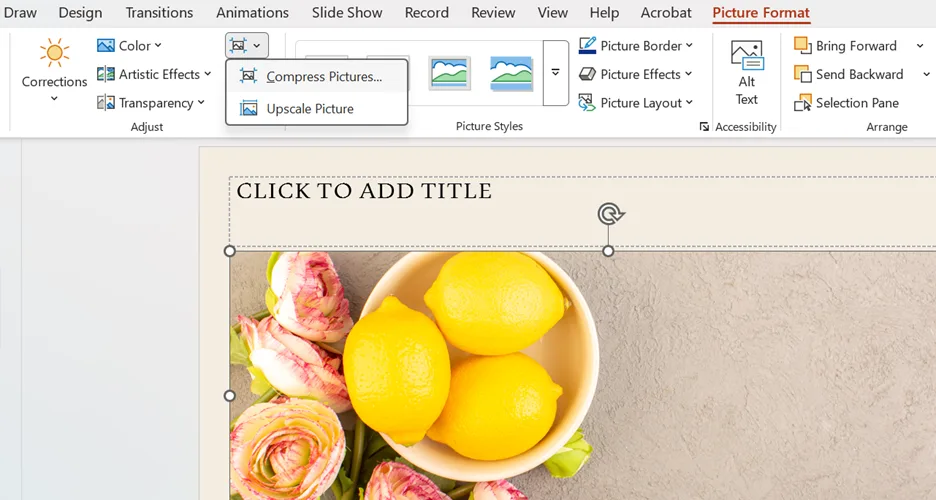
Then, in the dialog:
Clear the Apply only to this picture check box. This is the step that matters. Leaving it selected compresses one image and leaves the other ninety alone
Select Delete cropped areas of pictures. When you crop an image, PowerPoint keeps the part you cropped away in case you want it back. This throws it out
Under Resolution, choose the setting that matches how the deck will be used. Lower resolutions produce smaller files
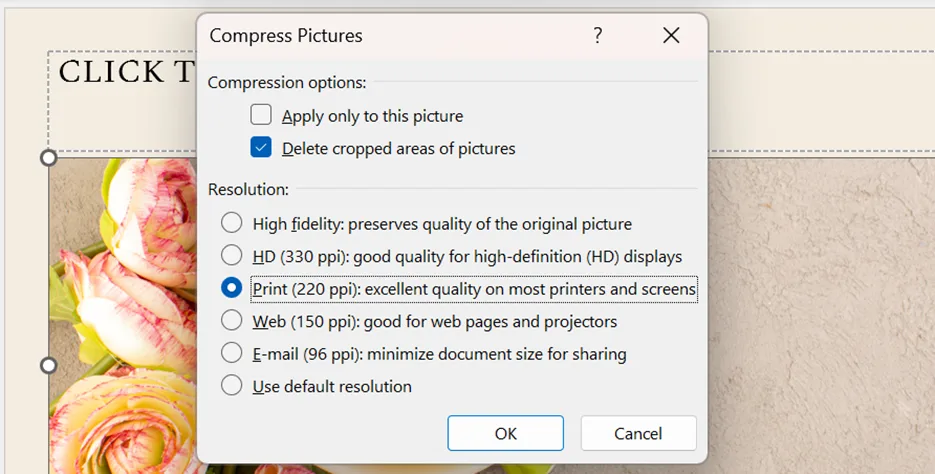
Warning: Delete cropped areas cannot be undone once the file is saved. If you might want to recrop later, keep a copy of the original deck before you do this.
Microsoft notes that compression changes are applied when you close the dialog and that you can undo them if you are unhappy with the result. It also advises compressing and saving before applying artistic effects, since compression removes detail those effects need.
Then the audio and video
Media is usually the bigger offender when it is present at all. A single embedded video can outweigh every image in the deck.
Go to File, then Info, and select Compress Media. Three settings are offered:
- Full HD (1080p), which saves space while keeping overall audio and video quality
- HD (720p), comparable to media streamed over the internet
- Standard (480p), for when space is limited, such as sending a presentation by email
Older builds label the same three settings Presentation Quality, Internet Quality and Low Quality, in that order, so if those are what you see they map across directly.
Warning. Compressing media removes embedded subtitles and alternate audio tracks. Microsoft states this directly and it is a bigger loss than the picture-quality trade, because it can make a deck inaccessible rather than merely softer. If your video is captioned, compress a copy and keep the original.
This feature is Windows only. Microsoft states that Compress Media is not available in PowerPoint for Mac or PowerPoint for the web, which is worth knowing before you spend ten minutes hunting for it.
The two settings quietly inflating every file
Both live under File, then Options, then Advanced.
Default picture resolution. Office defaults to 220 ppi. Lowering it means every picture you insert from now on is stored smaller. This does not shrink the deck you have already built, so use it alongside Compress Pictures rather than instead of it.
Discard editing data. When you edit an image, PowerPoint stores the original so the edit can be reversed. Selecting this option removes that stored data. You lose the ability to restore images to their original state and you get the space back.
The things that are not pictures
- If the deck is still too large after both passes, look at what else is in it.
- Embedded fonts. Useful when a deck has to display correctly on a machine you do not control, expensive when it does not. This is under the save options.
- Embedded spreadsheets and objects. An entire workbook pasted in as an object carries the whole workbook, not the six rows showing on the slide.
- Slides you are not using. Hidden slides and an unused slide master still occupy space.
The route that is not compression
Sometimes the answer is not to attach the file at all.
Uploading the deck to OneDrive or SharePoint and sending a link removes the size problem completely, keeps the recipient on the current version, and avoids the quality loss that compression involves. If the recipient only needs to read it rather than edit it, exporting to PDF usually produces a much smaller file and removes the risk of your fonts rendering differently on their machine.
We would rather point at those than have you degrade a deck that is going on a projector.
When not to compress
If the deck is being presented on a large screen rather than viewed on a laptop, be careful with aggressive compression. Reduced image resolution is far more visible at scale, and a logo that looks fine in the thumbnail can look rough at the front of a room.
Compress a copy, present from the original, and send the copy.
Key takeaways
- Working out how to compress a PowerPoint starts with Picture Format, then Compress Pictures, with Apply only to this picture cleared
- Delete cropped areas of pictures removes data you cannot get back, so keep an original first
- File, then Info, then Compress Media handles audio and video, exists only in PowerPoint for Windows, and strips embedded subtitles and alternate audio tracks
- File, then Options, then Advanced holds the default resolution and the discard editing data setting
- A OneDrive link or a PDF export solves the size problem without degrading anything
FAQs
Why is my PowerPoint too large to email?
Usually one embedded video, or a handful of pictures inserted at full camera resolution. Slide count is a poor predictor of file size, which is why compression works on a short deck as well as a long one.
Can I do any of this in PowerPoint on the web?
No. Compression is a desktop feature, and the media compression option is Windows only. Open the file in the desktop application to run either of them.
Will compressing damage the images permanently?
Compression removes detail, and deleting cropped areas removes the cropped data for good. The compression itself can be undone before you save, but once the file is saved and closed, work from a copy of the original if you want the quality back.
Does converting to PDF actually make it smaller?
Usually, and it also fixes font rendering on machines that do not have your fonts. The trade is that animations, transitions and embedded media do not survive, so it works for a deck being read and not for one being presented.
What is a safe resolution to choose?
Match it to the destination. A deck being emailed and read on a laptop tolerates far more compression than one going on a large screen, and the compression dialog labels its options by intended use for exactly that reason.
Finding a setting three menus deep is its own small tax on the day. Guidy reads the screen and points at the control rather than describing where it might be. Our AI assistant for work page covers where that helps most.