
How to Recover Unsaved Excel File: 4 Ways That Work
No time for long YouTube tutorials? Try Guidy and get it all done in minutes. It sits right on your screen and points you to exactly what to do in real time. And it works on any software or browser, in any language.
Try for free
Excel closed on its own, or the device restarted, or you clicked through the closing dialog too fast. Can the workbook gets restored? It depends on whether the file had ever been saved before it disappeared.
The four routes below cover both cases, and the first one costs nothing to try. Do this before anything else on your computer.
Read before you continue: If reading this how-to tutorials feels like too much for you, and you need to recover your files ASAP, here's a quicker and much easier solution to try - use Guidy. It's free to try and takes less than 1 minute to activate.
Reopen Excel and let Document Recovery run
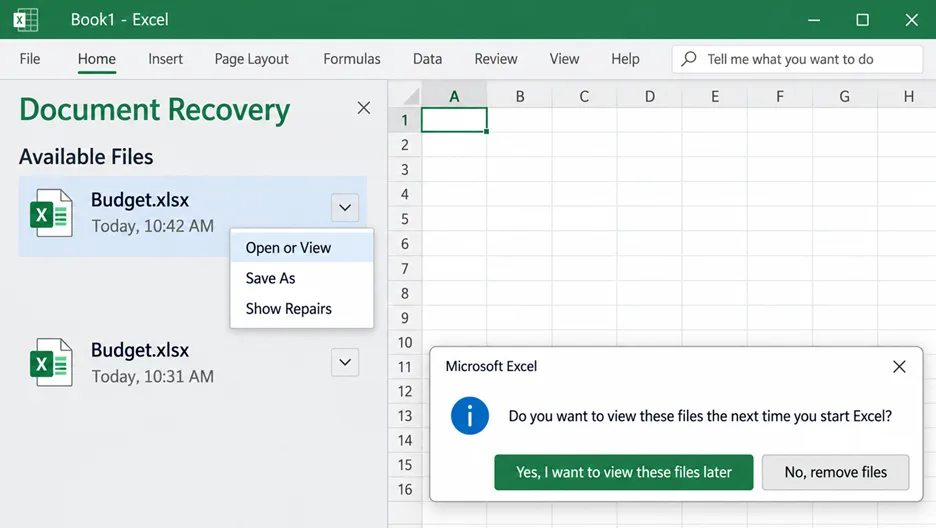
When a Microsoft 365 app closes unexpectedly before your last changes were saved, Document Recovery opens by itself the next time you start the app. Microsoft documents that the pane lists whatever it could rescue from three separate places:
- the most recent manual save,
- the most recent AutoSave if the workbook was stored on OneDrive or SharePoint, and
- the most recent AutoRecover snapshot.
Each entry has a down arrow beside it. Open or View lets you read the file before committing to it, Save As writes it somewhere permanent, and Show Repairs reports whether Excel found and fixed damage on the way in. Several versions of the same workbook may be listed together, so check the date and creation time under each name. The most recent entry will usually hold the latest changes.
When you close the pane, choose Yes, I want to view these files later if there is any doubt at all. The other option removes the recovered copies.
Recover Unsaved Workbooks, for a file you never named
This is the route for a workbook that was never saved even once, which is the situation people usually arrive with. Open Excel and go to File, then Info, then Manage Workbook, then Recover Unsaved Workbooks.
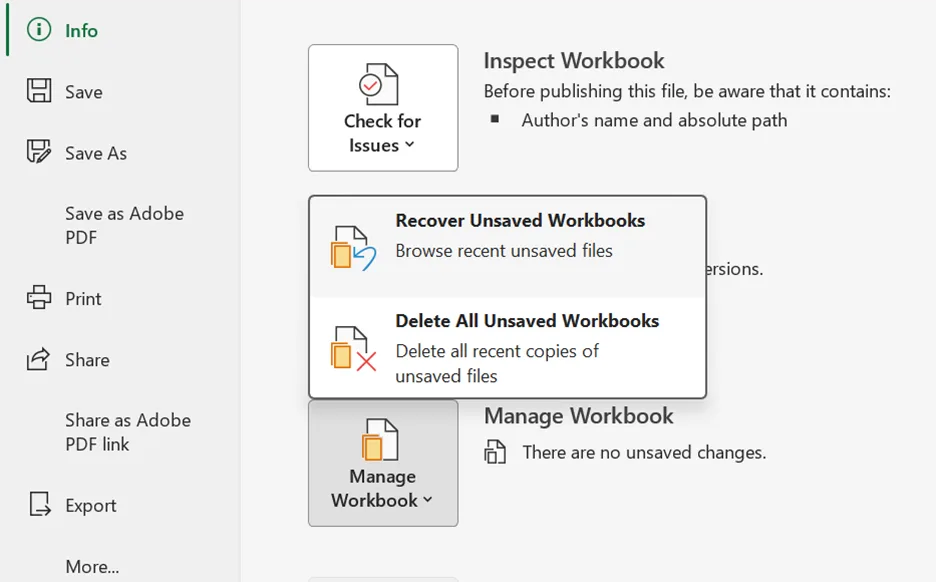
Select the file, choose Open, and then use Save As from the bar across the top to give it a real name and a location you will find again.
The names in that list will not resemble yours.
They are generated, so match on date and time instead. Microsoft's own support article writes this path as Manage Document in one place and Manage Workbook in another, on the same screen. It is the same control either way.
The copy Excel keeps when you close without saving
This is a different case, and it catches people who assume the route above covers it: the workbook had been saved at least once, you made more changes, then closed without saving them.
Open your project file, go to File, then Info, and look under Manage Workbook for an entry labeled (when I closed without saving).
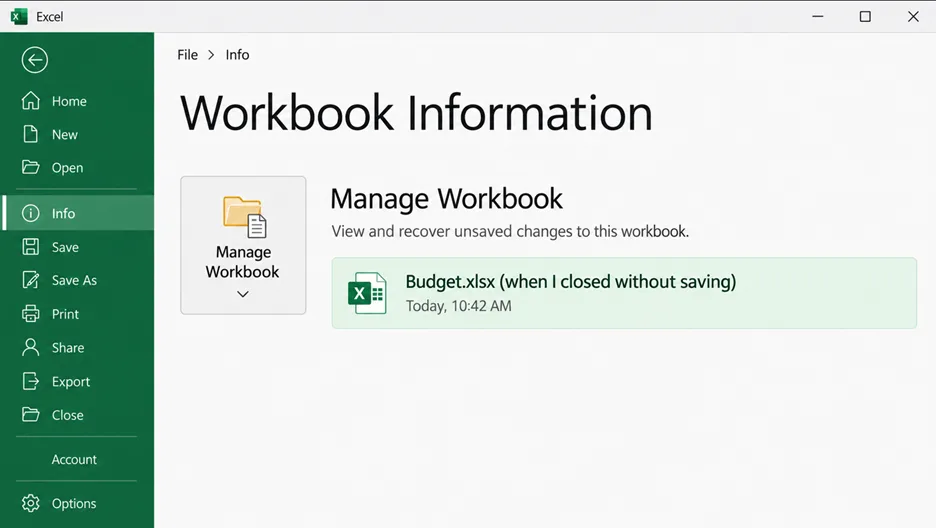
Open that entry, then select Restore in the bar across the top to replace the saved version with the recovered one.
That entry exists only if Keep the last autorecovered version if I close without saving was switched on before the workbook closed. The last section covers where to set it.
Version history, if the workbook lives in OneDrive or SharePoint
A workbook stored in OneDrive or SharePoint keeps its own version list, which is separate from AutoRecover and survives situations AutoRecover does not.
Select the file name at the top of the Excel window, choose Version History, open the version you want, and restore it.
This is why Microsoft's guidance on avoiding lost work starts with where the file is kept. A cloud workbook has a full version list behind it; a local one has whatever AutoRecover managed to write.
On a Mac
Excel for Mac has no File, then Info backstage, so the Manage Workbook route is not there, and the Word instructions people usually find do not transfer.
Let Excel try first. Microsoft documents that the application normally reopens the recovered work by itself after an unexpected shutdown. Save it before you close or edit it.
If nothing appears, go looking. In Finder select Go, then Go To Folder, or press Shift+Command+G, and enter this, replacing the username:
/Users/<username>/Library/Containers/com.microsoft.Excel/Data/Library/Application Support/Microsoft
That folder is hidden, so browsing to it will not work. It also does not match Word's, which ends in Preferences/AutoRecovery. Taking a Word path and changing the application name lands you in an empty folder, which is why so much Mac advice fails on the last step.
Two more Mac specifics: Excel does not let you change that location, unlike Word, and if you closed the workbook and clicked Don't Save, the AutoRecover copy went with it.
On Windows, make sure there is something to recover next time
AutoRecover can only return what it managed to write, so this is the part to do now rather than after the next incident. Microsoft documents that Excel for Mac does not expose the interval at all and optimizes it automatically, so what follows is Windows only.
Go to File, then Options, then Save. Confirm that Save AutoRecover information every x minutes is checked and set the interval low. Microsoft's own guidance is blunt about the arithmetic: an interval of fifteen minutes means losing up to fourteen minutes of work, and five or ten is the suggested range.
Then confirm that Keep the last autorecovered version if I close without saving is checked, because that is the box behind the third route above.
One detail most guides leave out: AutoRecover restores the workspace, not only the file. Microsoft documents that after a power failure Excel tries to reopen the workbooks you had open, laid out as they were, with the same cells selected.
Key takeaways
- Document Recovery opens on its own the next time Excel starts after an unexpected close, listing the manual save, the AutoSave copy and the AutoRecover snapshot separately
- For a workbook that was never saved, go to File, then Info, then Manage Workbook, then Recover Unsaved Workbooks, and use Save As immediately afterward
- For a workbook that was saved once and then closed without saving, look under Manage Workbook for the entry marked (when I closed without saving) and select Restore
- A file in OneDrive or SharePoint has a version history no local recovery feature matches, which is why storage location decides more than any setting
- On Windows, set the AutoRecover interval to five or ten minutes now; Excel for Mac gives no such setting and optimizes the interval itself
FAQs
Where does Excel keep unsaved workbooks?
On Windows, go to File, then Options, then Save, which shows the AutoRecover location Excel is using and lets you change it. On a Mac the folder is fixed and hidden. Microsoft documents it at /Users/<username>/Library/Containers/com.microsoft.Excel/Data/Library/Application Support/Microsoft, and Excel for Mac does not let you move it.
Why is Recover Unsaved Workbooks empty?
Because there was no snapshot to list. AutoRecover writes on an interval, so a workbook created and closed inside a single interval never produced one. The same applies if AutoRecover was switched off, or if you closed the file and confirmed that you did not want it kept.
Can I get back a workbook I saved over?
If it is in OneDrive or SharePoint, yes, through Version History. For a local workbook, Manage Workbook may help if you closed without saving, but it is not a general version history for a file you deliberately overwrote. Past that the options sit outside Excel: a system backup, or a backup copy you configured yourself.
Does Excel recover the whole workbook or only the data?
More than the data. Microsoft documents that AutoRecover also restores the workspace where it can, so several workbooks that were open together are reopened together, arranged as they were, with the same cells selected.
Is a recovered file safe to keep working in?
Not until you save it under a real name. Until then it is still a temporary file, and editing one risks losing the recovery twice over. Open it, confirm it is the version you want, then use Save As.
Recovery paths move between Excel versions, and the route in a three-year-old tutorial often points at a menu that has since been renamed. Guidy reads the window in front of you and points at the control that is actually there. Our AI for Excel page covers where that helps most, and our roundup of AI tools for Excel compares the options.