
OneDrive Sync Pending: Why It's Stuck and How to Fix It
No time for long YouTube tutorials? Try Guidy and get it all done in minutes. It sits right on your screen and points you to exactly what to do in real time. And it works on any software or browser, in any language.
Try for free
Sync pending means an item has not finished synchronizing yet. That is a normal state, and on a big first sync it can persist for a long time without anything being wrong. It becomes a problem when it never clears, and there are several possible reasons rather than one.
The same fixes apply when OneDrive is not syncing at all, since most OneDrive sync issues come down to the same short list of causes. They run from safest to most involved, and there is no need to go further down the list than the point where syncing resumes. None of them removes anything from your OneDrive, though one step asks you to delete a local folder after copying its contents.
What sync pending actually means
The status says an item has not completed synchronization. It does not say why, and that is the reason a single fix does not exist. The item may still be waiting to sync, it may be in use by an application, it may contain something OneDrive cannot handle, or the sync client itself may be in a bad state.
The distinction that matters: pending for a while during a large upload is normal, pending on a small file with nothing else transferring is not. If the status has not moved and nothing is uploading or downloading, treat it as stuck rather than queued.
Empty folders will also show sync pending until you put a file into them, which is expected rather than a fault.
If OneDrive is not syncing at all
Before working through the list, rule out four things that stop syncing entirely rather than stalling one item. Each takes seconds.
- OneDrive is not running. Look for the icon in the notification area on Windows or the menu bar on a Mac. If it is absent, open OneDrive from the Start menu or Applications and let it start.
- Syncing is paused. Open OneDrive and check whether it says paused. Battery saver and metered connections can pause it automatically.
- You are signed out. OneDrive will sit doing nothing after a password change or an expired work account. Open it and check whether it is asking you to sign in.
- The folder is not selected. In OneDrive settings, under the account tab, check that the folder you are watching is actually included in your sync choices.
If all four are fine and only some items are stuck, the rest of this article applies.
1. Pause syncing and resume it
The single highest-yield fix, and the one to try before anything else.
Select the OneDrive icon in the notification area, open Help & Settings or the settings gear.

Then, select Pause syncing, choosing any duration.
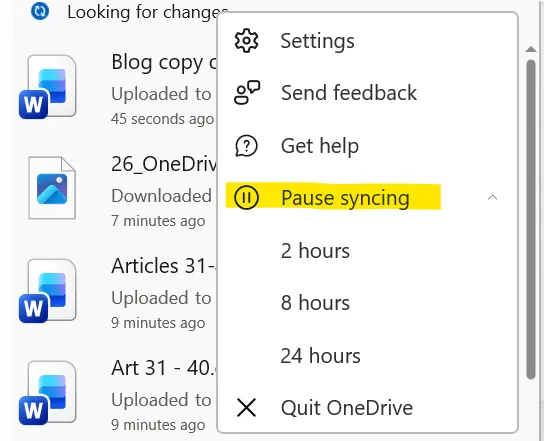
Wait about thirty seconds, then select Resume syncing. This is also the simplest way to force OneDrive to sync when it appears to be sitting idle.
This restarts synchronization and gives a stalled item a fresh attempt, which is often enough when the cause was transient. It costs nothing and takes under a minute, which is why it is first.
2. Check whether the file is open somewhere
OneDrive and Office are designed to sync and coauthor documents while they are open, so an open file is not automatically the problem. What does stall is a file locked by an application, and temporary files that are still in use are the case Microsoft documents specifically.
Close every Office application completely, not just the document window, and check whether the pending status clears. If you are on a shared machine or a remote session, the file may be locked from another session entirely.
3. Check the obvious blockers
Four common blockers, and all are quick to check.
- Storage is full. Open OneDrive on the web and check your quota. A full account stops uploads immediately, and the client does not always make the reason obvious.
- The file is too large. OneDrive enforces an upload size limit, and an item above it cannot sync at all. Compress or split it, or transfer it another way.
- The file name is unsupported. Certain characters are not allowed, and there is a limit on total path length. A deeply nested folder structure with long names will exceed it.
- Sync is paused automatically. In OneDrive settings, check whether syncing is set to stop on a metered network or when battery saver is on. Both are easy to trip without noticing.
4. Look for a hidden file causing it
This is the fix for the case where the folder shows pending but you cannot see anything in it that would explain why.
Turn on hidden files in File Explorer under the View menu. Temporary files, usually with a .tmp extension, are a frequent cause and are invisible by default.
Microsoft's own guidance for a stuck temporary file is either to upload it manually through onedrive.com, or to rename it with a different extension so the sync client treats it as an ordinary file.
5. Move the contents to a new folder
A blunt fix that works when a specific folder refuses to clear, and it is Microsoft's documented workaround.
- Create a new folder alongside the stuck one.
- Copy all the files from the pending folder into the new folder.
- Delete the original pending folder.
The new folder syncs as fresh content with no inherited queue state. Copy rather than move, and confirm the new folder has finished syncing before deleting anything.
6. Clear the Office document cache
If the OneDrive icon itself is stuck on sync pending rather than an individual file, this is Microsoft's specific recommendation, and it is easy to miss because it has nothing to do with OneDrive settings.
The Office document cache tracks Office files separately and can conflict with OneDrive's own state. Close all Office applications, then clear the cache through the Office Upload Center or the Office file cache folder in your local application data.
This affects only temporary tracking data. Your documents are not touched.
7. Reset the OneDrive client
The reset rebuilds OneDrive's local database and re-downloads the file list. It does not delete files, though it will re-sync everything, which takes time on a large account.
On Windows, Microsoft's procedure has two stages, and the first one is the step most guides skip.
- Press Windows key + R, type wsreset.exe, and select OK. A blank command window opens and closes, then the Microsoft Store opens. Both can be ignored and closed. If OneDrive syncs again after this, stop here.
- If it does not, press Windows key + R again and run %localappdata%\Microsoft\OneDrive\onedrive.exe /reset
- If Windows reports that it cannot find the file, run C:\Program Files\Microsoft OneDrive\onedrive.exe /reset instead.
- If that also fails, run C:\Program Files (x86)\Microsoft OneDrive\onedrive.exe /reset. If none of the three work, the OneDrive sync app is not installed on that machine.
- Restart OneDrive yourself. It does not always come back on its own. Open Start, type OneDrive, and select the OneDrive desktop app.
On a Mac, quit OneDrive, then in the Applications folder control-click OneDrive, choose Show Package Contents, open Contents, then Resources, and run ResetOneDriveApp.command. If you installed the standalone version, run ResetOneDriveAppStandalone.command instead. Then start OneDrive and complete setup, selecting your existing OneDrive folder location so files are not downloaded again.
Expect a full re-scan afterward, and note that a reset returns your choose-folders selection to the default, so any folders you had excluded need excluding again.
8. Unlink and relink the account
The most thorough option short of reinstalling, and it re-authenticates as well as rebuilding the cache.
Open OneDrive Settings, go to the Account tab, and select Unlink this PC. Then sign in again and run through setup, choosing which folders to sync.
Unlinking does not delete anything from your OneDrive. Files already downloaded to your machine stay where they are, and files that were online-only remain in OneDrive and become available again once you relink. Allow a substantial initial sync afterward.
When to stop and ask for help
If you are on a work or school account and the reset and relink both fail, stop. Organization-level restrictions on file types, required metadata on a SharePoint library, or conditional access policies can block uploads in ways no local fix will resolve, and continuing to reinstall will not help. That is the point to raise it with IT.
A note on settings that move
Several fixes above depend on finding a setting inside the OneDrive client, and Microsoft has reorganized that interface more than once. Guidy reads the window you have open and points at the actual control rather than describing a menu that may have moved, which is the same problem across most of the software people use daily. Our AI for administrative tasks page covers how that works in practice.
Key takeaways
Sync pending means an item has not finished synchronizing. It has several possible causes and is only a problem when nothing is transferring and the status never changes.
Pausing and resuming syncing restarts synchronization and gives a stalled item a fresh attempt. Try it first, because it costs nothing.
Office files can sync while open, so an open document is not automatically the cause. A locked file or a temporary file still in use is, so close Office completely and re-check.
Hidden temporary files are a common invisible cause. Turn on hidden files in File Explorer before concluding the folder is empty.
Neither resetting the client nor unlinking removes anything from your OneDrive, but both trigger a full re-sync, and a reset also returns your folder selection to the default. If sync pending never clears after all of this, the next possibility is an account, organization-policy, or service-side issue, so escalate rather than keep changing local settings.
FAQs
Does resetting OneDrive delete my files?
No. A reset rebuilds the local sync database and re-establishes the connection, then re-downloads the file list from the cloud. Your files stay in OneDrive online and in your local folder. What it costs you is time, because everything is re-scanned afterward.
What does sync pending mean in OneDrive?
It means the item has not finished synchronizing yet, and nothing more specific than that. It does not tell you the cause. On an ordinary file with a working connection it should clear in seconds to a few minutes, and on a first sync of a large account hours is normal. The signal that something is wrong is not elapsed time by itself, but a status that never changes while nothing at all is transferring.
Why does one file stay pending while everything else syncs?
Usually because that specific item cannot be processed rather than because it is waiting: it is locked by an application, exceeds the size limit, contains an unsupported character in its name, or sits at a path that is too long. Check those four before assuming the client is faulty.
How do I force OneDrive to sync immediately?
Pause syncing and then resume it. That restarts synchronization and gives anything stalled a fresh attempt, and it is the closest thing OneDrive has to a sync now button. If that does not move it, closing and reopening OneDrive from the Start menu is the next step, and the reset described above is the one after that.
Why is my OneDrive not syncing?
Start with the four things that stop syncing altogether rather than stalling one item: OneDrive is not running, syncing is paused, you are signed out after a password change, or the folder is not included in your sync choices. Battery saver and metered connections can pause it without telling you. If all four are fine and only some items are stuck, the cause is item-specific, and a locked file, an oversized file, an unsupported character, or an over-long path account for most of those.