
How to Recover an Unsaved Word Document
No time for long YouTube tutorials? Try Guidy and get it all done in minutes. It sits right on your screen and points you to exactly what to do in real time. And it works on any software or browser, in any language.
Try for free
The document was open for two hours. Then Word closed, or the laptop restarted, or you clicked the wrong button on the way out. If you need to recover an unsaved Word document, work through the routes below in order, because the easiest one succeeds often enough to be worth trying first.
Do this before you do anything else on the machine. Recovery files are temporary by design.
Start with the list Word keeps for you
Open Word and go to File, then Info, then Manage Document, then Recover Unsaved Documents.
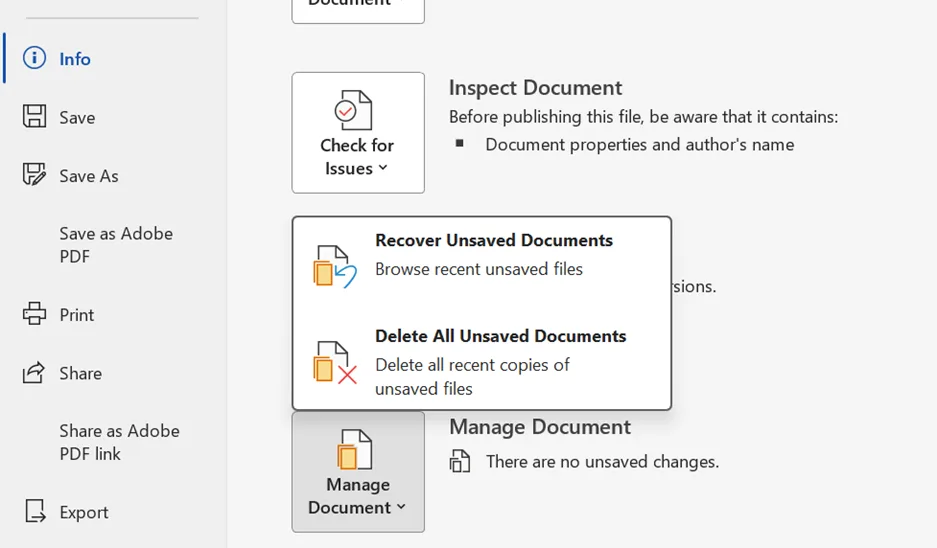
A list opens. Look for something matching the date and time you were working, which may carry a generic name rather than yours. Select it, choose Open, and then immediately go to File and Save As to put it somewhere you will find again.
Warning. Do not keep editing a recovered file before you save it under a real name. It is still a temporary file until you do.
Let Word offer it to you
Word looks for recovery files every time it starts, so closing Word completely and reopening it is worth one attempt on its own.
If it finds anything, the Document Recovery pane opens down the left side. Microsoft notes that the missing document is usually listed with its name followed by a marker such as Original. Open it, then save it under a new name.
Search the folders yourself, on Windows
If neither route surfaced the file, look in the two locations Microsoft documents for Microsoft 365 subscribers. Replace <UserName> with your own account name:
Paste either into the address bar in File Explorer. The first holds recovery snapshots of documents that were saved at least once. The second holds documents that were never named or saved at all, which is the harder case and the one people usually need.
To open what you find, go to File, then Open, then Browse, set the file type list to All Files, and open the .asd file matching the time you were working.
The backup file most people never look for
Word can keep a separate backup copy with a .wbk extension. It is a different mechanism from AutoRecover and it survives some situations AutoRecover does not.
Select Start, type .wbk, and press Enter. Anything named "Backup of" followed by your document name is worth opening.
On a Mac
Word for Mac does not have the Windows backstage, so the Manage Document route above is not there. The Mac process differs in three ways.
- Let Word try first.
After an unexpected shutdown, Word normally attempts recovery on its own the next time it starts. Open Word and look before you go hunting through folders.
- Find your own AutoRecover location rather than trusting a path from an article.
Go to Word, then Preferences, then File Locations, and read the AutoRecover files entry. That is the folder Word is actually writing to on your machine, and it is where you change it. Note that Preferences, then Save holds the save frequency rather than the location, which is the mix-up that sends people to the wrong pane.
- Open it through Go to Folder.
The AutoRecovery folder is hidden, so it will not appear by browsing. In Finder, select Go, then Go to Folder, or press Shift+Command+G, then paste the path from File Locations.
One more Mac specific. If you closed the file and clicked Don't Save, the AutoRecover file was deleted on the spot, because Office treats that click as confirmation you meant it.
When none of it works
Sometimes there is nothing to find. If the document was never saved, AutoRecover was switched off, and no backup file exists, Microsoft's own guidance runs out at that point. What remains is outside Word: the Recycle Bin if the file existed and was deleted, OneDrive version history if it lived in a synced folder, or a system backup.
We would rather say that plainly than send you through recovery tools that promise more than they deliver.
Setting it up so this does not happen twice
Two changes, both worth making now. Set the AutoRecover interval to five minutes or less, which Microsoft recommends directly. And leave AutoSave on for anything stored in OneDrive or SharePoint, because for cloud files it replaces this entire process with version history.
Knowing a recovery path exists is not the same as finding it under pressure. Guidy reads what is on your screen and points at the next click, which is useful precisely when you are too rattled to hunt through menus. Our AI assistant for work page covers where that helps most.
Key takeaways
- To recover an unsaved Word document, try File, then Info, then Manage Document, then Recover Unsaved Documents before anything else
- Restarting Word triggers a fresh search for recovery files and can surface the Document Recovery pane on its own
- Windows keeps two folders: AppData\Roaming\Microsoft\Word for saved documents and AppData\Local\Microsoft\Office\UnsavedFiles for those never saved
- A separate .wbk backup file may exist even when AutoRecover has nothing, and searching .wbk from Start finds it
- Clicking Don't Save on a Mac deletes the AutoRecover file immediately, so there is nothing to come back for
FAQs
How long does Word keep files that were never saved?
Not indefinitely. These are temporary files that get cleared over time and by system maintenance, which is why the first hour after losing a document matters more than the first day. Save anything you recover under a real name straight away.
What is the difference between AutoSave and AutoRecover?
AutoSave writes your changes continuously to a file stored in OneDrive, OneDrive for Business or SharePoint Online. AutoRecover periodically writes a separate recovery copy for files on a local disk or network share. Microsoft recommends leaving both on, and they cover different situations.
Can I get back a version from before my last save?
If the file is in OneDrive or SharePoint, yes. Select the filename at the top of the window, choose Version History, and open the version you want. For files on a local drive there is no version history, which is the strongest practical argument for keeping working documents in a synced folder.
Does this work the same in Word 2019 or 2021?
The in-application route is the same across recent versions. The folder locations Microsoft documents apply to Microsoft 365 subscribers specifically, so on a perpetual license check the location shown under File, then Options, then Save rather than assuming.
Why is the folder empty when I open it?
Usually because the document was never saved and AutoRecover was off, or because the file was closed with Don't Save. On a Mac that deletes the recovery copy outright. On Windows the outcome depends on a setting under File, then Options, then Save, that keeps the last recovered version when you close without saving, so check whether that was switched on. An empty folder is a real answer rather than a sign you typed the path wrong.