
Teams Microphone Not Working? Every Fix That Works
No time for long YouTube tutorials? Try Guidy and get it all done in minutes. It sits right on your screen and points you to exactly what to do in real time. And it works on any software or browser, in any language.
Try for free
When nobody can hear you in Microsoft Teams, the cause is usually something standing between the microphone and Teams rather than a fault in the microphone itself: a mute you cannot see, a Windows permission, the wrong input device selected, or another application holding the microphone. The fixes below run from quickest to check to most involved, so work down the list and stop when your voice comes back.
First, find out whether Teams can hear you at all
Before changing anything, establish whether the problem is your machine or the meeting you are in.
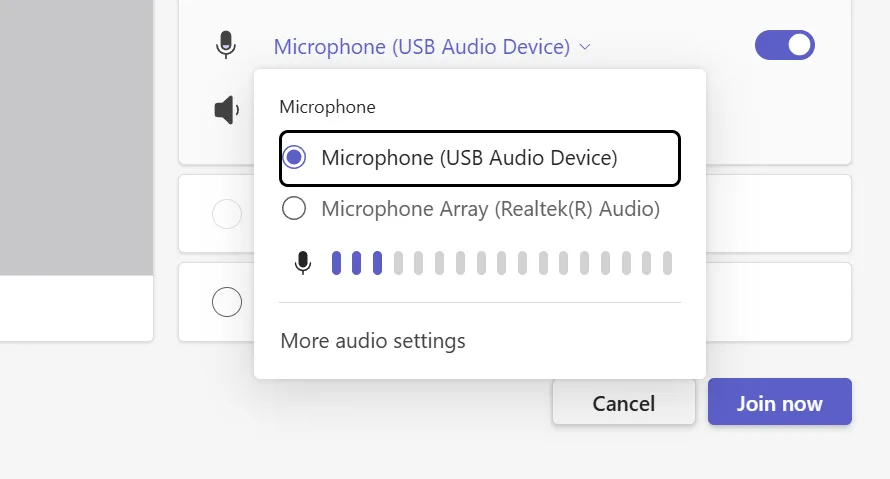
In Teams, select Settings and more, then Settings, then Devices. Under Audio settings, speak and watch the microphone input indicator. If it moves, Teams is receiving audio, which points toward a meeting-level setting or policy, so check fix 6 next.
If it does not move, start with the device and permission checks in fixes 1 through 5.
Teams also has a Make a test call option on that same Devices screen, which records a short message and plays it back to you. That is the more thorough check if the indicator is ambiguous.
1. Check the mute you cannot see
Three separate mutes exist and any one of them silences you completely.
The hardware mute. Many headsets mute when the boom arm is rotated up and away from your mouth. External microphones and many USB headsets also have a physical mute button or inline switch. Check both before anything else, because it takes seconds and rules out a whole category.
The Teams mute. The microphone button in the meeting toolbar.
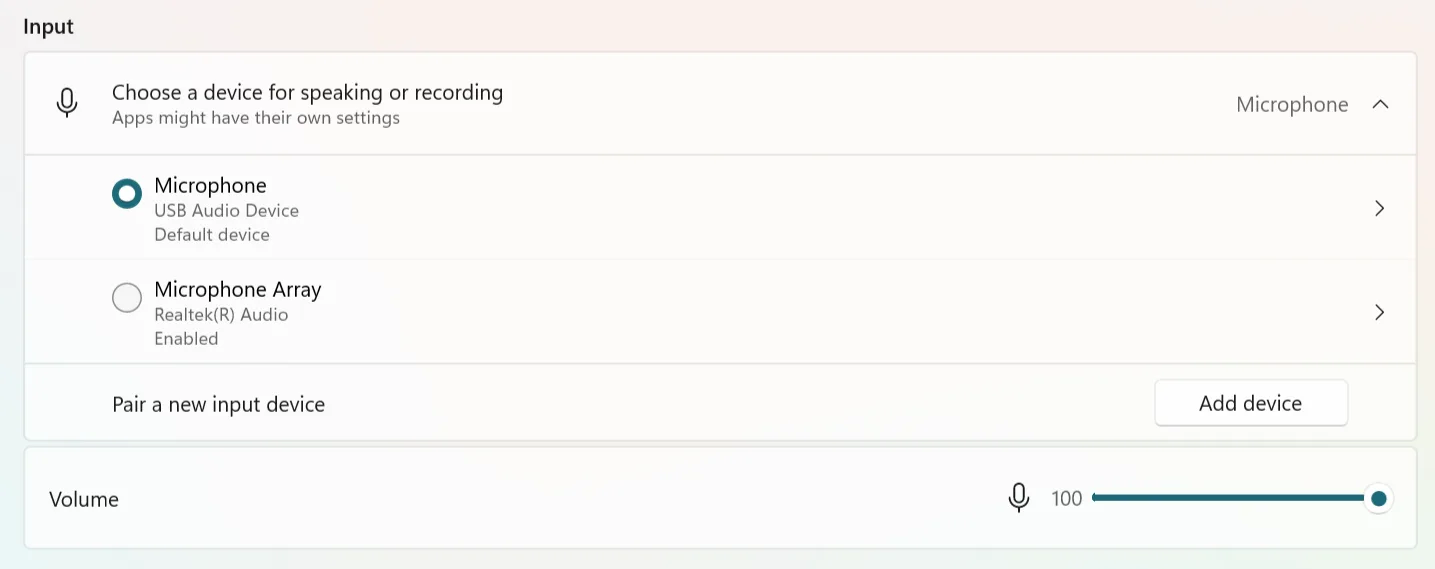
The Windows mute. Open Settings, then System, then Sound, and check that the input device volume is not at zero or muted.
2. Grant microphone permission in Windows
Windows blocks microphone access at several levels, and all of them must be on. This is the place to look when the input indicator does not move at all.
- Press Windows key + I to open Settings.
- Go to Privacy & security, then under App permissions select Microphone.
- Turn on Microphone access.
- Turn on Let apps access your microphone.
- Turn on Microsoft Teams (work or school) in the list.
- Turn on Let desktop apps access your microphone.
If every toggle was already on, turn them off, wait a moment, and turn them back on again. Settings sometimes fail to apply until they change state. Then close all applications and restart the machine.
Note that the current Teams app is a packaged application with its own entry in the app list, so it is not necessarily covered by the desktop apps toggle. Check both.
On a Mac, open System Settings, then Privacy & Security, then Microphone, and enable Teams.
3. Select the right microphone in Teams
Teams picks a default device and frequently picks the wrong one, particularly after a headset is unplugged and reconnected.
Go to Settings, then Devices, and open the Microphone dropdown under Audio settings. Choose the device you are actually speaking into rather than leaving it on the default. Laptop built-in microphones and headset microphones are listed separately, and Bluetooth headsets often appear twice under different profiles.
4. Enable the microphone in Windows sound settings
If your microphone does not appear in the Teams dropdown at all, Windows may have it disabled.
Open Settings, then System, then Sound, then More sound settings. In the dialog that opens, go to the Recording tab. If your microphone is listed as disabled, right-click it and select Enable, then right-click again and select Set as Default Device.
You can reach the same dialog directly by pressing Windows key + R and running mmsys.cpl.
5. Close whatever else is using the microphone
Windows normally lets applications share a microphone, so having Zoom open is not automatically a problem. What does block Teams is an application using exclusive mode, which takes sole control of the audio endpoint, or a driver conflict between two applications competing for the same device.
Because you cannot easily tell from the outside which is happening, closing the others is a fast diagnostic. Close every other application that could be using audio, including browser tabs with meeting or recording pages open, then restart Teams entirely rather than just returning to the meeting.
6. Check you have not been muted at the meeting level
If Teams shows your input working but participants still cannot hear you, that points toward a meeting-level setting or policy, so check those next.
Organizers can mute participants, and some meetings are configured so attendees join muted and cannot unmute themselves. If your microphone button is unavailable rather than simply switched off, that is a meeting policy and the organizer is the only person who can change it.
7. Restart Teams properly
Closing the Teams window may leave Teams running in the background, depending on your version and settings. Quit it fully from the system tray, or end the process in Task Manager, then reopen it. Intermittent audio faults often clear here and go no further.
8. Repair or reset the Teams app
If Teams does not appear in the Windows microphone permission list at all, a repair is worth trying, though absence from that list does not by itself prove the installation is damaged, since desktop apps do not always appear individually there.
Open Settings, then Apps, then Installed apps. Find Microsoft Teams, open Advanced options, and select Repair. Repair preserves your data. If that does not work, select Reset, which clears app data and requires you to sign in again.
9. Test in Teams on the web
Open teams.microsoft.com in a browser and join or start a meeting. If your microphone works there but not in the desktop application, the fault is the installed app and step 8 is your route. If it fails in both, the fault is at the Windows or hardware level.
In the browser, you may also need to allow microphone access for the site itself, under the browser's site permissions.
10. Update or reinstall the audio driver
The last resort, and genuinely the fix in a small number of cases, particularly after a Windows update.
Open Device Manager, expand Audio inputs and outputs, right-click your microphone, and select Update driver. If that reports no change, select Uninstall device and restart, and Windows reinstalls a working driver on boot.
A note on hunting through settings menus
Nine of the ten fixes above are a setting in a place you would not think to look, spread across three different Settings sections and one dialog that has not changed since Windows 7. That is the actual problem, and it is not specific to Teams. Guidy reads the window you have open and points at the control on your screen instead of describing a menu path that may not match your build. It works the same way across the other software in your day, which is covered on our AI for administrative tasks page.
Key takeaways
- Check the headset boom position and any physical mute switch first. It takes five seconds and rules out a whole category.
- Windows microphone permission has four separate toggles under Settings > Privacy & security > Microphone, and all four must be on.
- The current Teams app is a packaged app with its own permission entry, so the desktop apps toggle does not necessarily cover it.
- If the microphone is missing from the Teams dropdown, enable it under Settings > System > Sound > More sound settings > Recording.
- If your input indicator moves but nobody hears you, check meeting-level mute settings and policies next.
FAQs
Why can people hear me in Zoom but not in Teams?
Because permissions and device selection are set per application. Teams needs its own entry enabled in Windows microphone settings and its own device selected in Teams settings. Zoom working is a useful signal, but only tells you about the hardware if both applications are set to the same physical microphone, so check the device selected in each before drawing a conclusion.
Why does my microphone work in Teams settings but not in a meeting?
That combination strongly suggests you are muted somewhere inside the meeting rather than blocked at the device level. Check the meeting toolbar, and check whether the organizer has muted attendees. If the microphone control is unavailable rather than switched off, it is a meeting policy.
Does clearing the Teams cache fix microphone problems?
Occasionally, though repairing the app from Windows Settings is the better first move because it is reversible and does not require finding a folder path. Note that most cache guides online give the path for classic Teams, which stopped working in July 2025, so following them does nothing on the current app.
Why does my Bluetooth headset sound poor on Teams calls?
Bluetooth headsets switch between a high quality listening mode and a lower quality mode that supports the microphone. Using the microphone forces the lower quality mode, so audio quality drops as soon as you join a call. That is expected behavior for the protocol rather than a Teams fault, and a wired headset or a dedicated dongle avoids it.
What should I do if none of these fixes work?
Test the microphone in a completely different application, such as Windows Sound Recorder. If it fails there too, that points at the hardware or the driver rather than at Teams. If it works there but not in Teams after a repair and reset, that is the point to raise it with your IT team, who can check for organization-level device policies.