
Where Is Control Panel in Windows 11? 5 Ways to Open It
No time for long YouTube tutorials? Try Guidy and get it all done in minutes. It sits right on your screen and points you to exactly what to do in real time. And it works on any software or browser, in any language.
Try for free
If you searched Control Panel Windows 11 because the old route disappeared, the good news is that it is still included, although Microsoft continues moving settings into the Settings app and points people there first.
What changed is that Microsoft stopped putting it anywhere obvious and moved the Settings app into every place you used to find it. The program itself is still sitting at C:\Windows\System32\control.exe exactly where it has been for years. Below are five reliable ways to open it, plus the reason your usual route stopped working.
Where Control Panel is in Windows 11
There is no Control Panel tile on the Start menu, no entry in the right-click menu on the Start button, and no shortcut on the desktop by default. It is a classic desktop program with no fixed home in the new interface, which is why every method below is a way of launching it rather than a place to find it.
The important consequence: once you open it, pin it, or you will be back here next month. The last section covers that.
1. Search for it from the Start menu
The fastest route on a working machine.
- Press the Windows key, or select the search box on the taskbar.
- Type control panel.
- Select Control Panel from the results.
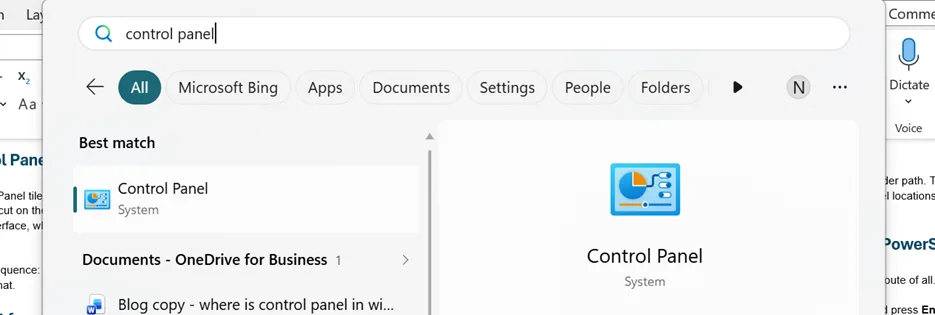
This is the method to use if you only need it once. It is also the method that fails first when Windows Search is having a bad day, which is why the next one matters.
2. Open it with the Run box
The most reliable route, and the one to memorize.
- Press Windows key + R.
- Type control.
- Press Enter.
Just control, not "control panel" and not the full file path. This is the Control Panel shortcut worth committing to memory, because it is the same three keystrokes on every Windows machine you will ever touch. This works whether or not Windows Search is indexing, which makes it the fallback when the machine is misbehaving badly enough that you needed Control Panel in the first place.
3. Open it from File Explorer
Useful when you already have a folder window open.
- Press Windows key + E to open File Explorer.
- Select the address bar at the top.
- Type Control Panel and press Enter.
The address bar accepts it as a location, the same way it accepts a folder path. There is also a chevron at the left of the address bar that expands into a list of top-level locations including Control Panel, which saves typing.
4. Open it from Terminal, Command Prompt, or PowerShell
For anyone who already works in a command line, this is the shortest route of all.
Open Terminal, Command Prompt, or PowerShell, type control, and press Enter. The command is identical in all three, and it is the same word that works in the Run box.
5. Open it from Task Manager
The route that still works when the graphical shell is the thing that has broken.
- Press Ctrl + Shift + Esc to open Task Manager.
- Select Run new task.
- Type control.exe and press Enter.
This works when Explorer has crashed and the taskbar and Start menu have disappeared, which is exactly the scenario where you often do need Control Panel.
Why your usual route stopped working
If you came to Windows 11 from Windows 10 and cannot find Control Panel, the reason is that the shortcuts you used are not where they were. There is no Start menu tile, no desktop shortcut, and the places you would look first now offer Settings instead.
This is the pattern across the whole operating system. Microsoft has been migrating settings out of Control Panel and into Settings for several releases. Some have fully moved, some exist in both, and a few remain only in Control Panel. Settings pages often carry a Related options or similar link at the bottom that opens the corresponding Control Panel page, which is Microsoft acknowledging the split rather than resolving it.
Pin it so you stop hunting for it
If you open Control Panel more than once a year, spend fifteen seconds on this.
Search for control panel from the Start menu, right-click the Control Panel result, and select Pin to Start or Pin to taskbar.
For a desktop shortcut instead, right-click an empty area of the desktop, select New, then Shortcut, enter %windir%\System32\control.exe as the location, select Next, name it Control Panel, and select Finish. The %windir% variable resolves to your Windows folder, which avoids hard-coding a drive letter that may not be C on every machine.
A note on settings that keep moving
Control Panel is one instance of a broader problem. Settings migrate between Windows releases, between Outlook versions, between Office builds, and the instructions you find online were written for whichever version the author had open.
That is the gap Guidy is built for: it reads the window actually on your screen and points at the real control in front of you, rather than describing a menu that may have moved two releases ago. The same applies across the other software you use daily, which is covered on our AI assistant for work page.
Key takeaways
- Control Panel still ships with Windows 11 as C:\Windows\System32\control.exe. It has no default tile, shortcut, or menu entry.
- The most reliable route is Windows key + R, then control, then Enter. It works without Windows Search.
- Ctrl + Shift + Esc, then Run new task, then control.exe works when Explorer has crashed and the taskbar is gone.
- Windows 11 offers Settings in most of the places you would previously have reached Control Panel, which is why the old habit fails.
- Pin it to Start or the taskbar from the search result, or make a desktop shortcut to %windir%\System32\control.exe.
FAQs
Does Windows 11 still have the Control Panel?
Yes. It ships with every Windows 11 installation and the executable sits in the System32 folder. Microsoft has been moving individual settings into the Settings app over successive releases, and some now live in both places, but the Control Panel program itself is present and functional.
What is the Run command for Control Panel?
Press Windows key + R, type control, and press Enter. The single word is enough. The same command works in Command Prompt, PowerShell, and Windows Terminal, and control.exe works in the Task Manager Run new task box.
Why does Control Panel not appear when I search for it?
A Windows Search problem is one possibility, and a managed-device policy restricting Control Panel is another. Either way, use Windows key + R, then control, which does not depend on search at all. If search is failing for other things too, that is the underlying fault worth fixing, and Control Panel is only the symptom that made you notice.
What is the difference between Control Panel and the Settings app?
Settings is the modern interface and holds most of what a typical user needs. Control Panel is the older interface and still holds a set of tools that were never rebuilt, along with several that exist in both. In practice you use Settings first and fall back to Control Panel for the older device, network, and administrative tools.
Can I open one Control Panel page directly?
Yes. Control Panel pages have their own commands you can run from the Run box, which saves navigating the front screen. Rather than memorizing a list, the practical habit is to pin Control Panel itself and use its search field once it is open, since that finds the page by name.