
Where Is Slide Master in PowerPoint?
No time for long YouTube tutorials? Try Guidy and get it all done in minutes. It sits right on your screen and points you to exactly what to do in real time. And it works on any software or browser, in any language.
Try for free
You have thirty slides and the logo sits two millimeters too far left on every one of them. Fixing that slide by slide is an hour you will not get back. The answer to where is Slide Master in PowerPoint matters because it is the one screen where you change all thirty at once.
It is not hidden. It is just not where most people look, because it lives under a tab nobody opens by accident.
Where the slide master actually sits
Go to the View tab, then select Slide Master. On the ribbon it sits in the Master Views group, alongside Handout Master and Notes Master.
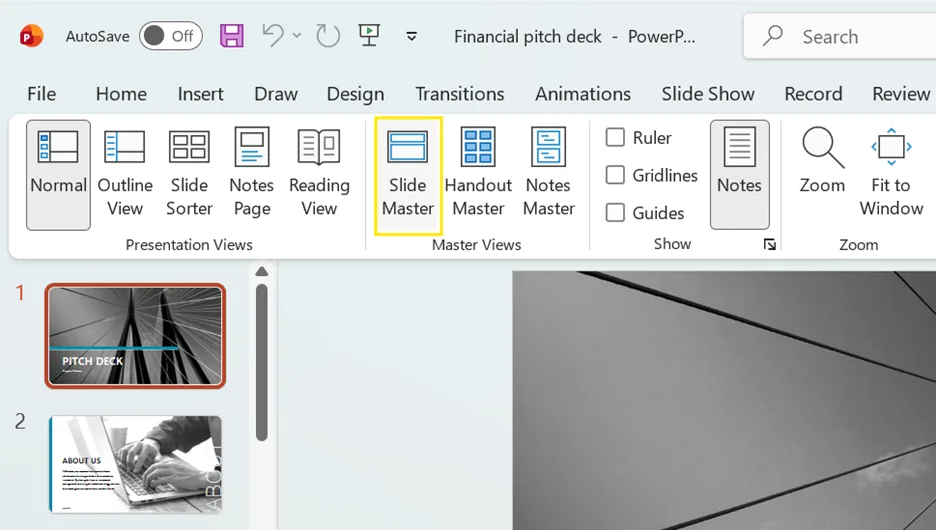
That path is the same on Windows and on Mac, and it is the same in Microsoft 365, PowerPoint 2024, 2021, 2019 and 2016. There is no separate Mac route to learn. Whether you call it opening Slide Master, accessing it or getting to it, the View tab is the only route, and what opens is called Slide Master view.
What is a slide master in PowerPoint?
A slide master is the top-level slide that holds the design for the whole deck: the theme, the fonts, the background and the position of every placeholder. The PowerPoint slide master sits above a set of layouts, and each layout inherits from it.
Change something on the master and the change reaches every slide built on it. That is the whole point of the feature, and it is why the master lives in a separate view rather than in a settings dialog.
What you are looking at once it opens
The pane on the left changes. The slide at the top of that pane, the larger one, is the slide master itself. The smaller slides indented underneath it are the layout masters, one for each layout you can pick when you add a new slide.
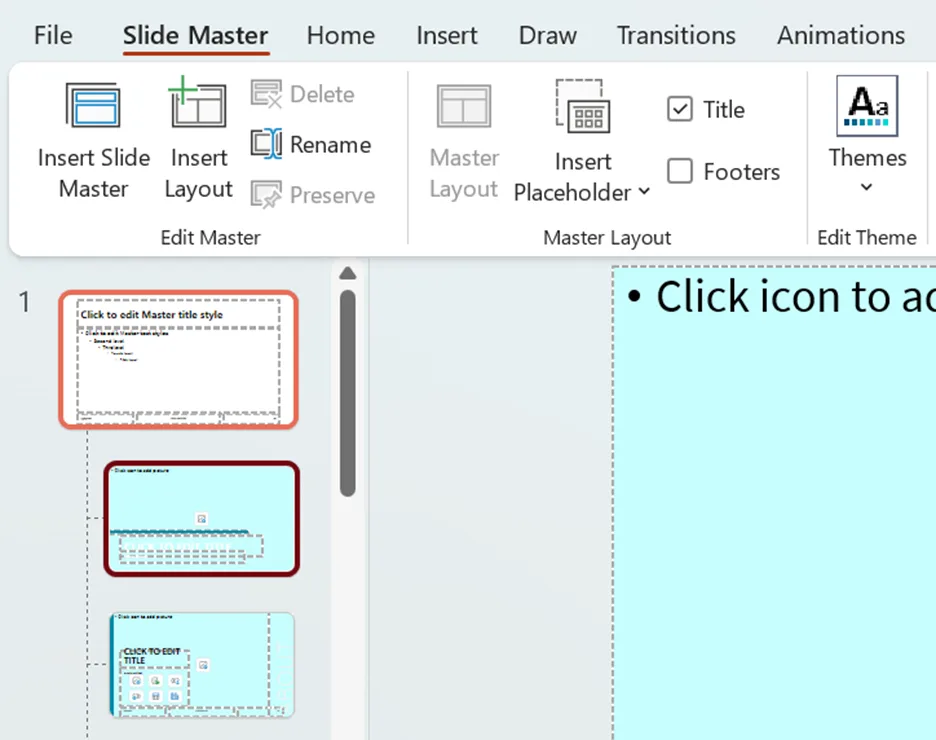
This distinction is the whole feature, and it is where most confusion starts. The master controls what every layout inherits. Each layout controls only the slides built on that layout.
Tip. If you want a logo on every slide without exception, put it on the master. If you want it on title slides only, put it on the title layout instead.
How to Edit the Slide Master in PowerPoint
Select the top slide, make your change, and it flows down. Microsoft's own guidance is that most of the edits you will actually want are on the layout masters rather than the master itself, and that matches what happens in practice: fonts and logos belong on the master, placeholder positions usually belong on a layout.
There is a real advantage to working here beyond speed. Microsoft notes that what you build on the master and its layouts is not exposed for editing in Normal view, so a colleague working there does not accidentally delete or change it.
How to get back out
On the Slide Master tab, select Close Master View. That is how you exit Slide Master view, and leaving it is the same action on Windows and on Mac. You land back in Normal view.
People get stuck here more than they admit. The exit is on the Slide Master tab itself, not on the View tab you came in from.
Why you cannot find it in the browser version
If you are working in PowerPoint for the web, stop looking. Slide Master is not there. Near the upper right of the window, by your profile picture, select Editing, then Open in Desktop App, and use the path above.
When editing the master is the wrong move
Two situations where this is not the tool you want.
You already built the slides. Microsoft is explicit that if you edit the master or a layout after creating individual slides, you have to reapply the changed layouts to those slides in Normal view. The changes do not always arrive on their own. Editing the master first is the order that saves time.
You want a different look, not a different structure. A theme is a coordinated set of colors, fonts and effects, and it lives on the Design tab in Normal view. If what you want is a new color scheme rather than a moved placeholder, the theme is the faster answer and the master is overkill.
Saving the result so you can reuse it
Once the master is how you want it, select File, then Save as or Save a Copy, change the file type to template, name it, and save. The next deck starts where this one finished.
Hunting for a control you know exists is the part of this that wastes the most time. Guidy sits on your screen, reads what you have open, and points at the button rather than describing it, which is a different job from telling you what a slide master is. Our AI assistant for work page covers where that helps most.
Key takeaways
- Where is Slide Master in PowerPoint: the View tab, Master Views group, then Slide Master, on both Windows and Mac
- The top slide in the left pane is the master; the indented ones below it are layouts, and the difference decides which slides your edit reaches
- Exit through Close Master View on the Slide Master tab, not through the View tab
- PowerPoint for the web has no Slide Master, so open the file in the desktop app first
- Edit the master before you build slides, because editing it afterward means reapplying layouts by hand
FAQs
What is the difference between a theme and a slide master?
A theme is a palette of colors, fonts and effects, applied from the Design tab. A slide master controls structure: where placeholders sit, what appears on every slide, and what each layout inherits. Change a theme to change how the deck looks. Change the master to change how it is built.
Can one presentation hold more than one slide master?
Yes. On the Slide Master tab, select Insert Slide Master after clicking where you want it in the thumbnail pane. This is how a single file carries two visual identities, for example a client section and an internal section.
Why did my change not appear on some of the slides?
Most likely those slides use a different layout from the one you edited, or they were created before the edit and need their layout reapplied in Normal view. Check which layout each affected slide uses before assuming the master failed.
Where do I add a footer or slide number so it shows on everything?
Turn footers on in the master rather than slide by slide. Microsoft documents this separately under inserting slide numbers, dates and footers, and the settings you apply in master view carry down to the layouts beneath it.
Why is there no slide master in my PowerPoint presentation?
Check which PowerPoint you are in first. The browser version has no Slide Master at all, so open the file in the desktop application. In the desktop application it is always there: Microsoft lists the same View then Slide Master path for Microsoft 365, 2024, 2021, 2019 and 2016, on Windows and on Mac. If the tab looks empty, you are likely looking at the layouts under the master rather than the master itself, which is the indented set below the top slide in the left pane.