
Checkboxes in Excel: How to Insert and Use Them
No time for long YouTube tutorials? Try Guidy and get it all done in minutes. It sits right on your screen and points you to exactly what to do in real time. And it works on any software or browser, in any language.
Try for free
To insert a checkbox in Excel, select the cells and choose Insert, then Checkbox in the Cell Controls group. No Developer tab required, which is the part that changed.
Checkboxes in Excel used to be a small ordeal. You enabled a hidden ribbon tab, placed a control that floated above the grid rather than living in a cell, and linked it manually to somewhere else so a formula could read it. That is no longer necessary.
Excel now has a real in-cell checkbox that stores a value directly, and inserting one takes two clicks. This covers the current method, what to do if your version does not have it, and how to make the checkboxes actually drive something.
How to insert a checkbox in Excel
Two steps.
- Select the cell or range where you want checkboxes.
- On the Insert tab, in the Cell Controls group, select Checkbox.
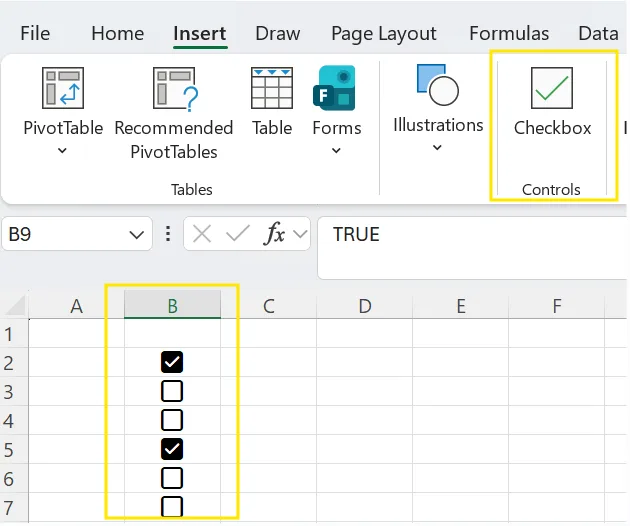
Every selected cell now contains a checkbox. You can do a whole column at once, which is the main practical improvement over the old method, and you never have to go near the Developer tab to do it.
Click a checkbox to toggle it, or select one or more cells and press Spacebar.
What a checkbox actually stores
This is the part that makes them useful rather than decorative.
A checkbox is not an object sitting on top of the sheet. It is the value TRUE or FALSE with checkbox formatting applied. A ticked box means the cell contains TRUE. An unticked box means FALSE.
That has a direct consequence: any formula referencing the cell receives TRUE or FALSE with no setup at all. If cell A1 holds a checkbox:
=IF(A1, "Done", "Not done")
returns Done if the checkbox is checked and Not done if it is not. There is no linked cell to configure, because the cell is the value.
Because they are values rather than floating objects, checkboxes also survive sorting, filtering, and copying without breaking, which was the main weakness of the old approach.
How to count and total checked boxes
Since the underlying values are TRUE and FALSE, ordinary functions work.
To count the ticked boxes in a range: =COUNTIF(B2:B20, TRUE)
To count the unticked ones: =COUNTIF(B2:B20, FALSE)
To show progress as a proportion: =COUNTIF(B2:B20, TRUE)/COUNTA(B2:B20), formatted as a percentage.
To sum an amount only where the box is ticked, pair the checkbox column with a value column: =SUMIF(B2:B20, TRUE, C2:C20)
How to remove or delete checkboxes properly
This behaves in a way that surprises people, and knowing it saves a confused minute.
Select the cells and press Delete. If every box in the selection was already unticked, the checkboxes are removed. If any were ticked, the first press unticks them instead, and a second press removes them.
So pressing Delete once and seeing the boxes still there is expected. Press it again.
To remove the checkbox appearance while keeping the underlying TRUE and FALSE values, select the cells and use Home, then Clear, then Clear Formats. The values stay and any formulas reading them keep working.
If you do not see Checkbox on the Insert tab
The in-cell checkbox requires a Microsoft 365 subscription. It is available on Windows, Mac, and Excel for the web on current builds.
If you have a one-time purchase version such as Excel 2024, Excel 2021, Excel 2019, or Excel 2016, the Insert tab has no Checkbox command and no update will add one. The same applies if your 365 build has not yet received the feature.
In that case you need the older method, which uses a form control from the Developer tab. The Developer tab is hidden by default and has to be switched on first, which is covered in our guide to adding the Developer tab in Excel. Once it is visible, the route is Developer, then Insert, then the check box under Form Controls, then click on the sheet to place it.
Two things to expect from the older method. You can only place one control at a time, so copy and paste to make more. And each control has to be linked manually to a cell before any formula can read it, because the control itself holds nothing.
Note also that legacy form controls do not work in Excel for the web, so a workbook built with them will not be fully usable in a browser.
A practical use: strike through completed tasks
Checkboxes are most useful when they change something, and conditional formatting is the simplest way to make that happen.
- Select the task text column, for example A2:A20.
- Go to Home, then Conditional Formatting, then New Rule.
- Choose Use a formula to determine which cells to format.
- Enter =$B2=TRUE, adjusting B to your checkbox column.
- Select Format, apply strikethrough on the Font tab, and confirm.
Ticking a box now strikes through the matching task. The single dollar sign locks the column while letting the row move, which is what makes the rule apply down the list.
When a checkbox is the wrong tool
Two cases worth naming.
When you need more than two states. A checkbox is binary. Not started, in progress, and done is three states, and a dropdown list handles that properly while a checkbox forces you to fake it with two columns.
When the workbook has to open in older Excel. A workbook built with in-cell checkboxes opened in a version that does not support them will not behave as intended. If you are sharing outside your own machine, confirm what the recipients are running.
A faster way when a feature has moved
The checkbox story is a good example of a general problem: a feature exists, it is in a different place than the guide you found describes, and whether you have it at all depends on which Excel you are running. Guidy reads the Excel window you have open and points at the actual command on your screen, which sidesteps the version question entirely. Our AI for Excel page covers where it helps most in spreadsheet work.
Key takeaways
- Select the cells, then Insert > Checkbox in the Cell Controls group. You can fill a whole column at once.
- A checkbox is the value TRUE or FALSE with formatting, so formulas read it directly with no linked cell.
- Press Delete twice on ticked boxes: the first press unticks them, the second removes them.
- Use Home > Clear > Clear Formats to remove the checkbox look while keeping the TRUE and FALSE values.
- In-cell checkboxes require Microsoft 365. Excel 2024, 2021, and 2019 need the older Developer tab form control instead.
FAQs
How do I insert a checkbox in Excel without the Developer tab?
Use the in-cell checkbox, which is exactly what it is for. Select the cells and choose Insert, then Checkbox in the Cell Controls group. The Developer tab is only needed for the older form control, and if you are on Microsoft 365 you never have to enable it. If your version has no Checkbox command on the Insert tab, the Developer tab route is the only one available to you.
Why is there no Checkbox option on my Insert tab?
Almost certainly because you are on a one-time purchase version of Excel rather than a Microsoft 365 subscription. Excel 2024, 2021, and 2019 do not have the in-cell checkbox and will not receive it. A 365 build that has not yet updated is the other possibility, so check for updates before falling back to the Developer tab method.
How do I link an Excel checkbox to a cell?
With an in-cell checkbox you do not need to. The checkbox is in the cell and the cell holds TRUE or FALSE, so a formula simply references that cell. Manual linking is only required for the older form control, where the control floats above the grid and holds no value of its own.
How do I remove a checkbox from a cell?
Select the cells and press Delete. If any box in the selection is ticked, the first press unticks them and a second press removes them. To remove the checkbox appearance while keeping the underlying TRUE and FALSE values, use Home, then Clear, then Clear Formats instead. In-cell checkboxes also work in Excel for the web, while the older form controls do not, so a workbook built the legacy way will not behave fully in a browser.
How do I count how many boxes are ticked?
Use COUNTIF against TRUE, as in =COUNTIF(B2:B20, TRUE). Because the checkbox stores a real value rather than being a graphic, every ordinary function works: COUNTIF for counts, SUMIF to total another column only where a box is ticked, and AVERAGEIF for the same idea with averages.