
How to Add the Developer Tab in Excel (Windows and Mac)
No time for long YouTube tutorials? Try Guidy and get it all done in minutes. It sits right on your screen and points you to exactly what to do in real time. And it works on any software or browser, in any language.
Try for free
The Developer tab is not missing from your Excel. It is switched off by default, on every installation, for every user, and it stays off until you add it yourself. Microsoft hides it because most people never need macros, form controls, or VBA, and a ribbon tab full of those tools would confuse more people than it helps. Here is the exact path on Windows and Mac, what the tab actually contains, and what to check if it still refuses to appear.
How to add the Developer tab in Excel on Windows
- Open Excel and click File in the top left.
- Click Options at the bottom of the left sidebar. In some versions it sits under More first.
- In the Excel Options window, click Customize Ribbon in the left column.
- Look at the right-hand column, headed Main Tabs. Find Developer in that list and tick its checkbox.
- Click OK.
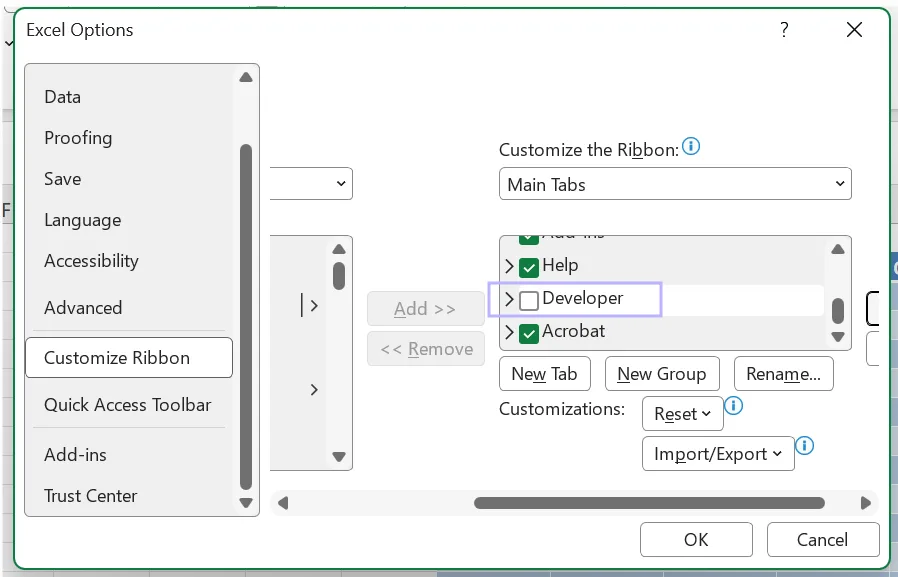
The Developer tab should appear between View and Help in most layouts.
There is a shortcut though - right-click anywhere on the ribbon and choose Customize the Ribbon to jump straight to step 3.
Important note: If you turn it on once, it stays on for every file you open on that computer. It does not travel with the file, so a colleague opening your workbook will still need to enable it on their own machine.
How to add the Developer tab in Excel on Mac
- Open Excel and click Excel in the menu bar at the top of the screen.
- Choose Preferences. Newer builds label this Settings. The keyboard shortcut Command + Comma opens it either way.
- Click Ribbon & Toolbar.
- In the Customize the Ribbon list on the right, tick Developer.
- Click Save.
As you can see, the path is different compared to Windows. There is no File then Options route on Mac. If you have been hunting for one, that is why.
What is actually on the Developer tab
Worth knowing before you go looking, because several of these tools are available elsewhere too.
- Visual Basic and Macros. The VBA editor and the macro list. This is the main reason most people enable the tab.
- Record Macro. Also available on the View tab under the Macros dropdown, so if recording a macro is all you need, you may not need the Developer tab at all.
- Form controls and ActiveX controls. Checkboxes, dropdowns, option buttons, spinners. These are the interactive elements people add to dashboards and input sheets.
- Add-ins. Managing Excel add-ins and COM add-ins.
- Import and export tools for XML data, which most users will never touch.
- Document Panel and protection tools, depending on your version.
When the Developer tab still will not appear
Three situations account for almost every case.
You are using Excel on the web. Excel in a browser has no Developer tab and no VBA support at all. It offers an Automate tab instead, which runs Office Scripts rather than macros. If you need VBA, you need the desktop application.
Your organization has locked the ribbon. On managed work computers, administrators can disable ribbon customization or block macros entirely through policy. If the Developer checkbox is greyed out or the tab vanishes after a restart, this is usually why, and your IT team is the only route through it.
You ticked it in the wrong place. The Customize Ribbon screen has two columns. The left one lists available commands; the right one lists the tabs themselves. Developer lives in the right column, under Main Tabs. Ticking something in the left column will not do it.
On Mac there is also a second route worth trying if the Ribbon & Toolbar screen is not cooperating: Excel, then Preferences, then View, where a Developer tab checkbox sits near the bottom of the pane. Either route produces the same result.
If the tab appears but macros will not run, that is a separate setting. Macro security lives under File, then Options, then Trust Center, then Trust Center Settings, then Macro Settings, and files downloaded from the internet are often blocked there regardless of what you choose.
A faster route when you are hunting for a setting
Excel has thousands of settings spread across ribbon tabs, the Options dialog, and the Trust Center, and Microsoft moves them between versions. Hunting for one is a specific and very common kind of stuck.
This is the gap Guidy is built for. It is a desktop assistant that reads your screen when you ask and points at the exact control you need, in your version of Excel rather than a generic screenshot from three updates ago. Ask where the Developer tab is and it circles the checkbox rather than describing it. The same approach covers formulas, pivot tables, and the rest of the software people get stuck inside, which is covered on our AI for Excel page.
Key takeaways
- The Developer tab is not missing from your copy of Excel. It is switched off by default on every installation and stays off until you turn it on.
- Windows: File, then Options, then Customize Ribbon, then tick Developer in the right-hand Main Tabs column, then OK. Right-clicking the ribbon and choosing Customize the Ribbon skips the first two steps.
- Mac: Excel, then Preferences or Settings (Command + Comma), then Ribbon & Toolbar, then tick Developer, then Save. There is no File then Options route on Mac, which is where most Mac users get stuck.
- The setting belongs to your Excel installation rather than the workbook, so a colleague opening the same file still has to enable it on their own machine.
- Excel on the web has no Developer tab and no VBA support at all. It offers an Automate tab running Office Scripts instead.
FAQs
Where is the Developer tab in Excel?
It is hidden by default and has to be enabled. On Windows, go to File, then Options, then Customize Ribbon, then tick Developer in the right-hand Main Tabs list and click OK. On Mac, go to Excel, then Preferences, then Ribbon & Toolbar, tick Developer, and click Save.
Why is the Developer tab missing from my Excel?
It is not missing, it is switched off by default in every installation. Microsoft hides it because most users never need macros or form controls. The exception is Excel on the web, which has no Developer tab at all and offers the Automate tab for Office Scripts instead.
Do I need the Developer tab to record a macro?
No. Record Macro is also available on the View tab under the Macros dropdown, and there is a macro recording button on the status bar in some versions. You need the Developer tab for the VBA editor, form controls, and add-in management.
What is the shortcut key for the Developer tab in Excel?
There is no shortcut that adds the tab itself; enabling it is the one-time ribbon setting above. Once it is on, press Alt, then L to jump straight to it. The tools people usually want it for have their own shortcuts that work either way: Alt + F11 opens the VBA editor (Option + F11 on Mac, adding Fn if your function keys default to media controls) and Alt + F8 opens the Macros dialog.
Why is the Developer checkbox greyed out?
Usually because your organization has restricted ribbon customization or macro use through group policy on a managed device. If the tab also disappears after restarting Excel, that confirms a policy is resetting it, and your IT administrator is the only person who can change it.