Where Is AutoSave in Excel? Why It's Grayed Out and Fixes
No time for long YouTube tutorials? Try Guidy and get it all done in minutes. It sits right on your screen and points you to exactly what to do in real time. And it works on any software or browser, in any language.
Try for free
You can see the switch. It is sitting in the top left corner of the window and it will not move. AutoSave grayed out in Excel is not a bug and it is not a missing feature.
The switch works only on files kept in OneDrive, OneDrive for Business or SharePoint Online, so a workbook on your desktop or a network drive disables it by design. Move the file and the switch comes back.
Microsoft describes the switch as disabled rather than grayed out, which is worth knowing if you go looking through their documentation.
Where the switch lives
AutoSave appears in the upper-left corner of the window, on the title bar. It shows up if you are a Microsoft 365 subscriber running a current version of Excel, Word or PowerPoint.
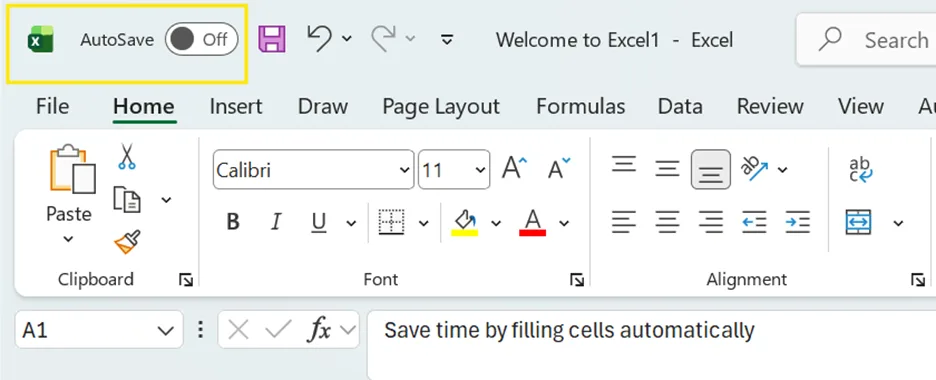
If you do not see it at all, that is a different problem from seeing it disabled. Work or school accounts are sometimes held on an older build by an administrator, and AutoSave will not appear on those.
The one condition that switches it on
AutoSave works on files stored in OneDrive, OneDrive for Business or SharePoint Online. That is the whole rule.
If the file lives anywhere else, or has never been saved at all, the switch is disabled. Microsoft names the specific cases: a SharePoint on premises site, a file server, another cloud storage service, or a local path such as C:\.
This catches people who believe they are working in the cloud. A workbook in a synced OneDrive folder on your own machine still counts as cloud, but a workbook in Documents does not, even if Documents is backed up somewhere.
How to turn on AutoSave in Excel
Once the file is in a supported cloud location, the switch is live and sliding it on is the whole operation.
For a file that is not there yet, move it first. Go to File, then Save As, and choose OneDrive, OneDrive for Business or a SharePoint library rather than a local folder. Open the file from that location and the switch responds.
If the switch works but keeps starting in the off position, the default that controls it sits under File, then Options, then Save, which is covered further down.
The other reasons Microsoft lists
If the file is in the right place and the switch is still disabled, work down this list:
- The file is in an older format such as .xls, .ppt or .doc
- The file sits in a local OneDrive folder and OneDrive synchronization is paused
- The file is being synced by an older version of the OneDrive sync app
- The file is embedded inside another Office file
- A PowerPoint presentation is in slide show mode
The second one is the quiet offender. Pausing sync to save bandwidth on a call disables AutoSave across every open workbook, and nothing on screen explains the connection.
Author’s insight: You can do this much easier with our on-screen AI assistant called Guidy that shows you the way by pointing at your screen.
The Excel-only blockers
Excel has its own list, because a workbook can contain features AutoSave does not support. Each has a documented fix:
- Shared Workbook. Turn the feature off. It is an older sharing method that co-authoring replaced
- Password encryption. Go to File, then Info, then Protect Workbook, delete the password, and select OK. Microsoft suggests applying a sensitivity label instead, under Home, then Sensitivity
- Restricted access. Go to File, then Info, then Protect Workbook, then Restrict Access, and choose Unrestricted Access
- A SharePoint snapshot. If you opened a snapshot, open the file itself instead
- An add-in. Go to File, then Options, then Add-Ins, then Excel Add-ins, then Go, and clear the check box
- The compatibility check. Go to File, then Info, then Inspect Workbook, then Check Compatibility, and clear Check compatibility when saving this workbook
- Embedded objects. Replace them with links where the workbook can tolerate it
Warning. Removing a password or restricted access lowers the protection on that file. Do it only when you understand who can reach the workbook, and use a sensitivity label as the replacement rather than leaving it open.
One setting that overrides all of this
If AutoSave is disabled on every file rather than one, check File, then Options, then Save, and look for AutoSave OneDrive and SharePoint Online files by default on Excel. If that box is clear, AutoSave defaults to off for supported cloud files, although you can still switch it on manually for an individual file. Restart Excel after changing it.
Excel also remembers per file. Turn AutoSave off on one workbook and it stays off for that workbook every time you reopen it, which is easy to forget months later.
When leaving it off is the right call
AutoSave writes continuously to the original file, so there is no draft stage. For quick what-if changes you do not want anyone else to see, switch AutoSave off first, make the changes, then close the file and choose not to save.
The related trap is Save As. On a cloud file Excel replaces it with Save a Copy, and Microsoft recommends taking that copy before you make changes rather than after, because AutoSave will have already written to the original.
Turning AutoSave off does not leave you unprotected. AutoRecover still runs in the event of a crash if it is enabled, and Ctrl+S still works exactly as it always did.
Key takeaways
- To turn on AutoSave in Excel the file has to sit in OneDrive, OneDrive for Business or SharePoint Online first, which is the condition behind a grayed out switch
- Paused OneDrive sync disables the switch even when the file is in the right folder
- Older formats such as .xls block it, as do embedded files and files opened as SharePoint snapshots
- Seven Excel-specific blockers exist, including passwords, restricted access, add-ins and the compatibility check, and each has a documented path
- File, then Options, then Save holds the setting that controls whether AutoSave defaults to on for supported cloud files
FAQs
Does AutoSave work without a Microsoft 365 subscription?
No. Microsoft lists it as a feature for Microsoft 365 subscribers. Without one you still have access to AutoRecover, which can protect you in a crash when it is enabled, by offering recovered files in a Document Recovery pane when the application restarts.
If I turn the switch off, do I lose my earlier versions?
No. Version history is stored with the cloud file rather than with the switch. Select the filename at the top of the window, choose Version History, pick a version and select Open version, then Restore if you want to roll back.
Why does my file say Save a Copy instead of Save As?
Because it is open from OneDrive, OneDrive for Business or SharePoint Online. Excel swaps the command deliberately, since AutoSave has already been writing your changes to the original and a late Save As would not protect it.
How often does AutoSave actually write?
Every few seconds while you work. Version history is separate and less frequent: a version is added when you make your first change, then roughly every ten minutes for the rest of the session.
Can I stop people changing a workbook by accident instead of turning AutoSave off?
In Excel the control is File, then Info, then Protect Workbook, then Always Open Read-Only. Note that it discourages rather than prevents: anyone can choose to enable editing. If you need to actually restrict who can change the file, use the sharing permissions in OneDrive or SharePoint instead.
The fastest way to find any of these settings is to have something read the screen and point at the control. Guidy does that in Excel and everywhere else, and our AI for Excel page covers where it helps most.