Circular Reference in Excel: How to Find and Fix It
No time for long YouTube tutorials? Try Guidy and get it all done in minutes. It sits right on your screen and points you to exactly what to do in real time. And it works on any software or browser, in any language.
Try for free
The warning appears, you select OK, and the cell shows a zero. A circular reference in Excel means a formula refers to itself, either directly or through a chain of other cells, so Excel cannot finish the calculation.
Microsoft's example is the clearest one: if cell D3 contains =D1+D2+D3, then D3 depends on D3, and there is no way to resolve that.
The two shapes this takes
Direct. The formula names its own cell. =A1+1 typed into A1. Or the version that catches more people, =SUM(A3:F3) typed into F3, where the range quietly includes the cell holding the formula.
Indirect. A1 refers to B1, and B1 refers back to A1. Nothing looks wrong in either cell on its own. Chains like this can run through several cells and across worksheets.
How to Find a Circular Reference in Excel
Go to the Formulas tab, then Error Checking, then Circular References. Excel lists the cell addresses involved. Select one and you jump straight to it.
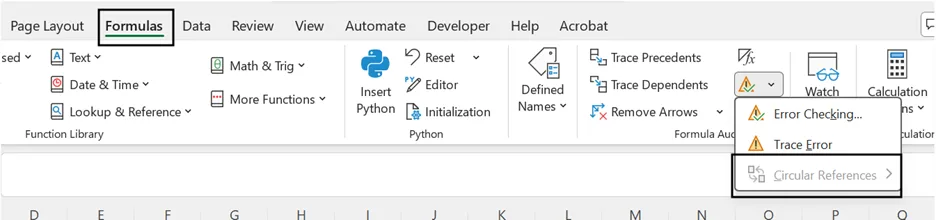
Two notes from Microsoft that save time here. If you do not see the command, use the search box in Excel and search for Error Checking or Circular References. And if the command appears but is disabled, select a cell in the worksheet first and try again.
Fix that formula so it no longer points back at itself, then return to the menu. Repeat until the status bar no longer shows Circular References. That status bar message is the real finish line, not the absence of a warning dialog.
Reading the status bar properly
The status bar shows the words Circular References along with one cell address.
When it shows the words with no cell address at all, that means the circular references are on a different worksheet from the one you are looking at. This is documented behavior rather than a glitch, and it is the single most useful thing to know when the problem seems to have no location.
Following the chain
For indirect references, the error checking list gives you a starting point rather than an answer. Use Formulas, then Trace Precedents or Trace Dependents to draw arrows showing what feeds what.
You can move between the cells in a chain by double-clicking a tracer arrow. Press Ctrl+G on Windows, or Control+G on a Mac, to jump quickly to a referenced cell.
Why the warning keeps coming back
You fixed the cell and the alert returned. Microsoft lists four reasons:
- Another circular reference remains on a different worksheet
- Another open workbook still contains one
- A formula chain still points indirectly back to itself
- Iterative calculation is switched on, so circular references are being allowed on purpose
The second one is the sneaky one. A workbook you are not even looking at, open in the same session, produces alerts in the file you are working on.
Why the cell shows zero, or does not
When you close the warning, Excel displays either a zero or the last calculated value in the cell.
The last calculated value case is worth understanding. A formula can run successfully before it starts calculating itself. Microsoft's example is a formula using IF that works fine until somebody enters an argument that sends it round the loop.
Tip. If you suspect a circular reference in a cell that is not showing zero, select the formula in the formula bar and press Enter. That forces a recalculation and reveals whether the cell is still part of a loop.
When you actually want one
Circular references are not always a mistake. Microsoft's own page is titled Remove or allow a circular reference, and it notes that you might allow one in a financial or engineering model where repeated recalculation is the point. Allowing a circular reference and removing it are the two supported outcomes; there is no third.
Switching this on lives under File, then Options, then Formulas, where you enable iterative calculation and set the maximum number of iterations and the maximum change.
Warning. Turning iterative calculation on does not fix anything. It tells Excel to stop objecting and calculate anyway, which means genuine mistakes in the workbook stop announcing themselves. On a shared model, leave it off unless the model was designed to iterate and everyone using it knows.
Stopping them appearing in the first place
Two habits prevent most of these.
Write ranges deliberately. A total at the bottom of a column is where this usually starts. If the formula sits in row 40 and sums A1:A40, it includes itself. Summing to the row above the total removes the risk, including after somebody inserts rows later.
Check the status bar before sending a workbook on. It costs a second and it catches loops sitting on tabs nobody has opened. A model that arrives with a circular reference in it undermines confidence in every number on the page, whether or not the number in question was affected by the loop.
Neither habit is sophisticated. Both are faster than tracing a chain across four worksheets afterward.
Summary
Most circular references are typos in a range. The formula was correct when it was written, somebody inserted a row, and the range grew to include the cell holding the formula. That is worth checking before you go hunting through chains.
A circular reference in Excel is easier to fix than to find, and the finding is where the afternoon goes. Guidy reads the workbook on your screen and walks you through the error checking menu and the tracer arrows, pointing at what to click rather than describing it. Our AI for Excel page covers where that fits into a working day.
Key takeaways
- A circular reference in Excel is a formula that refers to its own cell, directly or through a chain
- Formulas, then Error Checking, then Circular References lists every one on the active sheet
- The status bar showing the words with no cell address means the problem is on another worksheet
- Another open workbook can generate the alert in the file you are working on
- Iterative calculation allows circular references rather than fixing them, and hides real errors on shared models
FAQs
What is a circular reference in Excel?
A formula that refers back to its own cell, either directly or through a chain of other cells, so Excel cannot finish the calculation. The circular reference error appears as a warning message that names no cell at all, which is why the error checking menu and the status bar matter more than the dialog itself.
Can a circular reference exist across two worksheets?
Yes, and it is common in linked models. The status bar behaves differently in that case, showing the words without a cell address whenever the loop sits outside the sheet you are viewing.
Is it safe to enable iterative calculation to make the warning stop?
It stops the warning and it does not repair anything. Use it only where the model is designed to iterate. On a shared workbook it removes the one signal that tells everyone a formula is wrong.
Why does a cell show a number instead of zero?
Because the formula calculated successfully before it began referring to itself. Excel keeps that last result. Selecting the formula in the formula bar and pressing Enter forces a recalculation so you can see the current state.
What is the fastest way to check a workbook before sending it?
Look at the status bar. If the words appear there, something is looping somewhere, even if the sheet in front of you is clean. That single glance takes a second and catches the case where the problem is on a tab nobody opened.