Excel Not Responding? How to Fix It Without Losing Work
No time for long YouTube tutorials? Try Guidy and get it all done in minutes. It sits right on your screen and points you to exactly what to do in real time. And it works on any software or browser, in any language.
Try for free
The window goes pale, the title bar says Not Responding, and the cursor spins. Before you force Excel not responding to close and lose two hours, spend thirty seconds working out whether it has actually stopped.
People describe this as Excel not responding, Excel hanging or Excel freezing, and those three are one event with one set of fixes. Excel crashing is different: the application closes on its own, which is covered further down.
Microsoft's own troubleshooting article says to follow its solutions in order, and there is a reason for that. The early steps cost nothing and resolve most of what people bring to a help desk.
First, do nothing at all
A frozen Excel and a busy Excel look identical from the outside.
Watch the status bar at the bottom of the window. If a calculation, a save or a query is running, it will say so. A workbook with heavy formulas recalculating across a hundred thousand rows will stop accepting clicks until it finishes, and clicking repeatedly makes it worse by queuing more work.
Give it a few minutes before you touch anything. If it recovers, save immediately, then come back to the rest of this article.
Safe mode, which is a diagnostic rather than a fix
This is where Microsoft points you next, and it is the single most informative step.
Press Windows + R, type excel /safe, and press Enter. If you prefer the mouse, hold Ctrl while clicking the Excel icon and select Yes when asked whether you want to start in safe mode.
Microsoft documents exactly what safe mode bypasses: alternative startup locations, changed toolbars, the startup folders Excel uses, Excel add-ins, and most COM add-ins.
That list is the point. If your file behaves in safe mode, that points toward one of the things on that list rather than toward the workbook or Excel itself. It narrows the search to a handful of candidates. It is a signal rather than a verdict.
Microsoft also offers an automated route. The Excel check troubleshooter runs the safe mode isolation process for you and reports back, which is worth using if you would rather not work through it manually.
Finding the add-in
If safe mode was clean, go to File, then Options, then Add-Ins.
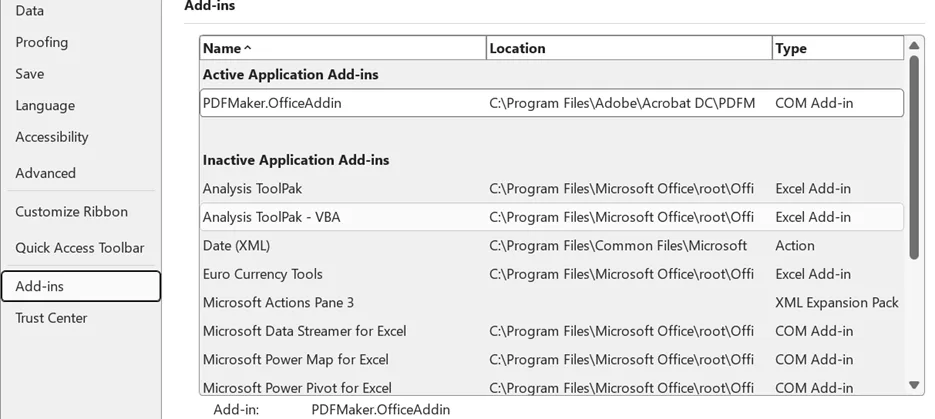
Disable your COM add-ins, restart Excel normally, and confirm the problem has gone. Then re-enable them one at a time until it returns. The last one you switched on is your answer.
This is tedious and there is no shortcut, because the add-in that breaks one machine is fine on another.
One caveat worth knowing. Safe mode also disables hardware graphics acceleration. So if Excel behaves in safe mode but every add-in turns out to be innocent, a display driver is the next thing to look at rather than the tenth add-in.
Repairing the installation
If Excel freezes on every file including a blank one, and safe mode changed nothing, the installation itself is the suspect. Microsoft's guidance is to repair the Microsoft 365 application.
Close every Office application first. Open Control Panel, go to Programs, then Programs and Features, select the Microsoft Office entry, and choose Change. On Windows 11 you can also use Settings, then Apps, then Installed apps, and choose Modify.
You get two options. Quick Repair replaces damaged files and needs no internet connection. Online Repair is closer to a reinstall, takes considerably longer, and does need a connection. Try the quick one first.
Your files are not touched by either.
The causes people never guess
The default printer. Excel checks the default printer when it opens a workbook, in order to work out where the page breaks fall. If that printer is switched off, unreachable on the network, or running a broken driver, Excel waits for it and appears to hang. Setting a local PDF printer as the default is a quick way to test this.
Startup folders. Excel loads whatever sits in its startup folders every time it launches. A stray file there produces a hang on every start, including on a blank workbook.
Antivirus. Microsoft names out of date antivirus software as a cause directly. It is worth a check before anything more drastic.
Conflicting software. If none of the above resolves it, Microsoft's next step is selective startup through System Configuration, which narrows down which other process or service is interfering.
If Excel crashes instead of hanging
If Excel closes rather than hangs, reopen it first. Where AutoRecover was enabled, a Document Recovery pane may offer a recovered version, and anything appearing there should be saved under a new name immediately.
Getting an unsaved workbook back has four separate routes and a guide of its own, so this article stops here rather than repeating it.
The mitigation for a workbook that will not behave
Some workbooks are simply too heavy. If yours hangs on every edit, set calculation to manual under Formulas, then Calculation Options, and press F9 when you want a recalculation.
Your formulas stay exactly as they are. Excel just stops recalculating on every keystroke, which turns a workbook you cannot type in into one you can.
Excel not responding is a short list of causes wearing the same symptom, and the diagnostic order matters more than any individual fix. Guidy reads what is on your screen and points at the next thing to click, which is more useful than a list of eight things to try when the window is frozen. Our AI for Excel page covers where it helps most.
Key takeaways
- Excel hanging, freezing and not responding are one event, so check the status bar before forcing it to close, because a long calculation looks identical to a freeze
- excel /safe from the Run box is a diagnostic, not a repair, and it bypasses add-ins, custom toolbars and startup folders
- If the file works in safe mode, that points toward an add-in or a startup customization, so disable COM add-ins one at a time
- Quick Repair before Online Repair, and neither one touches your workbooks
- An unreachable default printer hangs Excel on open, which is the cause people almost never guess
FAQs
Should I use End Task when the window freezes?
Only after waiting. Forcing it closed discards anything AutoRecover has not written yet. Watch the status bar first, give it a few minutes, and treat End Task as the last resort rather than the first move.
Does safe mode fix the problem or just hide it?
Neither. It tells you which half of the problem you are probably in. Microsoft lists precisely what safe mode bypasses, so a file that works there points strongly toward one of those things, such as an add-in, a startup file or a customization. It narrows the diagnosis rather than proving the workbook itself is healthy.
How long should I wait when Excel is not responding?
Check the status bar before you start counting. If it reports calculating or processing, Excel is working and interrupting it costs you the work in progress. If the status bar is idle and the window has been unresponsive for several minutes, treat it as genuinely stuck and work through the steps above, which are the supported way to unfreeze it rather than force quitting.
There is no fixed number, because a recalculation on a large model legitimately takes minutes. Online Repair, when you get that far, takes considerably longer than Quick Repair and is worth starting when you do not need the machine.
Why does this only happen with one workbook?
That points at the file rather than the installation: heavy formulas, a very large number of rows, links to workbooks that are not available, or conditional formatting applied across entire columns. Safe mode is still worth trying on it, though a genuinely damaged workbook can fail there too, so a failure in safe mode does not on its own clear the file.
Does clearing the Excel cache fix Excel not responding?
There is no general Excel cache that Microsoft prescribes clearing for this. Office does have specific cached-data mechanisms, a PivotTable cache being the familiar one, and each addresses its own narrow problem rather than an application that has stopped responding. Microsoft's sequence here is safe mode, add-ins, repair and the conflicting-software checks above, and that is where the time is better spent.