How to Copy and Paste on a Laptop (Windows and Mac)
No time for long YouTube tutorials? Try Guidy and get it all done in minutes. It sits right on your screen and points you to exactly what to do in real time. And it works on any software or browser, in any language.
Try for free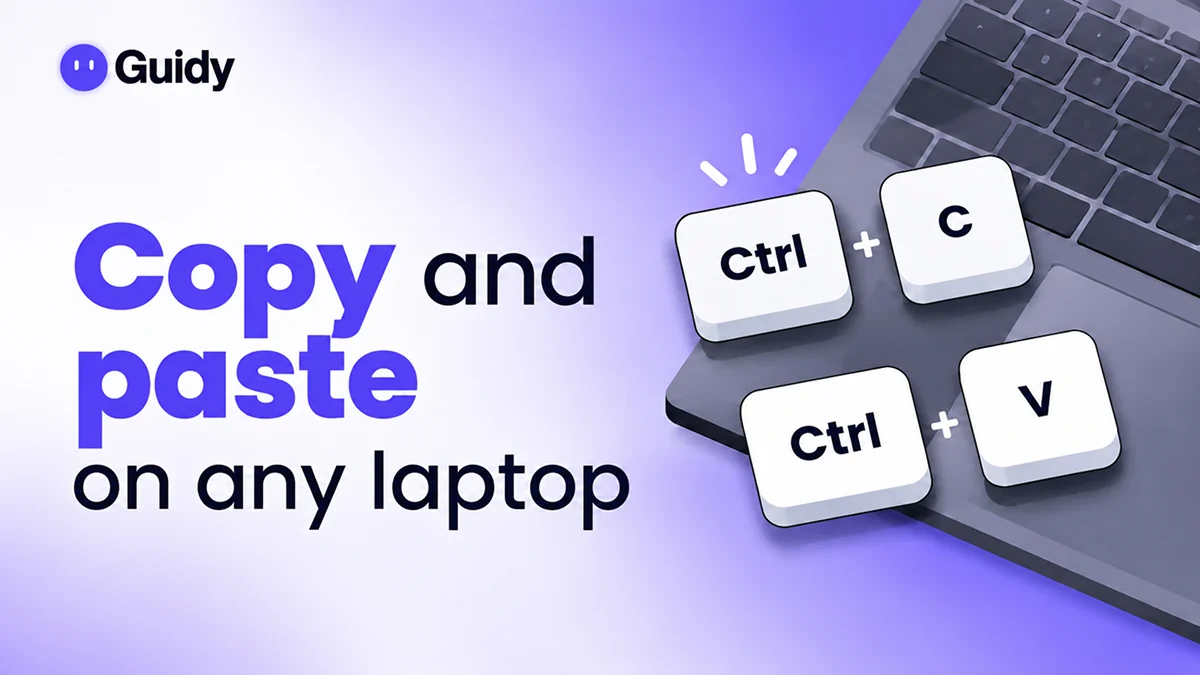
Last week I needed to send a long tracking number to a friend. I typed it out by hand, got one digit wrong, and the link didn't work. That's when I remembered there's a much easier way.
Here's the quick answer on how to copy and paste on a laptop: highlight the text, press Ctrl + C to copy (Command + C on a Mac), click where you want it, then press Ctrl + V to paste (Command + V on a Mac). Below, I walk through every key and click.
What does copy and paste actually mean?
Copy and paste lets me duplicate text, a picture, or a file and drop it somewhere else without retyping anything. When I copy something, my laptop holds it in a hidden spot called the clipboard. When I paste, it puts whatever's on the clipboard wherever my cursor is.
Cut is the close cousin. It removes the item from its original spot, so pasting moves it instead of duplicating it. The clipboard usually holds one thing at a time, so copying something new replaces the old item.
How to copy and paste on keyboard (the fastest way)
The copy and paste shortcut is the fastest method, and it works in almost every app. Here's how I do it on a Windows laptop:
- I click just before the first word, hold the button down, and drag to the last word. The text turns highlighted, usually in blue.
- I hold down Ctrl, tap C, then let go. Nothing visible happens, but the text is copied.
- I click where I want the text to go, like an email or a document.
- I press Ctrl + V, and the text appears.
To move text instead, I press Ctrl + X (cut) in step 2. To grab everything on the page, Ctrl + A selects it all.
Pro tip: The Ctrl key sits in the bottom-left corner of the keyboard. "Ctrl + C" just means hold Ctrl, press C, then release both.
How to copy and paste on Windows with the mouse or touchpad
If shortcuts feel awkward, the right-click menu does the same job. This is how to copy and paste on Windows using only clicks:
- I highlight the text.
- I right-click on the highlighted part. On a touchpad, I press the bottom-right corner of the pad or tap it with two fingers at once.
- I choose Copy from the menu that pops up.
- I right-click where I want the text and choose Paste.
In some Windows 11 apps, like File Explorer, Cut, Copy, and Paste appear as small icons in the right-click menu. Hovering over an icon shows its name.
How to copy and paste on Mac
Learning how to copy and paste on Mac is easy once you know the main key is Command (marked ⌘, right next to the space bar), not Control.
- I highlight the text by clicking and dragging.
- I press Command + C to copy.
- I click where I want it to go.
- I press Command + V to paste.
Command + X cuts, and Command + A selects everything. If I'd rather click, I hold Control and click the highlighted text (a Control-click), or click the trackpad with two fingers. Then I pick Copy, and later Paste. The Edit menu at the top of the screen has the same options.
How to paste without formatting on Mac (and Windows)
Sometimes pasted text drags along its old font, size, or color. Pasting without formatting keeps only the words.
Here's how to paste without formatting on Mac: I press Option + Shift + Command + V. Many apps also list this under Edit, then Paste and Match Style.
On Windows, Ctrl + Shift + V pastes plain text in many apps, including Chrome, Edge, and Google Docs. If an app ignores it, I paste normally, click the small Paste Options button that appears, and choose Keep Text Only (Word and Outlook offer this).
Windows 11 also keeps a clipboard history. I press the Windows key + V to see things I've copied recently and click one to paste it. The first time, Windows asks me to turn it on.
Copying files vs copying text
The same copy and paste shortcut works for files and folders. On Windows, I open File Explorer, click a file once, press Ctrl + C, open the folder where I want it, and press Ctrl + V. Pressing Ctrl + X instead moves the file.
On a Mac, I click the file in Finder, press Command + C, open the new folder, and press Command + V to drop a copy there. To move it, I press Option + Command + V, because Finder doesn't cut files with Command + X.
When copy and paste won't work
Copying and pasting on a laptop is reliable, but not perfect. Here's when I've seen it fail:
- Some websites block pasting. Banks and sign-up forms sometimes stop me pasting into password or "confirm email" boxes.
- Some content can't be copied. Protected PDFs, some e-books, and some web pages block copying text.
- The text is part of a picture. Words inside an image can't be highlighted the usual way.
- I'm using the wrong key. On a Mac, Ctrl + C doesn't copy. It has to be Command.
- It's a Chromebook. This guide covers Windows and Mac laptops only. Chromebooks use similar keys, but their menus differ.
If a menu ever looks different from what I expect, Guidy can look at my screen when I ask and point to the exact button I need. It guides me, and I do the clicking myself.
The two shortcuts worth remembering
I copy and paste constantly now: addresses, links, confirmation codes. When I want to save my screen as a picture instead, I follow my guide on how to take a screenshot on a computer. Before installing new software, I check my PC specs to make sure my laptop can run it.
For more plain-English help like this, see Guidy's page on AI for non-tech-savvy people. But really, how to copy and paste on laptop keyboards comes down to two moves: copy with C, paste with V.
FAQs
How do you copy and paste on a laptop without a mouse?
Use the keyboard. Hold Shift and press the arrow keys to highlight text, then press Ctrl + C to copy and Ctrl + V to paste (Command + C and Command + V on a Mac). You can also tap the touchpad with two fingers to open the right-click menu, then choose Copy or Paste.
How do you copy and paste on an HP laptop?
An HP laptop running Windows uses the same shortcuts as any Windows PC. Highlight the text, press Ctrl + C, click where you want it, and press Ctrl + V. To right-click on the touchpad, press its bottom-right corner or tap with two fingers, then choose Copy or Paste from the menu.
How do you copy and paste without formatting?
On a Mac, press Option + Shift + Command + V, or choose Edit, then Paste and Match Style. On Windows, try Ctrl + Shift + V, which pastes plain text in many apps, including Chrome, Edge, and Google Docs. In Word or Outlook, paste normally, then pick Keep Text Only from the Paste Options button.