How to Send a Secure Email in Outlook
No time for long YouTube tutorials? Try Guidy and get it all done in minutes. It sits right on your screen and points you to exactly what to do in real time. And it works on any software or browser, in any language.
Try for free
I hit send on a collaborator’s contract last week and immediately thought, wait, should that have gone out protected? If you handle anything sensitive, invoices, contracts, personal data, plain email is a risk.
You can handle all this by sending a secure email in Outlook. you open a new message, go to the Options tab, click Encrypt, and pick an option before you send.
That's the core of it.
Below I'll walk through the exact steps, the two encryption choices, where the button hides in each version, and what your recipient actually sees.
Need something quicker than a blog tutorial? Download Guidy to walk you through this whole thin step by step until you’re safe that you’ve encrypted you Outlook email.
What "secure email" means in Outlook
Before the clicks, it helps to know what a secure email in Outlook actually is. When people look up how to encrypt email in Outlook, they usually mean one of two things:
- encryption, which scrambles the message so only the intended person can read it, or
- restriction, which stops it being forwarded, copied, or printed.
Outlook bundles both under a single Encrypt button.
This isn't the same as marking a message High Importance or typing "Confidential" in the subject line. Those are just labels.
Encryption is the part that actually protects the contents in transit and while they sit in the recipient's inbox. Microsoft manages the keys in the background, so for the everyday Encrypt option you don't have to set up certificates yourself.
How to send a secure email in Outlook
Here's how to send a secure email in Outlook, step by step. I write the message the way I normally would, then add the protection before it leaves.
- Click New Email, or reply to an existing one.
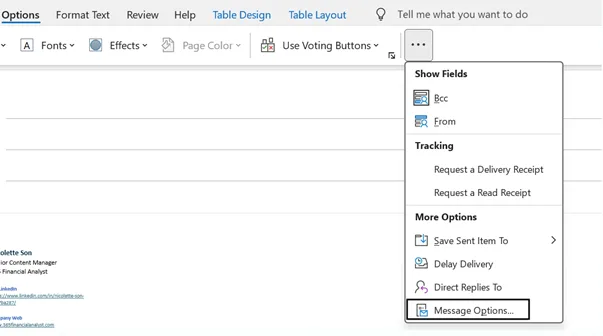
- Open the Options tab in the ribbon. Go to More commands (the three dots).
- Choose Message Options.
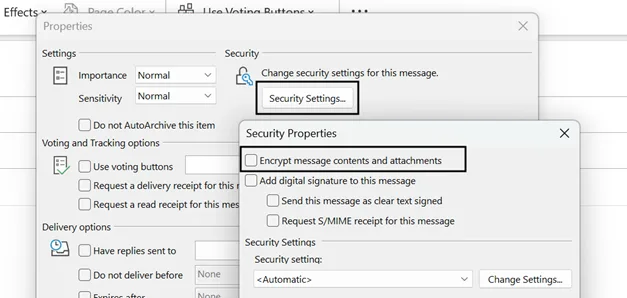
- Go to Security Settings.
- Click Encrypt message contents and attachments.
- Finish writing and hit Send.
That's the whole thing. Once you've found the button, knowing how to send an encrypted email in Outlook is a four-click habit. The same steps cover how to send encrypted email in Outlook whether it's a one-off or something you do every day. You'll see a small banner at the top of the message confirming it's protected, and if you change your mind you can click Encrypt again to remove it before sending.
How to encrypt an email in Outlook (Encrypt vs Do Not Forward)
When you click Encrypt, Outlook usually offers two choices, and knowing how to encrypt an email in Outlook really comes down to picking the right one.
Encrypt-Only scrambles the message and its attachments. The recipient can still forward, copy, or print it once they open it. I use this for data I want protected on the way to a trusted contact.
Do Not Forward encrypts the message and also blocks forwarding, printing, and copying. I use this when the content should stop with the one person I sent it to.
Some work accounts add sensitivity labels here too, like Confidential or Highly Confidential, set by your IT team. To encrypt email in Outlook with one of those, just choose the label and Outlook Encrypt applies the matching rules. However you get there, the Outlook encrypt email flow is the same: pick a protection, then send.
How to send a secure email in new Outlook, classic Outlook, and on the web
The button moved around across versions, which is where most people get stuck.
- Classic Outlook for Windows: the Options tab, then Encrypt.
- New Outlook and Outlook on the web: open a new message, click Options or the three-dot (...) menu, then Encrypt.
- Outlook.com and the mobile apps: the same Encrypt option appears under the options or three-dot menu, if your account qualifies.
Figuring out how to encrypt email in Outlook 365 trips people up mainly because the classic and new apps lay their menus out differently. If you're looking at a ribbon that matches no tutorial you can find, an AI for software onboarding tool like Guidy can read your screen and point to the exact Encrypt button in your version, so you're not hunting through menus. It shows you where to click and leaves the clicking to you.
When you can't send a secure email in Outlook
Encryption in Outlook isn't universal, so here's when it won't work. The Encrypt option needs a qualifying Microsoft 365 subscription (a Personal, Family, Business, or Enterprise plan). A free Outlook.com account or a basic plan often hides it or greys it out, so if the button's missing, check your plan or ask your admin before assuming something's broken.
Your recipient's experience varies too. Someone on Microsoft 365 opens the message inline. Someone on Gmail or another provider usually gets a link and a one-time passcode to read it in a secure browser window, which feels clunky the first time.
One more thing worth knowing: the subject line isn't encrypted, so keep sensitive details out of it.
And encryption protects the message, not your aim. It won't catch a wrong name in the To field, so I still read the address twice before sending anything I care about.
Once you know where the button lives, sending a secure email in Outlook takes seconds, and it's a habit worth building for anything you'd hate to see forwarded. Set it up once and protecting a message becomes as automatic as hitting send.
New to other tools your job just dropped on you? I've got companion walkthroughs on how to use QuickBooks and how to use Power BI too.
FAQs
Where is the Encrypt button in Outlook?
In classic Outlook for Windows, it's on the Options tab of a new message. In new Outlook and Outlook on the web, open a message and look under Options or the three-dot (...) menu. If it's missing everywhere, your plan probably doesn't include it.
Is email encryption in Outlook free?
Not usually. Sending encrypted or Do Not Forward messages needs a qualifying Microsoft 365 subscription. Free Outlook.com accounts generally don't include it, which is why the Encrypt button is often greyed out.
Can the recipient open a secure email from Outlook?
Yes. A recipient on Microsoft 365 sees it inline. Someone on Gmail or another provider gets a secure link and a one-time passcode to read it in their browser, so they don't need an Outlook account.
What's the difference between Encrypt and Do Not Forward?
Encrypt-Only scrambles the message so only the recipient can read it, but they can still forward or print it. Do Not Forward does that and also blocks forwarding, copying, and printing. Pick Do Not Forward for the most sensitive content.
How do I encrypt an email in Outlook on my phone?
Open the Outlook mobile app, start a new message, and tap the three-dot menu to find the Encrypt option. It shows up only if your account's plan supports it, the same rule as on desktop.