
AI That Can See Your Screen: How It Actually Works
No time for long YouTube tutorials? Try Guidy and get it all done in minutes. It sits right on your screen and points you to exactly what to do in real time. And it works on any software or browser, in any language.
Try for free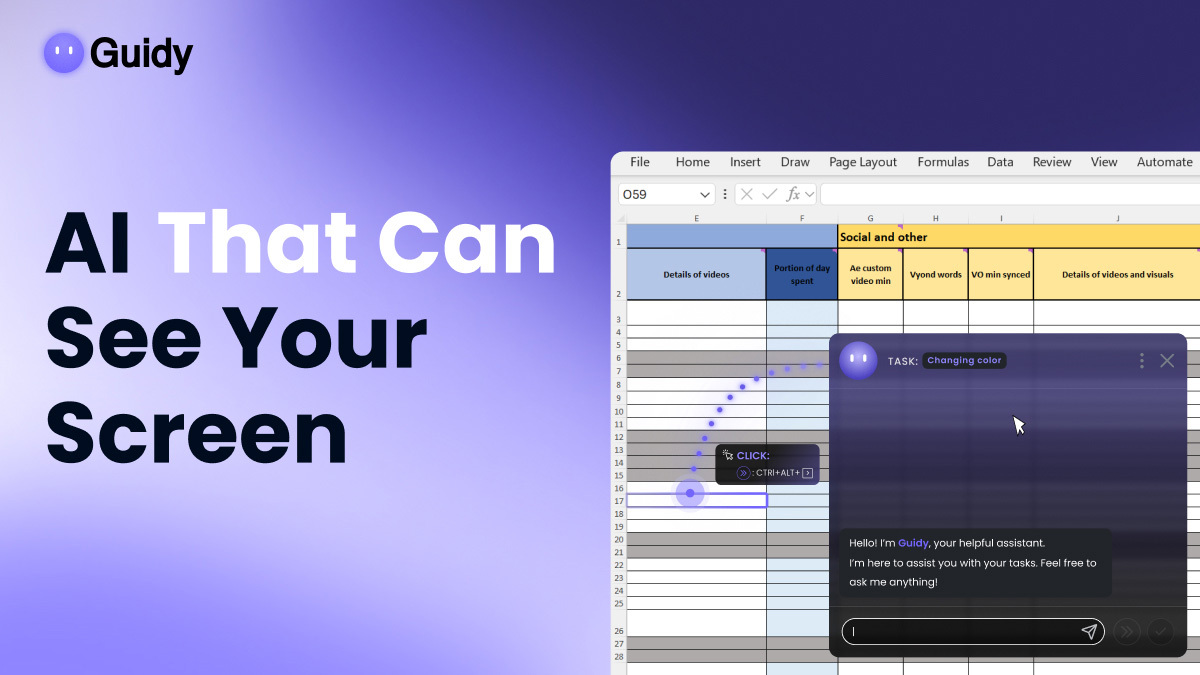
An AI that can see your screen is any assistant that takes in what is currently displayed on your monitor and answers questions about it, rather than relying on what you type or paste. The category went from novelty to normal during 2026: Microsoft, OpenAI, Google, and a set of smaller desktop tools all shipped some version of it. What almost nobody explains is the mechanics, and the mechanics are exactly what determine how useful a given tool is and how much of your screen it actually gets. This article covers how these tools capture your screen, what they can and cannot read, how permissions work on Windows and Mac, and how the main approaches differ in practice.
What "seeing your screen" actually means
It does not mean the AI is watching a live video feed of your desktop. In almost every implementation, seeing means a still image is captured at the moment you ask a question, sent to a vision-capable model, and interpreted.
That distinction matters more than it sounds. It means these tools work in snapshots rather than continuously, that what they know is limited to what was visible when the capture happened, and that anything scrolled off screen, minimized, or hidden behind another window is invisible to them. If your spreadsheet has 4,000 rows and 30 are on screen, the assistant sees 30 rows.
The three capture methods
Almost every screen-aware tool uses one of three approaches, or a blend.
Screenshot plus vision model. The tool takes an image of your screen or a selected window and passes it to a model trained to interpret images. This is the most common method and the most flexible, because it works on anything that can be displayed, including software with no API, custom internal tools, remote desktop sessions, and video.
The accessibility tree. Operating systems expose a structured description of what is on screen for screen readers and assistive technology: button labels, field names, window titles, menu structures. Reading this is faster and more precise than interpreting an image, and it produces exact control names rather than guesses. Its weakness is coverage. Applications that implement accessibility poorly, and anything drawn as a raw image or video, return very little.
Optical character recognition. Extracting text from the screen image. Useful as a supplement, particularly for error messages and dense text, but it captures words without understanding layout, so it cannot tell you that a button sits in the top right of a panel.
Most serious tools combine at least two, typically an image capture for layout and structure with OCR or accessibility data for precise text.
What these tools can read, and what they cannot
Reliably readable: application windows, menus and ribbons, dialog boxes, error messages, spreadsheet contents that are currently visible, form fields and their labels, web pages, and video frames.
Usually not readable: anything not currently displayed, content behind other windows, text in a scroll region you have not scrolled to, and in most implementations, content on a second monitor unless you share it explicitly.
Deliberately excluded in many tools: password fields, which the operating system often masks at the capture layer, and secure display surfaces that some banking and DRM-protected applications use to block screenshots entirely. If you have ever tried to screenshot a streaming video and got a black rectangle, you have met this protection. Screen-aware AI hits the same wall.
Some tools add a layer of their own on top of this, attempting to detect and blur categories of sensitive information before the image is sent for processing. It is a worthwhile safeguard and worth looking for, but no vendor that describes it honestly claims it catches everything, so it belongs in your thinking as a reduction in exposure rather than a guarantee.
Analysis versus guidance: the real divide in this category
Two tools can both "see your screen" and do entirely different things with it.
Analysis tools look at the screen and describe or explain it. Ask about a chart and you get an interpretation. Ask what an error means and you get a definition. Microsoft's Copilot Vision, the ChatGPT desktop app, and Gemini all work this way: they add visual context to what remains fundamentally a conversation.
Guidance tools look at the screen and direct you through an action on it, one step at a time, tracking whether you completed each step before moving to the next. The output is not a paragraph, it is a pointer at a specific control, then the next one.
The difference shows up the moment a task takes more than one click. An analysis tool gives you six steps in a single answer, and you go find the six buttons yourself. A guidance tool gives you one button, waits, then gives you the next. If you have ever read a set of instructions, gone to your screen, and immediately forgotten step four, you already understand why the distinction matters. Guidy is built on the guidance model, which is also why it can handle software it has never been specifically integrated with, and why it works across the multi-app workflows described on our AI assistant for work page.
How permissions work on Windows and Mac
Both operating systems treat screen capture as a privileged action, and neither grants it silently.
On Windows, screen-aware apps request capture permission at install or first use. Microsoft's own Vision feature is explicitly opt-in and shows a visible highlight around the window or desktop being shared, so there is an on-screen signal whenever it is active. Windows also provides a keyboard shortcut to end an active session immediately, and the sharing button can be removed from the taskbar entirely through taskbar settings.
On macOS, screen recording permission is granted per application in System Settings under Privacy and Security, and macOS displays an indicator in the menu bar while capture is active. Permission survives until you revoke it, so it is worth auditing the list occasionally.
In both cases the permission is granted to the application, not to a session. That means the meaningful question is not whether the app can technically capture your screen, but when it chooses to, which is a product design decision rather than an operating system one.
When capture happens: on demand versus continuous
This is the single most important specification in the category, and it is often buried.
On demand means the tool captures only when you actively invoke it. Close it or stop the session and capture stops. Nothing happens in the background.
Continuous means the tool captures on a timer, building a searchable history of what was on screen. Microsoft's Recall is the best-known example of this design, and it is a genuinely different product category from Vision despite both involving screen content.
Guidy is on demand: it reads the screen when you open it and ask for help, and there is no background capture and no always-on watching. What happens to the captured image afterward is the other half of the question, and the specifics vary by vendor. In Guidy's case, screenshots are processed by trusted AI providers and retained no longer than 30 minutes, screen activity is not used to train public AI models, and traffic is encrypted in transit. The full detail is on the security page, and Guidy's privacy policy names the AI providers involved.
How to read a tool's documentation on this
Four questions answer most of what you need to know, and every vendor should be able to answer all four in writing:
- Does capture happen only when I invoke it, or on a schedule?
- Is the image processed on my device or sent to a server?
- How long is it retained, and by whom?
- Is my screen content used to train models?
If a tool's documentation does not answer these plainly, that absence is itself an answer. A separate question, which safeguards are worth insisting on before you let any tool see your screen, deserves more room than it would get here, and we cover it separately.
Key takeaways
- Seeing your screen means a still image captured at the moment you ask, not a live video feed. If 30 rows of a 4,000-row spreadsheet are visible, the assistant sees 30 rows.
- Three capture methods exist: screenshot plus vision model, the accessibility tree, and OCR. Most serious tools combine at least two.
- Password fields and DRM-protected surfaces are usually blocked at the operating system level, so screen-aware AI hits the same black rectangle an ordinary screenshot does.
- Permission is granted per application, not per session, on both Windows and macOS. The meaningful question is when the app chooses to capture, which is a product decision rather than an operating system one.
- Ask any vendor four questions: when capture happens, where the image is processed, how long it is retained and by whom, and whether your screen content trains models.
FAQs
Is there an AI that can see your screen?
Yes, several. Microsoft's Copilot Vision, the ChatGPT desktop app, Google Gemini, and dedicated on-screen assistants such as Guidy can all take in what is displayed and answer questions about it. They differ in how capture is triggered, how long visual data is kept, and whether they explain what they see or guide you through acting on it.
How does AI read what is on my screen?
Most tools capture a still image of your screen or a selected window at the moment you ask, then pass it to a vision-capable model that interprets the layout and text. Many supplement this with optical character recognition for precise text and with the operating system's accessibility data for exact button and field names.
Can AI see my whole screen or just one window?
That depends on what you share. Most tools let you choose between an entire desktop and a single application window, and most see only what is currently displayed, not content that is scrolled out of view, minimized, or covered by another window.
Can screen-reading AI see my passwords?
Generally no, because operating systems mask password fields at the capture layer, and some applications block screen capture entirely on sensitive screens. This should not be treated as a guarantee across every tool and every field, so the safe habit is to close password managers and banking pages before starting a session.
Does the AI keep watching after I close it?
That depends entirely on the tool's design, which is why it is worth checking. On-demand tools capture only while you have them open and actively asking, and stop when you close them. Continuous-capture features such as Microsoft Recall work on a different model and record on a timer by design.