
Copilot Not Working? 9 Microsoft Copilot Fixes to Try
No time for long YouTube tutorials? Try Guidy and get it all done in minutes. It sits right on your screen and points you to exactly what to do in real time. And it works on any software or browser, in any language.
Try for free
Copilot not working covers several separate faults. Copilot not showing up at all is a different problem from Copilot not loading when you open it, and both differ again from a button that is present and does nothing. This guide covers Microsoft Copilot in the Microsoft 365 apps and on Windows. It does not cover GitHub Copilot, which shares the name and nothing else.
Fix 1: Copilot not showing up at all? Find out which experience you have
Do this first, because it resolves a large share of these cases before you change any settings, and because Microsoft renamed the tiers during 2026.
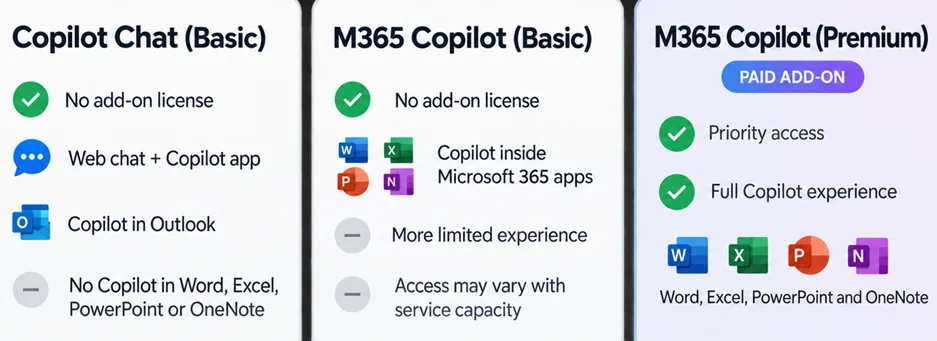
There are three work experiences, and Microsoft now shows a label inside the apps so you can tell which is yours:
- Copilot Chat (Basic). No Copilot add-on license, and no access to Copilot in Word, Excel, PowerPoint or OneNote. You get the web chat and the Copilot app, and Copilot in Outlook keeps working
- M365 Copilot (Basic). No add-on license either, but standard access to Copilot inside the apps. Microsoft describes these experiences as more limited, possibly without full chat integration or priority access, and subject to service capacity that can vary through the day
- M365 Copilot (Premium). The paid add-on, with priority access and the full experience across Word, Excel, PowerPoint and OneNote
So the old shorthand is wrong. Not holding the paid add-on does not automatically mean no Copilot inside the apps, because that depends on which of the two basic experiences your tenant provides.
Organization size matters here as well. From April 15, 2026, Microsoft removed in-app Copilot access from Word, Excel and PowerPoint for unlicensed users in larger commercial tenants, while smaller tenants have been throttled rather than blocked. That is why someone at another company can have what you do not.
Read the label in the app before you troubleshoot anything else.
Fix 2: Confirm the license is assigned, and give it time
If you are on a work or school account, your administrator assigns the license, and a newly assigned one takes time to propagate.
Microsoft names this as a cause in its own troubleshooting guidance: a recent assignment can delay availability. If your license landed today and Copilot has not appeared, waiting is a legitimate step rather than an excuse.
Where the license was assigned days ago, ask your administrator to confirm it is still assigned and that no organizational policy is blocking Copilot.
Fix 3: Make the Copilot-licensed account the active one
This is the fix that catches consultants, contractors and anyone signed into two tenants.
Office lets you sign in with several accounts, and only one is active. Copilot appears only when the active account is the one holding the Copilot license. Someone whose Office license comes from one employer and whose Copilot license comes from a client will see Copilot in the web apps and not in the desktop apps, which looks like a bug and is not.
Go to File > Account and check which account is shown. Set the licensed one as active, and where that does not take, sign out of the other account and back in.
Microsoft also lists signing in with both a personal and a work or school account as a cause of validation failures.
Fix 4: Refresh the license
Sometimes the entitlement is correct and the client has not caught up.
On Windows, open any Microsoft 365 app and go to File > Account, then select Update License. Close every Microsoft 365 app you have open and reopen them, because the refresh takes effect on restart.
On Mac, the route is different. Select the application name in the menu bar at the top of the screen, choose About, then More Info, then Refresh License. Close your documents and restart the apps.
Fix 5: Update Office
Copilot requires a current build, and an installation that has drifted behind will not show it.
Go to File > Account > Update Options > Update Now and let it finish. This one is worth doing even when you believe you are current, because managed devices sometimes report a version that is newer than the channel actually delivering to them.
Fix 6: Check your build, not just your channel name
This is the fix nobody finds alone, and most of the advice circulating about it went out of date in July 2026.
Copilot requires Current Channel or Monthly Enterprise Channel, and the Semi-Annual Enterprise Channel used to fail that outright. Beginning with Version 2606, released in July 2026, Microsoft unified the two enterprise channels. Devices configured for Semi-Annual Enterprise Channel now receive the Monthly Enterprise Channel experience, and users meeting the other Copilot requirements become eligible without any channel migration at all.
So read the build rather than the label. At File > Account, under Product Information, a device on Version 2606 or later can report Monthly Enterprise Channel while your organization's inventory tools still list it as Semi-Annual Enterprise Channel. Those two disagreeing is expected rather than a fault.
The old limitation still bites in one case. Organizations may hold devices on Version 2508 through September 8, 2026, and a device deliberately held there does not get the new behavior. If your build is 2508 and Copilot is missing, that is the reason, and only your IT team can change it. The web versions of Word, Excel, PowerPoint and Outlook work in the meantime.
Fix 7: Turn on the two privacy settings
Copilot can be hidden entirely by settings that have nothing to do with Copilot.
Go to File > Account, and under Account Privacy select Manage Settings. Two options matter. Confirm that Experiences that analyze your content is turned on, then scroll down and confirm that All connected experiences is turned on.
On Mac, the equivalent settings live under the application's Preferences, in the Privacy section. In a managed organization these can be enforced centrally, in which case the switches will not move and the question goes to your administrator.
Fix 8: Copilot not working in Excel? Check the workbook
Excel has conditions the other applications do not, and Microsoft's current pages disagree over the cloud storage and AutoSave requirement.
Check the file format first. Copilot needs a modern Excel format, and Microsoft names Strict Open XML Spreadsheet as unsupported, so saving as an ordinary Excel Workbook clears that case. Then check Calculation Options, because Microsoft states that Copilot editing is only supported when they are set to Automatic. That one produces the specific symptom of Copilot answering happily and refusing to change anything.
After that, check which Copilot mode you are in, since chat mode is designed to leave the workbook alone. If those are all correct and Copilot still will not edit, Microsoft's current Excel documentation gives conflicting guidance on whether OneDrive or SharePoint storage and AutoSave are still required, so check the Excel setup guidance before ruling that out.
We cover the setup, the prompts and the limits of Copilot in Excel separately, because that is a different subject from a missing button.
Fix 9: Copilot not loading? Repair, then reset, the app
This last one applies to the standalone Copilot application on Windows rather than to the Office integration.
Open Windows Settings, go to the installed apps list, find Copilot, and use the repair option under its advanced options. Repair first. Reset only if repair fails, because a reset clears local application data and signs you out.
When it is not your machine
Some cases are not fixable from the client, and knowing when to stop saves an afternoon.
Copilot requires a user-based license and is not available with device-based licensing. That is an organizational configuration rather than a setting you can change.
Where Copilot works in the web apps and in the Copilot application but refuses to appear in the desktop apps after licensing, account, build, channel and privacy have all been checked, the remaining path is a support ticket rather than another reinstall. Microsoft's own guidance treats backend provisioning as something that cannot be corrected from the client.
For context on where Copilot sits against other assistants, our ranking of AI assistants for PC covers the wider field.
Quick tip: If the harder part is finding these settings rather than knowing which one to change, our AI assistant for work page covers how Guidy reads your screen and points at the next click, which is the practical answer when Copilot not working turns out to be a setting three menus deep.
Key takeaways
- Read the in-app Copilot label first, because Copilot Chat (Basic) gives no in-app Copilot while M365 Copilot (Basic) does, neither of them requiring the paid add-on
- Copilot only appears when the account holding the license is the active account in the Office apps
- File > Account > Update License, followed by restarting every Office app, resolves a stale entitlement
- Since Version 2606 in July 2026, Semi-Annual Enterprise Channel devices receive the Monthly Enterprise Channel experience and can run Copilot, so check the build rather than the channel name
- Two Account Privacy settings can hide Copilot completely, so when Copilot not working means no button at all, check that both are turned on
FAQs
Why does Copilot appear in Outlook and Teams but not in Word?
Check your Copilot label first. Copilot in Outlook keeps working for Copilot Chat (Basic) users while Word, Excel, PowerPoint and OneNote do not, so that pattern is the documented behavior for that tier rather than a fault. If your label says otherwise, work through fixes 3, 5 and 6.
I have a Copilot license. Why is the button greyed out?
A greyed-out button points at the file or the context rather than the license. In Excel, check the file format and whether Calculation Options are set to Automatic. A sensitivity label set to a restricted level can also block certain actions.
How do I reset my Copilot?
Repair it first, from the installed apps list in Windows Settings, and reset only if repair fails, because a reset clears local app data and signs you out of your accounts. Before either, check whether Copilot works in the web apps. If it does, the problem is the client rather than your entitlement, and a reset may not be what you need.
Is there an issue with Microsoft 365 right now?
Worth ruling out before you change anything. Check your organization's service health, and check Microsoft's published known-issues pages for the app you are in. If the service is healthy and your administrator confirms the license is assigned and no policy is blocking Copilot, ask them whether the tenant uses device-based licensing, since Copilot requires a user-based one. If that is clear too, it is a support ticket.
Is this the same as GitHub Copilot not working?
No. GitHub Copilot is a separate product for writing code in an editor, with its own licensing and its own failure modes. None of the fixes here apply to it.