
The Best AI Assistants for PC in 2026
No time for long YouTube tutorials? Try Guidy and get it all done in minutes. It sits right on your screen and points you to exactly what to do in real time. And it works on any software or browser, in any language.
Try for free
Most "best AI assistant" lists are really chatbot lists, and chatbots are only one kind of assistant. If you work on a Windows PC all day, the question is narrower and more practical: which of these tools actually helps inside the software you already have open, rather than in a separate window you have to keep switching to? That single distinction reorders the entire ranking. Below are the assistants worth considering on Windows in 2026, ranked against the four things that decide whether one earns a permanent place on your taskbar.
How we ranked them
Four criteria, in order of how much they change your day.
Does it run natively on Windows? A browser tab is not a desktop assistant. Native apps get keyboard shortcuts, system permissions, and the ability to work against whatever is on screen rather than whatever you paste in.
Does it work outside its own ecosystem? An assistant that helps in Word and Excel but goes quiet in your CRM, your accounting portal, and your video editor covers a fraction of your actual week.
Can it see what you are looking at? Screen awareness is the difference between "here are the general steps" and "click the button at the top right of the panel you have open." Several tools now offer some version of this, and they differ enormously in what they do with it.
What does it cost to keep? Subscription stacking is the quiet cost of AI in 2026. A tool at $20 a month is $240 a year, every year, whether you used it twice or two hundred times.
One note on scope. This article ranks assistants for Windows specifically. For the wider field of chatbots and how they compare against each other on writing, coding, and research, see our rundown of ChatGPT alternatives, which covers that ground in detail.
1. Microsoft Copilot

The default, and for good reason: it is already installed. Copilot is built into Windows 11 and across Microsoft 365, which makes it the lowest-friction option on this list for anyone who lives in Word, Excel, Outlook, and Teams. Its Vision feature can now see your screen when you share it, either a full desktop or a single window, and answer questions about what is there.
Best for: people whose work happens almost entirely inside Microsoft 365.
Where it falls short: the value drops sharply outside Microsoft's own apps, and the licensing is genuinely confusing. The consumer Copilot Pro tier was retired and replaced by a bundled subscription, while the work version is an add-on to a qualifying business plan rather than something you can simply buy. If your day involves five non-Microsoft tools, you are paying for depth you cannot reach.
2. Guidy
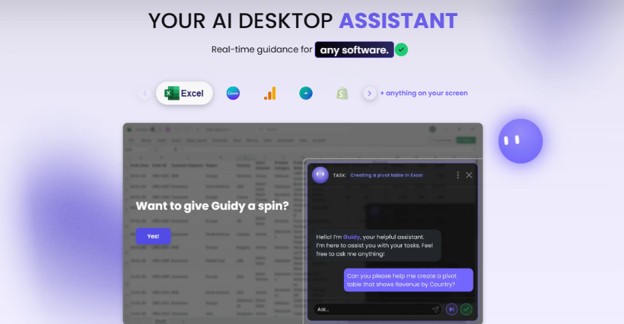
Guidy is an on-screen assistant rather than a chatbot. You open it, ask a question, and it reads your screen and shows you where to click, step by step, waiting for you to complete each action before showing the next. It does not take over your mouse or edit your file. It works in both Windows and Mac.
The practical consequence is app coverage. Because it works from what is visible rather than by plugging into each program's API, it is not limited to a supported-apps list. Excel, Power BI, an internal tool nobody documented, a government portal, a video editor: if it is on your screen, it is in scope.
Best for: people who get stuck inside unfamiliar software and want to be shown rather than told, and anyone who would rather not add another monthly subscription.
Where it falls short: it guides, it does not do. If you want a tool that completes the task while you do something else, this is the wrong category. There is also no mobile app, and it is a young product, launched in 2026, with a shorter track record than anything else on this list.
Cost: $69 once, including 5,000 credits that do not expire, with a free version to try it first. The purchase and the credits are tied to your account rather than to one machine. Details are on the pricing page.
3. ChatGPT (desktop app)
The Windows desktop app is a real upgrade over the browser version, and it can see your screen when you share it. As a general-purpose tool it remains the most capable all-rounder: writing, research, images, code, and the largest ecosystem of integrations.
Best for: people who need one tool that will attempt almost anything.
Where it falls short: it answers, and the answering happens in its own window. When you are mid-task in an unfamiliar app, you still end up translating a wall of text back into buttons on your screen. Screen sharing narrows that gap without closing it.
4. Google Gemini
If your working day runs through Docs, Gmail, Sheets, and Drive, Gemini is the natural pick, because it lives inside those apps rather than beside them. It is also the strongest of the major assistants on long documents, images, and video.
Best for: Google Workspace households and businesses.
Where it falls short: step outside Google's apps and it becomes an ordinary chatbot in a tab. On a Windows PC where the work happens in desktop software, that is a real limitation.
5. Claude (desktop app)
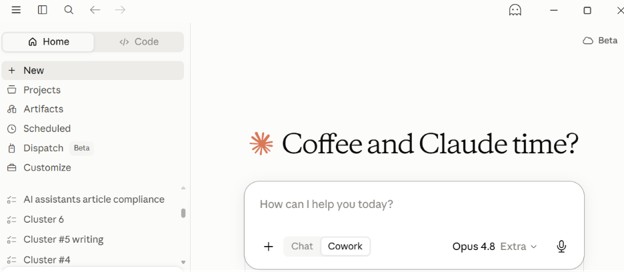
Claude has a native Windows app and is widely considered the best of the group at writing that does not need rewriting, and at serious coding work. It also handles long documents without losing the thread.
Best for: writing-heavy and development work.
Where it falls short: no image generation, a smaller integration ecosystem than ChatGPT, and the same structural limitation as every chatbot on this list. It is excellent at telling you things, and its browser automation acts on your behalf rather than teaching you the steps.
6. Perplexity
Worth including for a specific job rather than a general one. Perplexity is built around answering questions with live sources attached, which makes it the most reliable of the group when the answer needs to be current and checkable.
Best for: research where you need to see where the answer came from.
Where it falls short: it is a research tool wearing an assistant's clothes. It will not help you find a menu in Premiere Pro.
A note on HeyClicky, and why it is not ranked here
HeyClicky is the tool most often raised in the same conversation as on-screen assistants, and it is genuinely good: voice-first, screen-aware, and free to start. It is also Mac only. Its own site advertises a Windows waitlist, so this may change, but as of now it cannot be recommended in a PC buying guide. If you work across both platforms, it belongs on your shortlist for the Mac half of your setup.
Which one should you actually pick
The honest answer depends on one question: where does your work happen?
If it happens inside Microsoft 365 and nowhere else, Copilot is already there and you should use it. If it happens inside Google Workspace, the same logic points to Gemini. If your job is mostly writing or code, Claude earns its subscription.
If your day is spread across a dozen programs, several of which you did not choose and none of which you were trained on, the chatbots all share the same weakness, and the tool that helps most is the one that looks at what you are looking at. That is the case for an on-screen assistant, and it is why Guidy exists in a category of its own on this list rather than as another entry in the chatbot column. It is particularly effective in spreadsheet work, where a wrong formula produces an error rather than a bad sentence, which is covered in more depth on our AI for Excel page.
Key takeaways
- Microsoft Copilot is already installed on Windows 11 and across Microsoft 365, which makes it the lowest-friction option and the weakest one the moment you step outside Microsoft's own apps.
- Screen awareness is no longer the differentiator. What separates these tools is whether they explain what they see or walk you through acting on it.
- Guidy is $69 once with 5,000 credits that do not expire, against roughly $240 a year for a $20 monthly subscription, every year.
- HeyClicky is Mac only today, with a Windows waitlist on its own site, so it cannot be recommended in a PC buying guide yet.
- Most people end up with a pair rather than one winner: something to produce work, something to get unstuck inside software.
FAQs
What is the best AI assistant for a Windows PC?
It depends on where your work happens. Microsoft Copilot is the strongest choice if you stay inside Microsoft 365, since it is already installed and integrated. If your work spans many different programs, an on-screen assistant like Guidy covers more ground, because it works from what is visible on your screen rather than through each app's integration.
Is Microsoft Copilot free on Windows 11?
There is a free Copilot tier available on Windows 11. The versions that work inside your Office documents and your organization's data require a paid Microsoft 365 plan, and the licensing changed in 2026, with the standalone consumer Copilot Pro tier retired in favor of bundled subscriptions. Check current pricing directly with Microsoft before budgeting.
How do screen-aware assistants on Windows differ from each other?
Several tools read the screen, including Microsoft Copilot's Vision feature, the ChatGPT desktop app, Gemini, and Guidy, but they are not interchangeable. They differ in how the screen gets shared, how long the visual data is kept afterward, and, most importantly for daily use, whether the assistant explains what it sees or walks you through acting on it. Check each tool's privacy documentation before you commit, since the handling varies considerably.
Do I need a Copilot+ PC to use an AI assistant?
No. Copilot+ PCs include hardware for certain on-device AI features, but every assistant in this guide runs on ordinary Windows machines, because the processing happens in the cloud rather than on your laptop.
Is it worth paying for an AI assistant when free ones exist?
Free tiers are genuinely useful and worth exhausting first. Paying makes sense when you hit a specific wall: usage limits during real work, the need for an assistant that operates outside one company's app suite, or wanting to avoid a recurring subscription entirely. Work out which wall you are hitting before you pay, because the tools solve different problems.