
How to Add a Column in Excel
No time for long YouTube tutorials? Try Guidy and get it all done in minutes. It sits right on your screen and points you to exactly what to do in real time. And it works on any software or browser, in any language.
Try for free
Adding a column in Excel is easy if you know how. I right-click the column letter where I want the new one, choose Insert, and that’s it. However, there are a few cases where it doesn’t work this way.
If you're more of a visual learner, watch this demo of how Guidy navigates you to complete a task:
What "add a column" means in Excel: insert vs add up
It helps to know that "add a column in Excel" might mean two different things for many of you. Most people associate it with inserting a brand-new, empty, column in a spreadsheet. For others, it has to do with adding up the values in a given column.
Let’s consider both use cases now.
How to add a column in Excel
Here's how to add a column in Excel. I click the column letter to the right of where I want the new one, because Excel always inserts to the left. I right-click that highlighted letter and choose Insert from the menu.
A fresh, empty column pops up and all the columns move over. If I select column C, the new blank column becomes C and the old C goes to D.
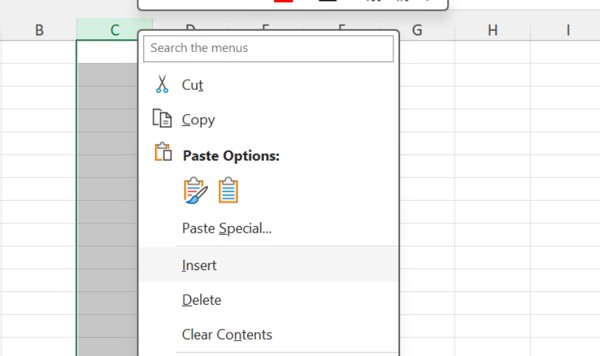
In a nutshell, I select, right-click, and then Insert. Most of the time, I have information at hand I’d like to include in it. Because I know how to use XLOOKUP to pull values from another sheet, I do just that. It works the same in Excel for Windows, Mac, and the web.
How to insert a column in Excel with a keyboard shortcut
I like to insert a column in Excel with a keyboard shortcut instead. I click any cell in the column to the right of where I want the new one, then press Ctrl + Space to select the whole column, and press Ctrl + Shift + Plus (+) at the same time. The blank column drops in instantly.
On a Mac the shortcut is Control + Shift + + as well. Just make sure you select a full column before this. It's the fastest way I know to insert a column without touching the ribbon.
How to add multiple columns in Excel
If I need several columns that I need to add, let’s say three, I select three existing columns first and press Insert. Excel adds three blank columns in one go instead of making me repeat the step. They appear to the left of the selection, same rule as before. This is also how I add another column next to a specific one: I click that column's letter, then Insert, and a single new column lands beside it.
How to add a column to a table in Excel
Adding a column to a table in Excel, meaning a real table made with Ctrl + T, works a little differently. If I click in the blank column next to it and start typing, Excel magically makes it a part of the table, like so:
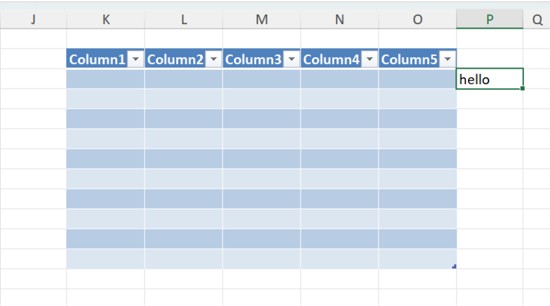
If I have to do it on my own for some reason, I right-click a cell inside the table, point to Insert, and choose Table Columns to the Left. And when I add a column to an already existing table on the right, I simply select the last column and drag the small resize handle at the table's bottom-right corner outward.
If I can't spot Table Columns to the Left in my ribbon, Guidy shows me where it is right on my screen. Formulas and the header style extend automatically, which is why I like working inside tables.
How to add up a column in Excel (sum a column)
If "add a column" means total the numbers for you, here's how to add up a column in Excel. I click the empty cell just below the numbers, type =SUM(, drag over the cells I want (or type the range like =SUM(B2:B20)), and press Enter.
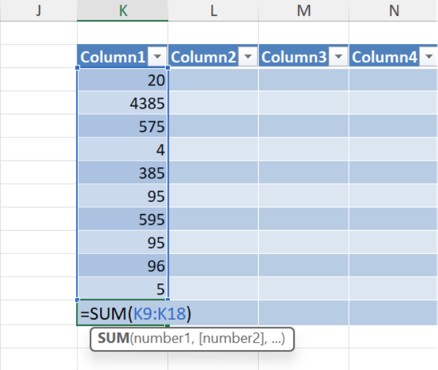
Even faster, I select the cell under the column and press Alt + =, which fires AutoSum and guesses the range for me. To add all the numbers in a column in Excel no matter how long it gets, I use =SUM(B:B), which totals the entire column B. That's the formula to add a column of figures, and the total column updates on its own as I add numbers in the column.
When adding a column won't work
A few things trip me up.
- If Insert is grayed out, the sheet is probably protected, so I go to Review, then Unprotect Sheet, before adding anything.
- Excel caps a worksheet at 16,384 columns (the last one is XFD), so on a full sheet it won't let me insert more until I delete some.
- Inside a table, a new column on the far left can be stubborn, so I add it as a table column rather than a worksheet column.
Those are the edge cases, but on a normal sheet, adding a column in Excel is a three-second job for me with AI for Excel like Guidy.
FAQs
How do I add an entire column in Excel?
Click the column letter to select the entire column, right-click it, and choose Insert; Excel adds a new blank column to the left. From a single cell, press Ctrl + Space first to select the entire column, then insert.
What is the shortcut to add a column in Excel?
The shortcut to add a column in Excel is Ctrl + Shift + Plus (+). Select the column to the right first (Ctrl + Space selects it), then press the keys together and the blank column appears. It's the same combination on Windows and Mac.
How do I add a column to an already existing table in Excel?
To add a column to an existing table, type in the blank column right next to it and Excel extends the table for you. Or right-click a table cell, choose Insert, then Table Columns to the Left to place it exactly where you want.
What is the formula to add a column in Excel?
The formula to add a column of numbers in Excel is =SUM(), for example =SUM(B2:B20) for a range or =SUM(B:B) for the whole column. Press Alt + = to drop in AutoSum instantly.
How do I add the sum of a column in Excel?
Click the empty cell below the column, type =SUM(, select the numbers, and press Enter to add the sum of the column. AutoSum (Alt + =) does the same thing in one step.