
How to Add Bullet Points in Excel (5 Easy Ways)
No time for long YouTube tutorials? Try Guidy and get it all done in minutes. It sits right on your screen and points you to exactly what to do in real time. And it works on any software or browser, in any language.
Try for free
The first time I needed bullet points in a spreadsheet, I went looking for the bullet button I use in Word. It isn't there. Excel has no bullet-list button, so to add bullet points in Excel, I type a bullet character into the cell myself.
Here's a quick video guide on how to do it:
Why there’s no button for bullet points in Excel
Excel doesn't have a bullet button because a cell is built to hold a value, not a formatted list. A bullet here is just a character sitting in front of my text. It can be a round bullet (•), a hollow one (○), a dash, or a checkmark.
How to add bullet points in Excel with a shortcut
The fastest route is a keyboard shortcut (doesn’t work on laptops!). I click the cell, hold Alt, and type 7 on the numeric keypad on the right with Num Lock ON for a solid bullet (•). Alt + 9 gives a hollow one (○), and Alt + 0149 works too.
How to insert bullet points in Excel on my laptop
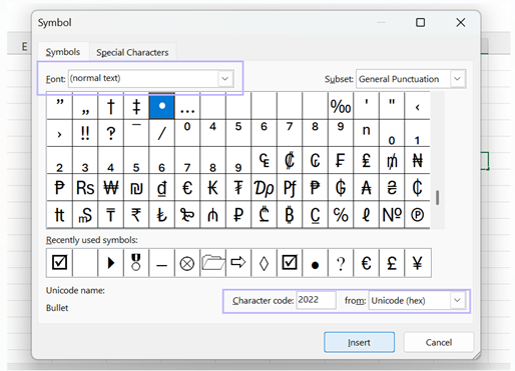
When I'm on a laptop, I insert bullet points in Excel from the Symbol menu. I double-click the cell to edit it, open the Insert tab, and click Symbol on the far right. I set Font to normal text, type 2022 in the Character code box with Unicode (hex) selected, click Insert, then Close.
Pro tip: If you want to be pointed exactly where to click, ask our AI assistant Guidy, who helps in the moment like a friendly colleague next to you.
How to put multiple bullet points in one Excel cell
I often need multiple bullet points in one cell. I double-click to edit, type my first bullet and its text, then press Alt + Enter to start a new line in the same cell, and repeat for each item.
Pro tip: I go to Home, click Wrap Text, and drag the row taller so every line shows. This is how I fit a few notes into one cell, and the same in-cell editing habit helps when I need to unmerge cells in Excel.
How to add bullets in Excel with a custom number format
Excel can add a bullet automatically, for which I need to use a custom number format. I select the cells, press Ctrl + 1, choose Number, then Custom, and in the Type box I enter a bullet, a space, and @ so it reads • @.
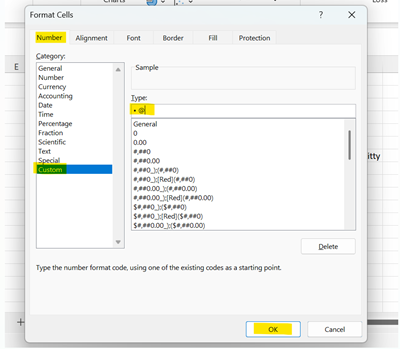
Now anything I type in those cells shows with a leading bullet, and I never touch the character again. The nice part of this way to add bullets in Excel is that the real value stays clean, so the column still sorts and filters normally. The catch: the bullet won't travel if I copy the text into another program.
How to make bullet points in Excel with the CHAR function
Say I already have a plain list sitting in column A, like "Apples" in cell A1 and "Bananas" in A2, and I want a bullet in front of each item. A formula does it for me.
CHAR is a function that turns a code number into a character, and the code for a bullet (•) is 149, so CHAR(149) gives me the bullet. In the empty cell next to my first item, cell B1, I type =CHAR(149)&" "&A1 and press Enter.
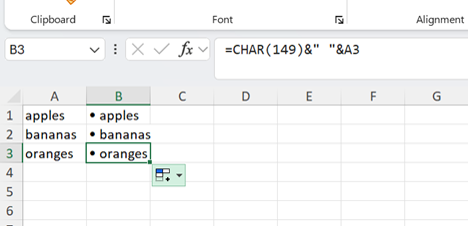
To bullet the whole list at once, I click B1, grab the little square at its bottom-right corner, and drag straight down. Each row fills in the same way, so B2 becomes "• Bananas," and so on down the column.
How to add bullet points in Excel on Mac
On a Mac, the shortcut changes since Mac laptops have no numeric keypad. My go-to is Option + 8 for a solid bullet (•). For a menu route, I open Edit, then Emoji & Symbols, and search "bullet."
To stack bullet points in an Excel cell on Mac, the in-cell line break is Control + Option + Return rather than Alt+Enter, followed by Wrap Text. The custom format and the CHAR formula both behave the same as they do on Windows.
How to remove bullet points in Excel
How I remove bullet points in Excel depends on how they got there. For characters I typed, I press Ctrl + H, put a bullet in Find what, leave Replace empty, and click Replace All.
If they came from a custom format, Find and Replace won't catch them, because the characters aren't really in the cells. Instead I select the range, press Ctrl + 1, and set the format back to General. The text stays and the dots disappear.
None of these take long once you've done them once: Alt + 7 for a single mark, Alt + Enter for a stacked list, and the CHAR formula for a full column. That's really all there is to add bullet points in Excel.
If I get stuck finding a setting mid-task, Guidy's step-by-step guidance for Excel can point to the right button in real time, like a friendly colleague at work.
FAQs
Can you add bullet points in Excel?
Yes, though there's no bullet button. You type the character yourself, most easily with Alt + 7, the Insert > Symbol menu, or a custom number format that adds one for you.
Where are the bullet points in Excel?
There's no bullet button in Excel, unlike Word. Bullets go wherever you type them, added as a character with Alt + 7, the Symbol dialog, or a formula.
What's the keyboard shortcut for bullet points in Excel?
It's Alt + 7 for a solid bullet (•) or Alt + 9 for a hollow one, typed on the numeric keypad with Num Lock on. On a Mac, use Option + 8.
Can you put multiple bullet points in one cell in Excel?
Yes. Type the first bullet and text, press Alt + Enter for a new line in the same cell, repeat for each item, then turn on Wrap Text.
How do you remove bullet points in Excel?
For bullets you typed, use Ctrl + H and Replace All with the replace field empty. For bullets from a custom format, reset the cells to General.