How to Add Speaker Notes in Google Slides (and Print Them)
No time for long YouTube tutorials? Try Guidy and get it all done in minutes. It sits right on your screen and points you to exactly what to do in real time. And it works on any software or browser, in any language.
Try for free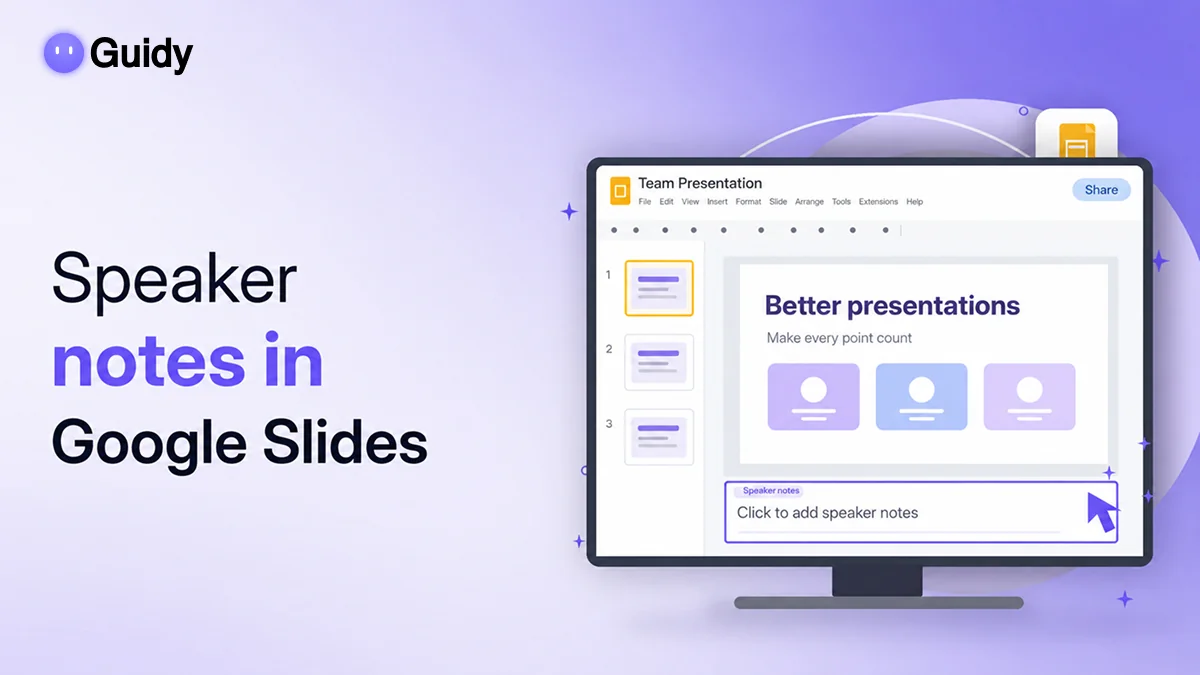
My group presentation is tomorrow at 9 a.m., and I've just realized my "notes" are a crumpled sticky note and a vague memory of what slide 6 was supposed to say.
Good news: here's how to add speaker notes in Google Slides. Click the panel under any slide that says "Click to add speaker notes" and start typing. If you don't see it, go to View, then Show speaker notes. Your notes save automatically, and your audience never sees them.
What are speaker notes in Google Slides?
Speaker notes in Google Slides are private text attached to each slide. They're your script, your reminders, and your safety net. When you present in Presenter view, you see the notes and your audience sees only the slides.
Each slide has its own notes, so a note on slide 3 stays with slide 3 even if you move it around. You can use basic formatting like bold, bullets, and different text sizes to make key points easy to spot.
How to add speaker notes in Google Slides
Here are the full steps on a computer:
- Open your presentation in Google Slides.
- Click the slide you want in the filmstrip on the left.
- Click the notes panel under the slide (it says Click to add speaker notes).
- Type your notes.
- Repeat for each slide.
If the panel is missing, go to View, then Show speaker notes. You can also drag the border between the slide and the notes panel up to give yourself more room to write.
How to view speaker notes in Google Slides while presenting
Writing notes is half the job. To view speaker notes in Google Slides while presenting, use Presenter view:
- Click the small arrow next to the Slideshow button in the top-right corner.
- Select Presenter view.
- A separate window opens with your notes, a timer, and previews of the previous and next slides. Your slides go full screen in the main window.
If you're sharing your screen on a video call, share only the slideshow window, not your whole screen, or your notes will be visible to everyone. If the presenter window doesn't open, check whether your browser is blocking pop-ups for Google Slides.
How to print Google Slides with notes
Printing is handy if you want paper backup or practice notes to mark up. Here's how to print Google Slides with notes:
- Go to File, then Print preview (in some versions this is labeled Print settings and preview).
- Open the layout dropdown and choose 1 slide with notes.
- Click Print, or click Download as PDF to save a copy.
That last option is also the easiest way to get a PDF with notes, since a regular File, then Download, then PDF document export usually saves just the slides. Want to print Google Slides with speaker notes in color or without backgrounds? Check the other options in that same preview toolbar before printing.
How to see speaker notes on Google Slides app
To see speaker notes on the Google Slides app, open your presentation on your phone or tablet. In the editor, speaker notes usually appear in a panel below the slide, and you can tap to read or edit them. If you don't see them, look in the app's menu for a speaker notes option.
Layouts vary between Android, iPhone, and iPad, and between portrait and landscape, so the exact button might sit in a slightly different spot. For a full Presenter view with a timer and next-slide preview, a laptop is still the most reliable choice.
Tips for writing good speaker notes
Speaker notes in Google Slides work best when they're cues, not a script you read word for word. What works for me:
- Write bullets, not paragraphs. Three to five short prompts per slide.
- Bold the one thing you can't forget, like a key number or a name.
- Add transitions, such as "Next: why this matters," so you don't freeze between slides.
- Mark your timing, for example "1 minute," to stay on pace.
- Practice once out loud in Presenter view before the real thing.
If a menu ever isn't where I expect, Guidy, an AI study helper for Windows and Mac (plus Chrome and Safari extensions), can read my screen when I ask and point to the right button step by step. It won't write the presentation for me, which is fine, since I'd rather know my own material.
When speaker notes won't work the way you expect
A few honest caveats:
- Presenter view needs a second window. On a single small screen, juggling both windows can be awkward. Practice the setup first.
- Screen sharing can expose notes. Share the slideshow window or tab only.
- Some classrooms and kiosks lock settings. School computers may block pop-ups, which stops Presenter view from opening.
- Notes don't replace practice. If you're reading every line, your audience will notice.
- Shared decks show notes to collaborators. Anyone with edit or view access to the file can read your notes, so keep them professional.
Now that you know how to add speaker notes in Google Slides, view them while presenting, and print them, you're set for your next talk. If you're turning that presentation into exam prep, my guide on how to create a study guide is a natural next step, and how to customize your Canvas dashboard helps you keep every class organized.
FAQs
Can the audience see speaker notes in Google Slides?
No, not when you present correctly. In Presenter view, notes appear only in your separate presenter window, while the audience sees the full-screen slides. The exception is screen sharing: if you share your entire screen instead of just the slideshow window, everyone on the call can see your speaker notes.
How do I print Google Slides with notes on one page?
Go to File, then Print preview, and choose 1 slide with notes from the layout dropdown. Each page then shows one slide with its notes underneath. Click Print for paper or Download as PDF for a file. Google Slides doesn't offer a built-in layout with several slides plus notes per page.
Why can't I see my speaker notes in Google Slides?
The notes panel is probably hidden. Go to View, then Show speaker notes to bring it back, or drag the bottom edge of the slide area upward if the panel is squeezed shut. While presenting, make sure you opened Presenter view from the Slideshow dropdown, not the regular slideshow.
Can I add speaker notes in Google Slides on my phone?
Yes. In the Google Slides app, open the presentation and look for the notes panel below the slide in the editor, then tap it to type. If it's hidden, check the app's menu for a speaker notes option. The exact layout varies by device, so a computer is easier for longer notes.