
How to Print Google Slides with Notes
No time for long YouTube tutorials? Try Guidy and get it all done in minutes. It sits right on your screen and points you to exactly what to do in real time. And it works on any software or browser, in any language.
Try for free
Speaking in front of an audience can be very stressful. I remember getting so nervous before presenting to a team of university professors that I started hyperventilating backstage. It just wasn’t something I was used to doing, and I didn’t like it, either. But I know for a fact that the notes I had printed and held in my hand really gave me a sense of security and a pinch of confidence to go up there and talk.
Here's the full walkthrough on how to print Google slides with notes, plus the few things Google Slides quietly can't do.
What "print with notes" means in Google Slides
In Google Slides, the notes are actually the speaker notes I type in the box under each slide in the editor, sometimes called slide notes or presenter notes. They don't show on the slide during a presentation, only in presenter view. When I print notes in Google Slides, each printed page shows the slide at the top and its notes below, one slide per page. That's the layout Google gives me, and it's the same whether I'm on Windows, Mac, or Chromebook. If a slide has no notes, that lower half just prints blank.
How to print Google Slides with notes (step by step)
Here's exactly how to print Google Slides with notes.
First I open the presentation, then I click File in the top menu and choose Print settings and preview. That opens a preview screen with a toolbar across the top. The toolbar has a dropdown that starts on 1 slide without notes, so I open it and pick 1 slide with notes.
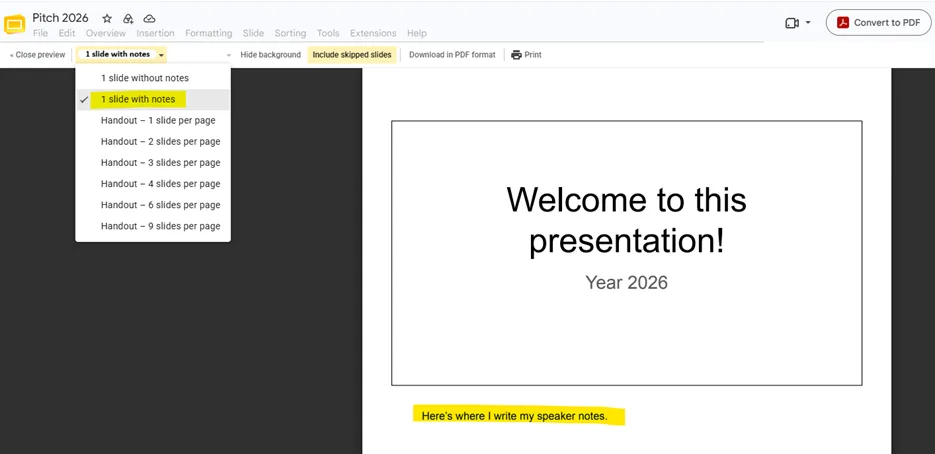
Now the preview shows each slide with its notes beneath it. I click Print at the top right, which opens my browser's print box, then I choose my printer and print. It's the same four clicks whether people ask “How do you print Google Slides with notes?,” or “How do I print Google Slides with notes?”
If Print settings and preview is hard to spot in the File menu, Guidy can point to it right on your screen as you go.
How to save print speaker notes in Google Slides as PDF
The steps to print speaker notes in Google Slides are identical, since the notes and the slide print together. But often I don't want paper at all, I want a file to email or open on my phone. From the same Print settings and preview screen, with 1 slide with notes selected, I click Convert to PDF instead of Print.
One heads-up: if you go directly to File, then Download, this exports the slides without notes by default, so I always go through Print settings and preview when I want the notes included.
How to print multiple slides and notes on one page
Google Slides can only do one slide per page. There's no built-in option to print multiple slides and notes on one page, or to put the notes on the side.
I normally download the PDF using 1 slide with notes, then in my printer dialog I set Pages per sheet to 2 or 4. That shrinks several slide-plus-notes pages onto a single sheet and saves paper.
If I need a true handout with notes beside each slide, I use Microsoft PowerPoint’s handout layouts. That's how I print slides with notes in a tighter format.
How to print Google Slides with lines for notes
Google Slides doesn't add note-taking lines automatically. The 1 slide with notes layout prints whatever text sits in the notes box, not empty lines. My honest workaround: I type a few rows of underscores into the speaker notes box so they print as writing lines, or I download to PowerPoint and use a handout layout that leaves ruled space. If I just need blank room to scribble, printing 1 slide without notes and writing in the margin works too. There's no one-click "lines for notes" button, so I plan for a small workaround.
What Google Slides can't do when printing notes
Google Slides can't print just the notes on their own: the 1 slide with notes layout always includes the slide thumbnail, so there's no way to print only speaker notes in Google Slides. When I truly need notes-only pages, I copy the notes text into a Google Doc and print that.
That's every way I know to print Google Slides with notes, from a quick paper copy to a shareable PDF. Once the layout is set to 1 slide with notes, it's a two-second job. For another handy setup tweak, see How to Make Google Slides Vertical blog post.
FAQs
How do I print slides with notes?
Open File, click Print settings and preview, choose 1 slide with notes from the layout dropdown, then click Print. Each slide prints on its own page with its notes underneath, and it's the same steps in Google Slides on any browser.
Can you print Google Slides with speaker notes?
Yes. Google Slides prints the slide and its speaker notes together when you pick the 1 slide with notes layout in Print settings and preview. From there you can either print on paper or use Download as PDF for a digital copy.
How do I print presenter notes in Google Slides?
Presenter notes and speaker notes are the same thing in Google Slides. Go to File, then Print settings and preview, set the layout to 1 slide with notes, and print or download. The presenter notes print in the space below each slide.
Why won't Google Slides let me print?
Usually it's because Ctrl+P from the editor prints slides without notes, or a pop-up blocker is stopping the print tab from opening. Use File, then Print settings and preview, allow pop-ups for Google Slides, and if it still stalls, click Download as PDF and print the PDF instead. If a menu item won't appear where you expect, Guidy can highlight the right button on your screen.