
How to Unlock Selection in Word: 6 Fixes to Try
No time for long YouTube tutorials? Try Guidy and get it all done in minutes. It sits right on your screen and points you to exactly what to do in real time. And it works on any software or browser, in any language.
Try for free
Word refuses your keystrokes and shows a message reading "We can't make this change because the selection is locked". Working out how to unlock selection in Word is mostly a matter of identifying which of six causes you have, because the fixes address different things and only one of them will be yours.
What the message actually means
The wording is unhelpful because it describes a symptom. Word is telling you that editing is blocked at the point where your cursor sits, without saying what is blocking it.
Something is imposing that block, and it falls into two families. Either the application is restricted, which happens when your Office installation is not activated and Word disables most editing features across every document, or the document is restricted, which happens through protection settings, a read-only file, or locked controls inside the file itself.
The distinction tells you where to look first. If every document you open behaves this way, the application is the problem. If one document behaves this way and others do not, the document is the problem. Establishing that takes ten seconds and saves you working through the wrong half of this list.
Fix 1: Confirm that Office is activated
Start here if the message appears in every document, and start here anyway, because this cause is frequently buried at the bottom of other guides while a Microsoft support answer attributes the exact message to a product that is not activated.
Go to File > Account and read the section headed Product Information. Activated installations say so.
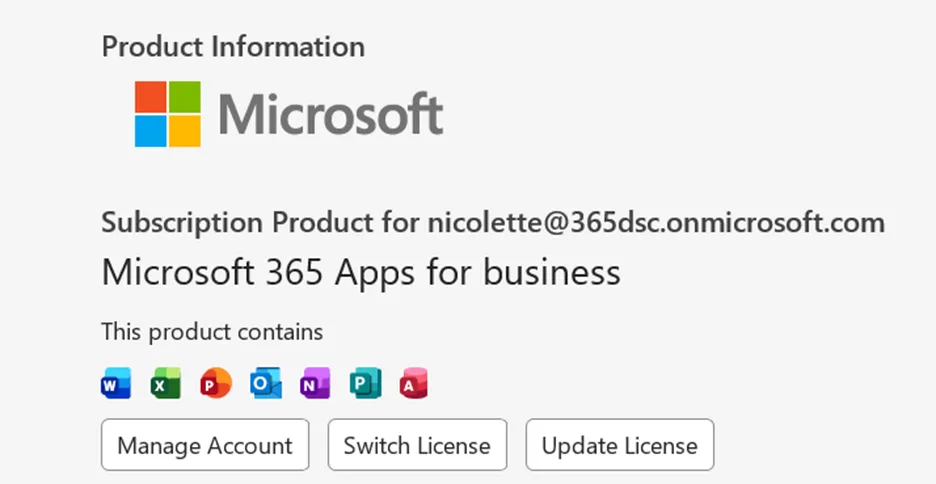
An installation that has a problem reports something along the lines of activation required or unlicensed product, and Word will separately display a banner stating that most of its features have been disabled.
Where an activation option is offered, select it and sign in with the account that holds the license. Restart Word afterward and reopen the document.
One thing that catches people running two versions of Office on the same machine. An older perpetual copy of Word installed alongside a subscription copy can leave the unlicensed installation in charge of your files, so the licensed one never gets used. Removing the version you do not pay for resolves it.
Fix 2: Turn off Restrict Editing
This is the deliberate case. Someone protected the document so that its contents cannot be changed.
Open the Review tab and select Restrict Editing in the Protect group. A pane opens down the side of the window showing which restrictions are active. Select Stop Protection at the bottom of that pane.
If the document was protected without a password, protection lifts immediately and you can type. If it was protected with one, Word asks for the password and there is no way around that. Removing protection you were never given the password for is not something to work around, and the correct next step is to go back to whoever produced the document.
Documents built from a company template often arrive with this applied by default, so a file that has always behaved this way was probably built that way rather than broken.
Fix 3: Leave Protected View
Files that arrive by email, come down from the web, or are copied from another computer open in a restricted state that allows reading but not editing. It is a security measure and it is doing its job.
Look along the top of the document for a notification bar. It carries an Enable Editing button. Select it, and Word switches into normal editing mode straight away.
Only do that for files you were expecting from a source you recognize. The restriction exists because opening an unfamiliar document is one of the ways a machine gets compromised, and clicking through it out of habit is a poor reflex to build.
If no notification bar is visible at all, Protected View is not what you are dealing with and you can move on.
Fix 4: Turn off Mark as Final
Mark as Final sets a document to read-only to signal that it is finished. It is advisory rather than a security control, and anyone can reverse it.
Go to File > Info > Protect Document. When Mark as Final is switched on, that entry appears highlighted in the menu, and selecting it again turns the setting off.
There is a faster route. A document opened in this state shows a banner offering Edit Anyway. Selecting that restores editing immediately without a trip through the menus. Because the setting can be removed by anyone who opens the file, it is not a way to protect anything, and it should not be relied on for that.
Fix 5: Clear the read-only attribute on the file
Word is not always the thing doing the locking. Windows can mark the file itself as read-only, and Word then allows you to view it and refuses your changes.
Close the document first, because the attribute cannot be changed while the file is open. Find it in File Explorer, right-click it, and select Properties. On the General tab, clear the Read-only checkbox and select Apply. Reopen the file in Word.
Where the checkbox is already clear, the restriction is coming from the location rather than the file. A document on a network share or in a folder where your account has read access only behaves the same way, and the fix is permission on the folder, which is a job for whoever administers it. Saving a copy to your own machine is the practical workaround.
Fix 6: Look for locked content controls
This is the cause behind the confusing version of the problem, where part of a document accepts typing and part does not.
Forms and templates are frequently built out of content controls, which are the text fields, dropdown lists, checkboxes, and date pickers that make a document behave like a form. Each control carries its own properties, and one of those properties prevents its contents from being edited. The surrounding document stays editable, so the file looks fine until your cursor lands inside a locked control.
Changing that property requires the Developer tab and, realistically, requires being the person who owns the template. If the document came from elsewhere, the productive move is to ask its author to unlock the field rather than to rebuild the form.
When this is a different problem
A locked selection is not the same as a document that will not open. A file that demands a password before it will display anything is encrypted, which is a separate mechanism, and the fixes above will not touch it.
It is also not the same as a damaged file. Corruption tends to produce different symptoms, such as Word closing unexpectedly or the document opening with its formatting destroyed. If Word does close on you mid-repair, our guide to recovering an unsaved Word document covers getting the work back.
Excel has its own version of this experience, reported as a file locked for editing, and it has different causes. Applying Word fixes to it will waste your time.
When the difficulty is finding these settings rather than knowing what to do with them, Guidy sits on your screen and points at the next click. The AI assistant for work page shows how that works inside Word.
Key takeaways
- Establish first whether every document is affected or only one, because that splits the six causes into application problems and document problems
- An Office installation that is not activated disables editing across all documents, and File > Account tells you in one glance
- Review > Restrict Editing > Stop Protection removes deliberate protection, but a password-protected document needs its password
- Mark as Final is advisory, and the banner offering Edit Anyway reverses it without any menus
- Part of a document typing normally while another part refuses points at locked content controls in a form or template
FAQs
Why can I type in some parts of the document but not others?
Because the blocked areas are content controls with their own locking properties, which is standard in forms and templates. The body text around them stays editable. Unlocking individual controls needs the Developer tab and the author's involvement.
Do I need the password to remove editing restrictions?
Yes, when one was set. Word requires the password before it will lift protection, and there is no supported route around it. Ask the person or team that issued the document, since they hold it.
Does this happen in Word for Mac as well?
Yes, and the causes are the same: activation state, editing restrictions, read-only files, and locked controls. The menus sit in different places on macOS, so use the descriptions of each cause here to identify the problem and then find the matching setting in the Mac interface.
Will saving a copy of the document unlock it?
Sometimes. Saving a copy under a new name, or into a location you can write to, gets past a read-only file attribute. It does nothing about the permissions on the folder you save into, so saving back into the same restricted place changes nothing. And it does not defeat Restrict Editing protection, which travels with the document content into any copy you make.
Is a locked selection a sign that the file is corrupted?
Rarely. Corruption produces other symptoms, including crashes and broken formatting. Work through activation and the protection settings first, and treat repair as the step you take once the ordinary causes are eliminated.