
Outlook Not Syncing? Causes and Fixes That Work
No time for long YouTube tutorials? Try Guidy and get it all done in minutes. It sits right on your screen and points you to exactly what to do in real time. And it works on any software or browser, in any language.
Try for free
Outlook not syncing describes several different failures with one shared symptom: the mail exists somewhere, and it is not appearing in front of you. People search for it as Outlook not updating as well, and both describe the same experience.
Start with two things.
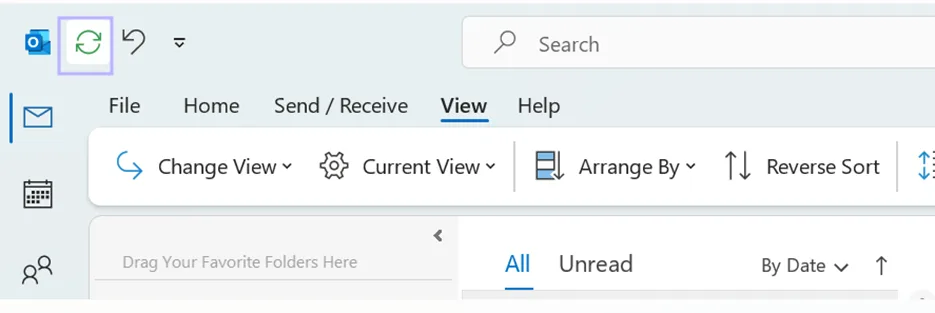
Check your mailbox in a browser, then force a sync by hand: in new Outlook that is View > Sync or F9, and in classic Outlook it is Send / Receive > Send/Receive All Folders.
If a manual sync works and the automatic one does not, the cause is somewhere in the list below.
The fixes are separated by version, because new Outlook, classic Outlook and Outlook for Mac do not share a synchronization model, and a step that resolves one does nothing at all in another.
Looking for a quicker way to fix it? Try Guidy, your friendly AI on-screen assistant that walks you through n issue step by step.
Start by finding out where the mail actually is
Open your mailbox in a browser before you touch any settings. If the missing messages are visible there, the server has them and the desktop client is the part that has stopped keeping up, which is what the rest of this guide addresses.
If the messages are not in the browser either, this is not a sync problem. Look instead at rules that may be moving mail into another folder as it arrives, at the junk folder, and at whether the sender received a bounce. A rule that files messages before you see them produces exactly the same experience as a broken sync, and none of the steps below will change it.
Also check your organization's service status if you are on a work account. When the service itself is degraded, the client is behaving correctly by showing you nothing new.
Check that Outlook is online
Outlook has a state where it deliberately stops talking to the server, and it is easy to enter by accident.
In classic Outlook for Windows, open the Send / Receive tab and look at the Work Offline button. If it appears active, click it once to go back online. If it appears inactive and mail is still not arriving, click it on and then off again. Toggling the state forces the client to rebuild its connection, which resolves a stuck session that looks identical to a sync failure.

In Outlook for Mac, the same setting sits under the Outlook menu in the menu bar at the top of the screen. Confirm that Work Offline is unchecked, and use the same toggle trick if it already is.
Watch the status bar along the bottom of the window while you do this. It reports the connection state and any error it hits, which is more useful than guessing.
New Outlook not syncing? Force a sync from the View tab
New Outlook does not use the Send and Receive Groups system that classic Outlook relies on, so the older instructions circulating for this problem do not apply to it.
To force a refresh, select Mail in the navigation bar, then open the View tab and select Sync. Pressing F9 does the same thing. If messages appear immediately after you do that, automatic sync is what has failed rather than the connection.
Where the unread count updates but the folder looks empty, switch to a different folder and back again to force the view to reload. That is a display problem rather than a data problem, and the messages are already on the machine.
If forcing a sync works every time but automatic sync never does, the app itself is the candidate. New Outlook can be repaired and then reset from the installed apps section of Windows Settings, in that order, because a reset clears local app data and signs you out of your accounts.
Classic Outlook not syncing? Send and receive, then clear offline items
Start with Send / Receive > Send/Receive All Folders, or press F9. To resynchronize only the folder you are looking at, select it and press Shift+F9.
If a specific folder stays stale while the rest of the mailbox updates, its offline copy is the problem. Right-click that folder, select Properties, open the General tab, and select Clear Offline Items. Then press Shift+F9 to pull the folder down again from the server. This removes the local copy, not the mail, which continues to exist on the server throughout.
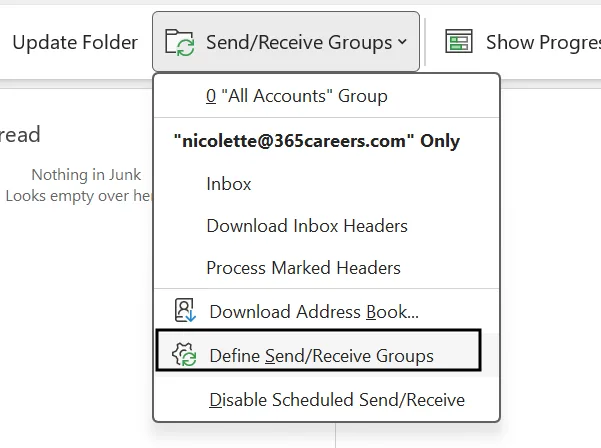
Where nothing arrives on a schedule but manual refreshes work, check the schedule itself. Open Send / Receive > Send/Receive Groups > Define Send/Receive Groups and confirm that the option to schedule an automatic send and receive is selected, with a sensible interval.
Accounts running in Cached Exchange Mode add one more possibility. The cached copy of the mailbox can get into a state where new server-side items do not surface until you refresh by hand. Switching the profile to online mode temporarily is a diagnostic step rather than a fix: if mail flows correctly in online mode, the cached file is what needs rebuilding.
Outlook for Mac not syncing? Reset the account
The Mac client has its own repair route, and it is not the Windows one.
Go to Tools > Accounts, select the affected account in the list, then select Manage at the bottom and choose Reset Account. Restart Outlook when it prompts you. On older builds that control appears as an icon rather than a labeled button, in the same place at the bottom of the account list. The reset makes the client rebuild its local copy from the server, which clears a corrupted sync state.
One warning before you use it. A reset can discard local data that has not yet reached the server, so anything sitting unsent should be sent, or copied somewhere else, before you start.
A large Deleted Items folder is worth checking too. Where the local store has to rebuild a very large folder, the client can appear to have stopped syncing when it is working through a queue, and the symptom resolves itself given time rather than given another reinstall.
Shared mailboxes have their own rule
This one catches people who have already tried everything else, because the mailbox is behaving as designed.
In new Outlook for Windows, a shared mailbox that was added automatically through automapping does not continuously synchronize incoming messages in its shared folders. Sync has to be triggered, either by selecting the folder or by using View > Sync. No amount of repairing the client will change that behavior.
Where a shared mailbox needs live delivery and notifications, the route is to add it as a full account in its own right rather than relying on automapping.
What none of this will fix
Some of these symptoms are known defects rather than misconfiguration, and it is worth knowing when to stop.
Microsoft maintains published known-issues pages for both new Outlook for Windows and Outlook for Mac, listing what is under investigation, what has a workaround, and what is fixed. Checking whether your symptom is listed is faster than working through a fix list that was never going to apply.
Microsoft has acknowledged a new Outlook for Mac sync fault in its own support answers and stated that no single resolution has worked consistently across environments, which is a clear signal to raise a ticket rather than keep reinstalling.
Classic Outlook remains a supported fallback for anyone who needs reliable automatic delivery while a new Outlook fault is open. That is a workaround with a cost, since you give up the newer interface, and it is a decision for your IT team on a managed device.
A stuck sync state is not unique to Outlook either. The same pattern shows up across Microsoft 365, and our guide to OneDrive sync pending covers the file storage version of the same problem.
If the part you find difficult is locating these settings rather than knowing which one to change, Guidy reads your screen and points at the next click. The AI for administrative tasks page shows what that looks like in Outlook and the rest of Microsoft 365, which is where the settings behind Outlook not syncing live.
Key takeaways
- Check your mailbox in a browser first, because mail that is missing there as well is a delivery or rules problem rather than a sync problem
- Work Offline is a real state in classic Outlook and on Mac, and toggling it on and then off again rebuilds a stuck connection
- New Outlook has no Send and Receive Groups, so use View > Sync or F9 instead of the older instructions written for classic Outlook
- Clearing offline items removes the local copy of a folder and not the mail itself, which stays on the server
- An automapped shared mailbox in new Outlook does not sync continuously by design, so Outlook not syncing there is expected, and the fix is to add it as a full account
FAQs
How do I force Outlook to resync?
In new Outlook for Windows, open the View tab and select Sync, or press F9. In classic Outlook, use Send / Receive > Send/Receive All Folders or F9, and Shift+F9 for the selected folder only. Closing Outlook and reopening it forces the same pass. If mail arrives on a restart but never on its own, the fault is the schedule, the cached copy or a known defect rather than your settings.
Does F9 do the same thing in every version of Outlook?
The key is the same and the action behind it is not. In classic Outlook, F9 runs a send and receive across all folders. In new Outlook, it triggers the Sync action on the View tab. Shift+F9 resynchronizes only the selected folder, and that shortcut belongs to classic Outlook.
Will clearing offline items delete my email?
No. It deletes the offline copy stored on your computer and then downloads the folder again from the server. The risk to watch is anything that exists only locally and has never reached the server, which is why it is worth sending queued items first.
Why is my Outlook not updating emails?
Outlook not updating and Outlook not syncing describe the same symptom, and the causes are the ones in this guide: an offline state, a stale cached copy of a folder, a missing send and receive schedule, or a shared mailbox that was never designed to update on its own. Check the mailbox in a browser first, because mail missing there too is a delivery or rules problem instead.
Why does my phone show messages that my desktop does not?
Because the phone is reading the same server independently. Mail visible on the phone but absent on the desktop confirms the message reached your mailbox, which narrows the problem to the desktop client and makes the steps in this guide the right ones to work through.