Printer Offline? How to Fix It on Windows 11 and Mac
No time for long YouTube tutorials? Try Guidy and get it all done in minutes. It sits right on your screen and points you to exactly what to do in real time. And it works on any software or browser, in any language.
Try for free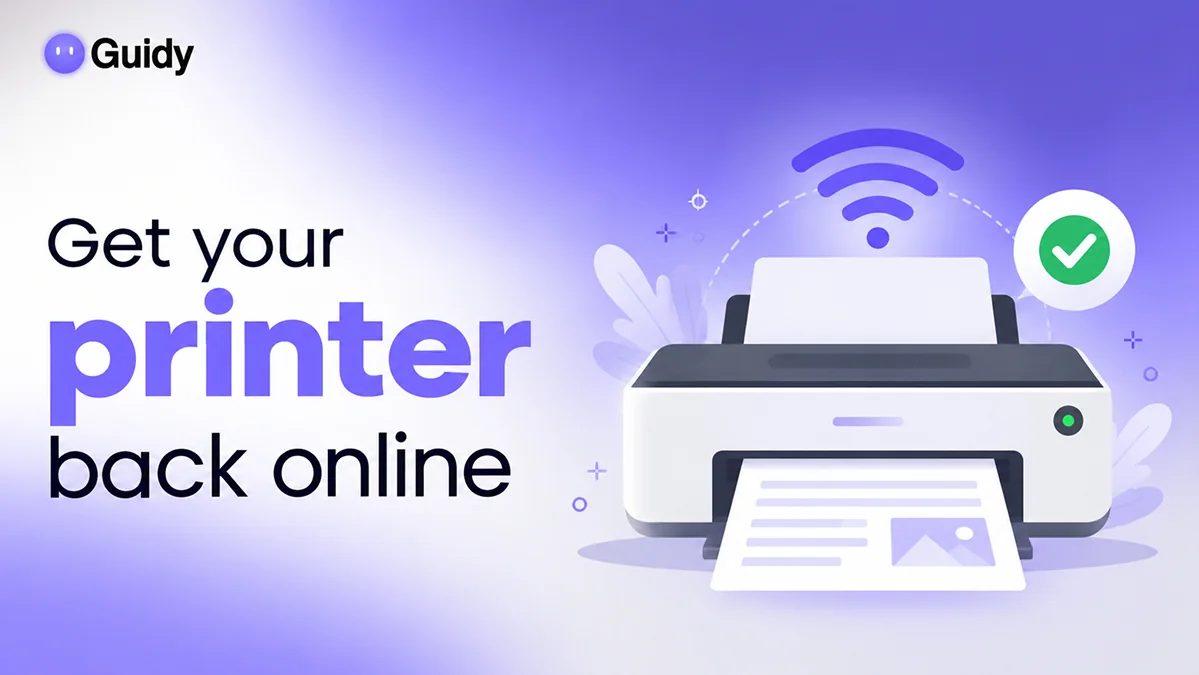
Five minutes before a meeting, I hit Print and nothing came out. My laptop showed a little gray message: "Printer offline." The printer was right there, lights on.
Here's the short answer: a printer offline message means your computer can't talk to the printer right now, usually because of a Wi-Fi change, sleep mode, a paused queue, or a setting. Most of the time, restarting the printer, the computer and the router, then clearing the print queue, gets it back online.
Why does my printer say offline?
If you're wondering why does printer say offline when it's clearly on, "offline" doesn't mean broken. It means the computer sent a message and got no answer. The usual culprits:
- Wi-Fi or network change: the printer and the computer ended up on different networks (or the printer dropped off Wi-Fi after a router restart).
- Sleep mode: some printers sleep so deeply they stop answering.
- A paused or stuck queue: one jammed job can hold everything behind it.
- The "Use Printer Offline" setting: in Windows, this tells the computer to hold jobs instead of sending them.
- An IP address change: the router gave the printer a new address, and the computer is still looking at the old one.
- Driver problems: an outdated or corrupted driver can make the printer is offline message appear even when the connection is fine.
How to fix printer offline: quick checks first
When I need to know how to fix printer offline fast, I start here, before I touch any settings. These checks solve most cases in a couple of minutes.
- I check the printer's screen or lights for an error, a paper jam or an empty ink cartridge.
- I make sure it's connected. For USB, I unplug the cable and plug it back in. For Wi-Fi, I check that the printer shows the same network name as my computer.
- I turn the printer off, unplug it, wait 30 seconds, then plug it back in and turn it on.
- I restart my computer.
- If it's a Wi-Fi printer and it's still offline, I restart the router, wait until the internet is back, then restart the printer once more.
Restarting the router before the printer gives the printer a fresh, working address.
Printer offline on Windows 11: how to fix it
Still seeing printer offline on Windows 11 after the quick checks? I try these, in order.
Clear the print queue. I open Settings, then Bluetooth & devices, then Printers & scanners, and click my printer. I select Open print queue, then cancel any stuck jobs (I right-click a job and choose Cancel, or use Cancel all to clear the lot).
Turn off Use Printer Offline. In that same queue window, I open the Printer menu at the top (if my version shows one) and make sure Use Printer Offline isn't ticked. If it is, I click it. I untick Pause Printing too, if it's ticked.
Run the printer troubleshooter. I go to Settings, then System, then Troubleshoot, then Other troubleshooters, and click Run next to Printer. On recent versions this opens the Get Help app's printer checks.
Remove and re-add the printer. In Printers & scanners, I click the printer, choose Remove, and confirm. Then I click Add device next to Add a printer or scanner and pick it from the list. This refreshes the connection, the address and usually the driver.
Printer offline on Mac: how to fix it
A printer offline Mac message usually clears with the restart routine. If not, macOS has its own tools.
- I open the Apple menu, then System Settings, then Printers & Scanners (I may need to scroll the sidebar).
- I click my printer and check its status. If the queue is paused, I open the print queue and click Resume.
- If it's still offline, I select the printer and click Remove Printer, then use Add Printer, Scanner, or Fax to add it back.
- As a last resort, I Control-click the printer list and choose Reset Printing System. Apple notes this deletes every printer from the list, so I'll have to add them all again.
Use your printer manufacturer's app
When Windows or macOS can't get the printer back, I try the maker's own app, like HP Smart, Epson Smart Panel or Canon PRINT. These apps can find an offline printer, reconnect it to Wi-Fi and install the right driver.
If I keep getting the printer is offline message after a Wi-Fi change, the app's network setup wizard is usually the cleanest fix. The maker's website also has the latest driver for my exact model.
When these fixes won't work
Some problems a settings fix can't touch. If the offline status sticks after all of the above, I check these:
- Hardware faults: a dead Wi-Fi module, a failing USB port or a broken cable needs a repair, a replacement part or a call to the manufacturer.
- Work printers: office printers are often managed by IT, so I ask them.
- Guest or public Wi-Fi: some networks stop devices from seeing each other at all.
- The address keeps changing: if the printer goes offline every few days, I ask whoever manages the router to give it a fixed (reserved) IP address.
If I'm stuck on a specific error message or can't find a setting, Guidy can read the error on my screen when I ask, explain it in plain words and show me where to click, step by step, using AI troubleshooting. It won't click for me and can't fix a broken printer, but it saves a lot of menu hunting.
The same calm approach works when my Zoom microphone is not working before a call. And the next time I see printer offline, I know where to start: restart, check the queue, then re-add.
FAQs
How do I get my printer back online?
To get your printer back online, restart the printer, your computer and your router, then clear the print queue. On Windows 11, also open the queue's Printer menu and untick Use Printer Offline. If it's still offline, remove the printer and add it again so your computer finds its current address and driver.
Why does my printer keep going offline?
A printer that keeps going offline is usually losing its network connection or changing its IP address. Deep sleep settings and weak Wi-Fi are common causes too. Moving it closer to the router, updating its firmware, and giving it a reserved IP address usually stops the problem coming back.
Why is my printer offline when it's connected to Wi-Fi?
Your printer can show offline while connected to Wi-Fi if it's on a different network or band than your computer, or if its IP address changed. Check that both devices use the same network name, then remove and re-add the printer. The manufacturer's app can also reconnect it properly.
How do I turn off Use Printer Offline in Windows 11?
To turn off Use Printer Offline, open Settings, then Bluetooth & devices, then Printers & scanners. Click your printer, choose Open print queue, then open the Printer menu and click Use Printer Offline so it's no longer ticked. Waiting jobs should start printing within a few seconds.