Zoom Microphone Not Working? 8 Fixes That Work
No time for long YouTube tutorials? Try Guidy and get it all done in minutes. It sits right on your screen and points you to exactly what to do in real time. And it works on any software or browser, in any language.
Try for free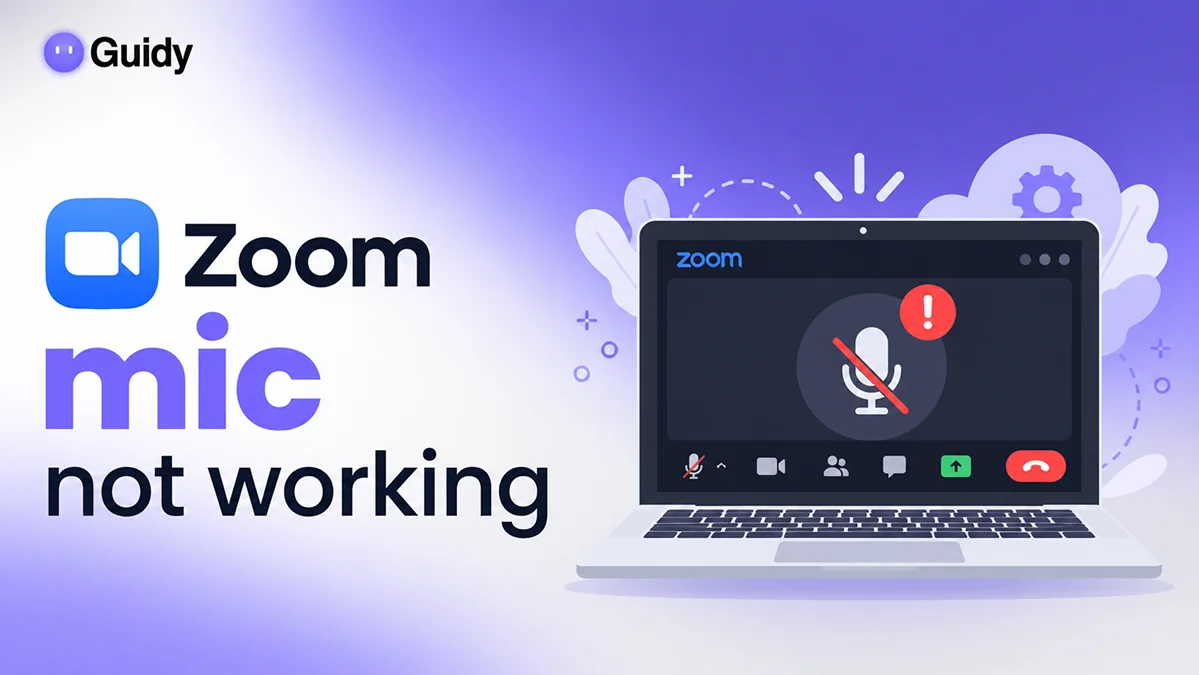
I'd been talking for a full minute in a team call before someone typed in the chat: "We can't hear you." My mic icon looked fine.
If your Zoom microphone is not working, the fix is usually quick: check you aren't muted, make sure you joined computer audio, and pick the right mic from the arrow next to Mute. If that fails, your computer's privacy settings are probably blocking Zoom from the microphone.
Why is my Zoom mic not working?
A Zoom mic not working usually comes down to four things: you're muted, Zoom is listening to the wrong device, your computer hasn't given Zoom permission, or another app grabbed the microphone first.
Real hardware failures are rarer than they feel, so I work through the fixes below in order, fastest first.
Fix 1: Check you're not muted (in Zoom and on your headset)
The most common reason for a microphone not working on Zoom is a mute I forgot about. I look at the mic icon in the bottom-left corner of the meeting. If it has a red line through it, I click Unmute or press Alt + A on Windows (Cmd + Shift + A on a Mac).
Then I check the hardware. Many headsets and laptops have a mute switch or a mute key (often marked with a crossed-out mic) that silences the Zoom mic even when Zoom says I'm unmuted.
Fix 2: Make sure you joined computer audio
If the bottom-left button says Join Audio with a headphones icon, my Zoom mic isn't connected to the meeting at all. I click it and choose Join with Computer Audio.
To avoid this next time, I tick the option in Zoom's audio settings to join computer audio automatically.
Fix 3: Choose the right microphone in Zoom
Zoom sometimes picks a webcam mic, a monitor or a disconnected headset. In the meeting, I click the small arrow next to Mute, then pick my real microphone under Select a Microphone.
If I'm unsure which one it is, I try each option until my Zoom mic picks up my voice. Same as System makes Zoom follow my computer's default.
Fix 4: How to test microphone on Zoom
Here's how to test microphone on Zoom before or during a call:
- In the Zoom Workplace app, I click my profile picture in the top-right corner, then Settings.
- I open the Audio tab.
- Under Microphone, I speak and watch the input level bar move.
- I click Test Mic, say a few words, and listen to the playback.
During a meeting, the arrow next to Mute also has Test Speaker & Microphone. If the bar doesn't move, the problem is below Zoom, so I move on to permissions.
Fix 5: Allow Zoom to use the microphone (Windows 11 and Mac)
Your operating system can block the Zoom microphone even when Zoom looks fine.
On Windows 11: I open Settings, then Privacy & security, then Microphone. I make sure Microphone access and Let apps access your microphone are on, then turn on Let desktop apps access your microphone. (On some newer builds, Zoom may appear in the app list by name instead, so I switch it on there.)
On a Mac: I open the Apple menu, then System Settings, then Privacy & Security, then Microphone, and turn on the switch next to Zoom (it may be listed as zoom.us). Then I quit and reopen Zoom so the change takes effect.
Fix 6: Close other apps using the mic
Some microphones only work with one app at a time. If Teams, Discord or a browser tab with another meeting is open, my Zoom mic may simply be busy.
I quit those apps fully, then rejoin audio in Zoom. On a Mac, an orange dot in the menu bar means an app is using the mic. On Windows, a small mic icon appears near the clock.
Fix 7: Check browser permissions for Zoom on the web
If I join from a browser instead of the app and my Zoom microphone is silent, the browser probably needs permission too. In Chrome, I click the icon at the left of the address bar on the Zoom page, find Microphone, and set it to Allow. In Safari, I open Safari, then Settings, then Websites, then Microphone, and allow it for Zoom.
On a Mac, the browser also needs access under Privacy & Security, then Microphone. Then I reload the tab.
Fix 8: Update Zoom and restart
Old versions can lose track of audio devices after a system update. I click my profile picture, choose Check for Updates, install anything waiting, then restart my computer.
A restart also clears a stuck audio driver, which fixes many Zoom microphone problems on its own.
Zoom audio not working? Check the speaker side
Sometimes it's Zoom audio not working the other way: I can't hear anyone. I click the arrow next to Mute and pick the right speaker under Select a Speaker, then check that my system volume isn't muted. In Settings, then Audio, Test Speaker plays a tone so I can confirm it.
If the test tone plays but one person is silent, the problem is likely on their end.
When these fixes won't work
A few problems won't respond to settings changes:
- Broken hardware: if the mic doesn't work in any app, it may need repair or replacing.
- Work laptops: IT may block microphone permissions, so I'd ask them.
- Host controls: a host can mute everyone and stop participants from unmuting themselves.
- Bluetooth headsets: some drop to a lower-quality "hands-free" mode.
If a Zoom error pops up that I don't understand, Guidy can read it on my screen when I ask, explain it in plain words and show me where to click, using AI-guided troubleshooting. It never clicks for me, and it can't fix a dead headset.
The same approach helps with a printer offline message or a puzzling 403 error code in the browser. Next time my Zoom microphone is not working, I'll check mute, device and permissions first.
FAQs
Why can't people hear me on Zoom?
People usually can't hear you on Zoom because you're muted, you haven't joined computer audio, or Zoom is using the wrong microphone. Click the arrow next to Mute and pick your mic. If that fails, check that Windows or macOS lets Zoom use the microphone.
How do I unmute my mic on Zoom?
To unmute your mic on Zoom, click the microphone icon in the bottom-left corner of the meeting. You can also press Alt + A on Windows or Cmd + Shift + A on a Mac. If you can't unmute, the host may have turned off the option that lets participants unmute themselves.
How do I give Zoom access to my microphone on a Mac?
To give Zoom microphone access on a Mac, open System Settings, then Privacy & Security, then Microphone. Turn on the switch next to Zoom (it may show as zoom.us). Quit and reopen Zoom afterward, because the new permission usually doesn't apply until the app restarts.
Why does my mic work in other apps but not Zoom?
If your mic works elsewhere but not in Zoom, Zoom is probably set to a different microphone, or another app is holding the mic. Pick the right device under the arrow next to Mute, close other call apps, and check that Let desktop apps access your microphone is on in Windows 11.