
Teams Camera Not Working? 10 Fixes for Windows and Mac
No time for long YouTube tutorials? Try Guidy and get it all done in minutes. It sits right on your screen and points you to exactly what to do in real time. And it works on any software or browser, in any language.
Try for free
When your camera fails in Microsoft Teams, the camera itself is rarely the problem. In most cases it is working perfectly and something is standing between it and Teams: an operating system permission, another application holding it open, or the wrong device selected in a dropdown you have never opened.
That is good news, because it means the fix is usually a setting rather than a repair. The ten steps below are ordered by how often they solve it, so work down the list and stop when your video comes back.

How to test your camera in Teams
Testing your camera in Teams takes ten seconds and tells you where the problem actually is. In Teams, open Settings, then Devices, and look at the camera preview at the top of the Camera section.
If you see yourself there, your camera and permissions are fine and the problem is inside the meeting, so skip to fix 6. If the preview is black or says no camera found, the problem is at the system level and fixes 1 through 5 are where you should be.
1. Check the physical basics
Obvious, and genuinely the answer often enough to be worth thirty seconds. Many laptops have a privacy shutter or a keyboard shortcut that disables the webcam, often F8 or F10 with a camera icon on it. External webcams need to be plugged into a port that works, and USB hubs are a common point of failure. Try a direct port.
2. Grant camera permission in Windows
The most common cause on Windows by a wide margin.
On Windows 11: open Settings, then Privacy & security, then Camera.
On Windows 10: open Settings, then Privacy, then Camera.
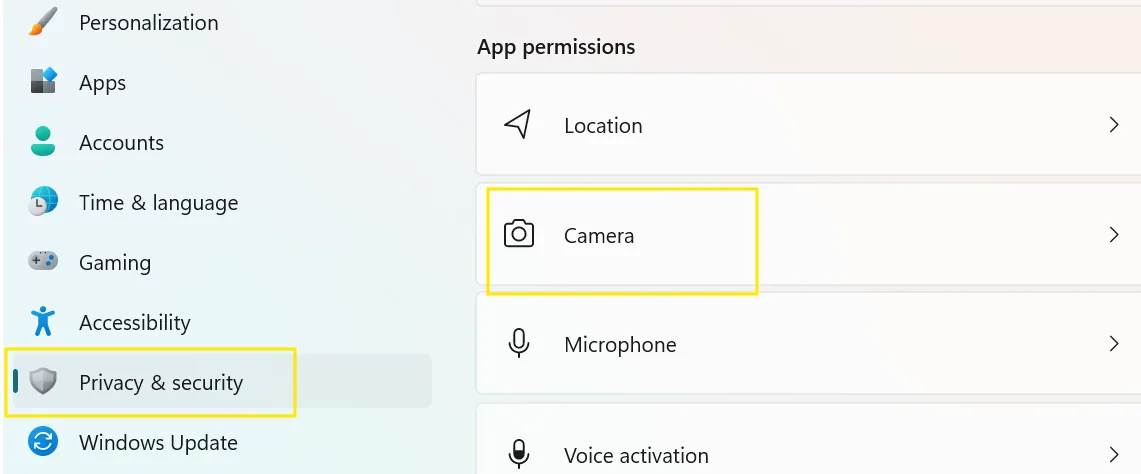
Three things need to be on, and people routinely fix the first and miss the third:
- Camera access for the device must be on.
- Let apps access your camera must be on.
- Let desktop apps access your camera must be on. This one sits at the bottom of the page, below the long list of apps, and it is the one people scroll past.
Check both places for Teams. The current Teams app is a packaged app, so it usually has its own switch in the list; older and browser-based tools fall under the desktop apps toggle at the bottom. If the camera works elsewhere but not in Teams, one of those two is off.
3. Grant camera permission on Mac
Open System Settings, then Privacy & Security, then Camera, and make sure Microsoft Teams is listed and toggled on.
macOS requires the application to restart after this permission changes. Quit Teams completely, using Command + Q rather than closing the window, then reopen it. Skipping the restart is why this fix often appears not to have worked.
4. Close whatever else is using the camera
Most cameras can only be claimed by one application at a time. Zoom, Slack, the Camera app, OBS, a browser tab left on a video call page, and Skype are the usual suspects, and any of them can hold the camera open in the background after you think you have closed them.
Quit them properly rather than minimizing. On Windows, check the system tray for anything still running. If you are unsure what has the camera, restarting the computer releases it, which is the crude version of this fix and works every time.
5. Select the right camera in Teams
Open Settings, then Devices, and find the Camera dropdown.
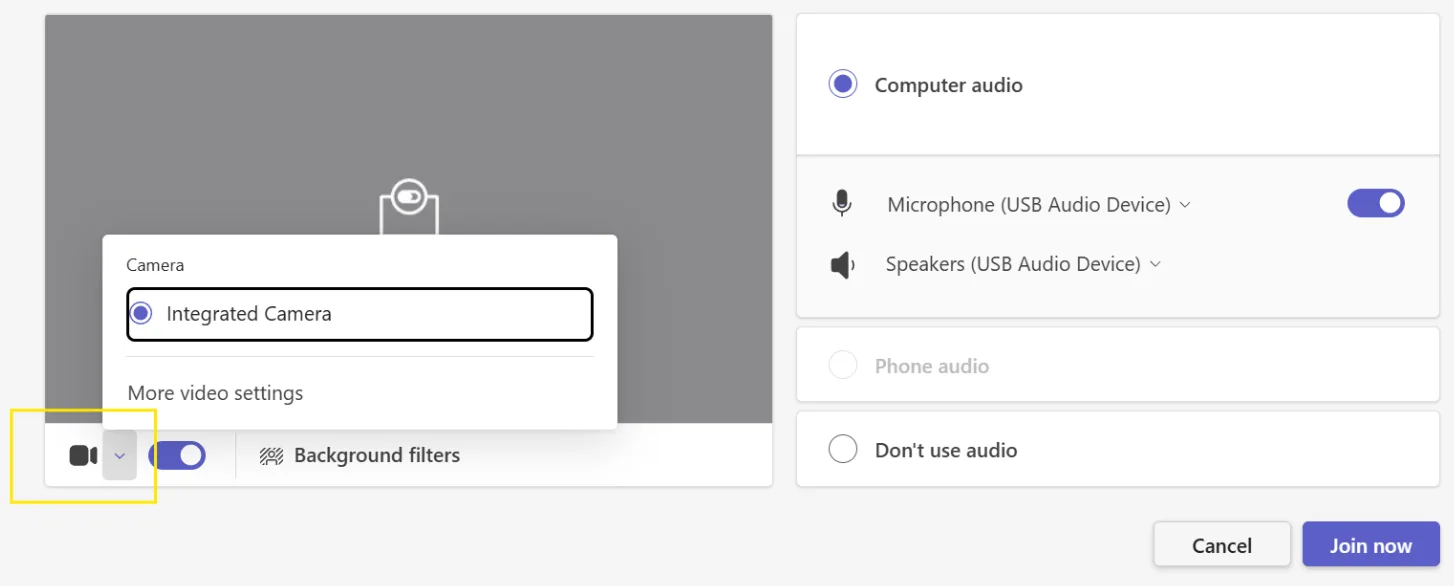
If you have a laptop with a built-in webcam plus an external one, or you use a virtual camera from software like OBS or a background-effects tool, Teams may be pointed at a device that is not sending a picture. Cycle through every option in the dropdown and watch the preview.
6. Check you are not muted at the meeting level
Inside a meeting, the camera button in the toolbar toggles video and it is easy to join with it off without noticing. Some organizations also configure meetings so attendees join with video disabled, and large meetings and webinars often restrict attendee video entirely.
If the camera button is greyed out rather than simply toggled off, that is a meeting policy rather than a fault on your machine, and the organizer is the person who can change it.
7. Restart Teams properly
Closing the window does not close Teams. On Windows, right-click the Teams icon in the system tray and choose Quit, or end the task in Task Manager. On Mac, use Command + Q.
Then reopen it. A large share of camera faults are resolved by this alone, particularly after a Windows update.
8. Clear the Teams cache
A corrupted cache causes device detection to fail in ways that look like hardware problems.
Most guides still give the old folder path, which is why this step so often appears to do nothing. Classic Teams stored its cache in %appdata%\Microsoft\Teams, but classic Teams stopped working entirely in July 2025, so you are almost certainly on new Teams, which stores its cache somewhere else.
The easiest way on Windows is the built-in reset. Open Settings, then Apps, then Installed apps, search for Microsoft Teams, click the three dots beside it, choose Advanced options, and click Reset. This clears the cache without you having to find any folders. It also wipes your personalization settings, such as theme, so expect to set those again.
To do it manually instead, quit Teams completely, press Windows key + R, and paste this path:
%userprofile%\appdata\local\Packages\MSTeams_8wekyb3d8bbwe\LocalCache\Microsoft\MSTeams
Delete the contents of that folder and restart Teams.
On Mac, quit Teams with Command + Q, open Terminal from Applications, then Utilities, and remove both of the folders Microsoft lists for new Teams: ~/Library/Group Containers/UBF8T346G9.com.microsoft.teams and ~/Library/Containers/com.microsoft.teams2. Be careful to copy each path exactly, since a remove command aimed at the wrong directory deletes unrelated files.
Your chats and files live in the cloud rather than in the cache, so nothing is lost either way. You will need to sign in again.
9. Update or reinstall the camera driver
A Windows-specific fix, and the one most likely to help if the camera stopped working right after an update.
Right-click the Start button and open Device Manager, expand Cameras or Imaging devices, right-click your camera, and choose Update driver.
If that reports the best driver is already installed, choose Uninstall device instead, then restart. Windows reinstalls the driver automatically on boot, which resolves corrupted drivers that an update refuses to replace.
10. Test the camera outside Teams
Worth doing to narrow the problem down. On Windows, open the Camera app from the Start menu. On Mac, open Photo Booth.
If your camera fails there too, this is not a Teams problem at all and the issue is with the device or its driver. If it works there and not in Teams, return to fixes 2, 3, and 5, since one of those three is nearly always the answer.
A note on time spent
The frustrating part of this particular problem is that the meeting has already started. You are hunting through settings pages while people wait, and every guide you find describes a slightly different version of Windows than the one you have.
That is a good example of what Guidy is for. It reads your screen and points at the exact toggle in your version of the settings panel, rather than describing where it sits in someone else's. The same applies to the wider category of interruptions that eat a working day, which is covered on our AI for administrative tasks page.
Key takeaways
● Check Settings, then Devices first. If you can see yourself in the camera preview, your camera and permissions are fine and the problem is inside the meeting.
● On Windows, check Camera access, Let apps access your camera, Teams' own switch in the app list, and Let desktop apps access your camera at the bottom of the page, which is the one people scroll past.
● On Mac, grant permission under System Settings, then Privacy & Security, then Camera, then quit Teams with Command + Q and reopen it. The restart is required, which is why this fix often looks like it failed.
● Most cameras can only be claimed by one application at a time, so Zoom, OBS, or a forgotten browser tab on a video call page will hold it open in the background.
● Classic Teams stopped working entirely in July 2025, so the cache path in most guides is wrong. Use Settings, then Apps, then Installed apps, then Advanced options, then Reset.
FAQs
Why is my camera not working in Microsoft Teams?
Usually a permission or a conflict rather than a broken camera. The three most common causes are Windows camera permissions being off, particularly the "Let desktop apps access your camera" setting, another application holding the camera open, and the wrong device selected in Teams under Settings, then Devices.
Why does my camera work in Zoom but not Teams?
That proves the camera and driver are fine, so the problem is specific to Teams. Check the camera selection under Settings, then Devices, restart Teams completely rather than just closing the window, and clear the Teams cache if it persists.
How do I give Teams permission to use my camera?
On Windows 11, go to Settings, then Privacy & security, then Camera, and turn on camera access, app access, and the "Let desktop apps access your camera" toggle at the bottom of the page. On Mac, go to System Settings, then Privacy & Security, then Camera, enable Teams, and restart the app.
Why is my Teams camera button greyed out?
That usually indicates a meeting policy rather than a fault. Some organizations disable attendee video, and webinars and large meetings often restrict it by default. The meeting organizer is the only person who can change that.
Will clearing the Teams cache delete my messages?
No. Your chats, files, and history are stored in the cloud, and the cache only holds temporary local data. You will have to sign in again, and if you use the built-in Reset option in Windows Settings, your personalization such as theme will also be cleared. Your messages are unaffected either way.