
How to Attach a Photo to an Email (Step by Step)
No time for long YouTube tutorials? Try Guidy and get it all done in minutes. It sits right on your screen and points you to exactly what to do in real time. And it works on any software or browser, in any language.
Try for free
My dad wanted to email me a photo of his tomato garden and got stuck for twenty minutes. If you've ever wondered how to attach a photo to an email, the quick version is this: open a new email, look for the paperclip or the little photo icon, click it, pick your picture, and press send. That's the whole trick.
Let me show you the exact buttons, on a computer and on a phone, plus what to do when you're sending a big batch to the grandkids.
How to attach a photo to an email (the quick way)
On a computer, the steps are the same in Gmail, Outlook, or almost any email. Click New Email, then look along the ribbon for the paperclip icon.
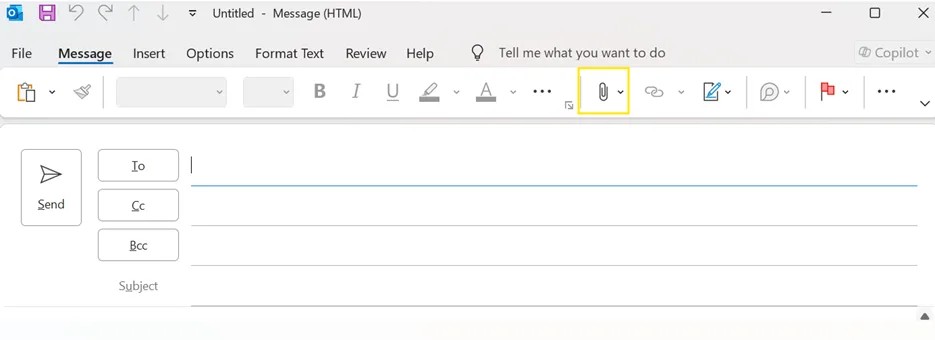
That paperclip is the universal "attach" button, and once you know to look for it, you'll spot it everywhere.
Click it, find your picture on your computer, double-click the photo, and it appears in the email.
Some email programs also have a separate photo icon if you'd rather place the image inside the email message. That's really all there is to how to attach a photo to an email. If the paperclip is hiding, Guidy, the AI for seniors that reads your screen, can point to the exact button and walk you through it, without clicking anything for you.
How to attach a photo to an email on an iPhone
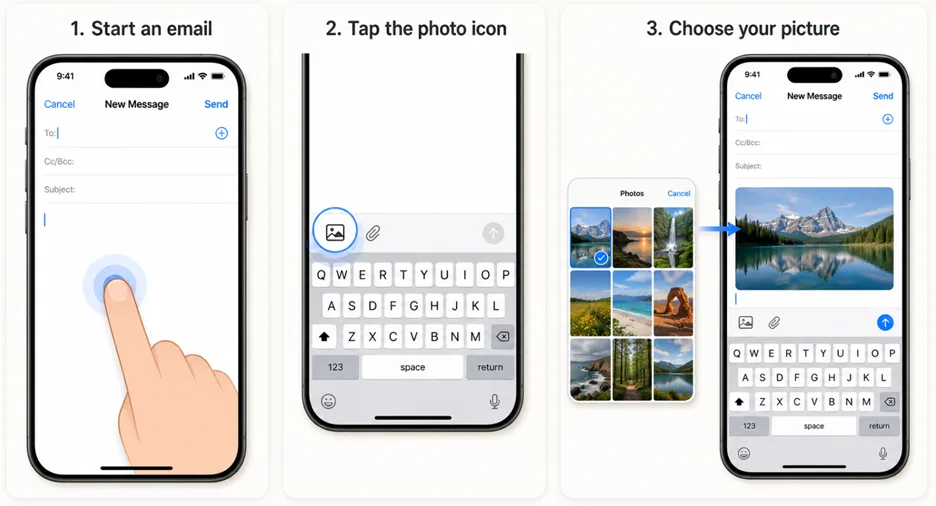
If you're wondering how to attach a photo to an email on an iPhone, you've got two easy ways.
The first: start an email in Mail, tap once in the body of the message, then tap the little photo or attachment icons just above the keyboard and choose your picture.
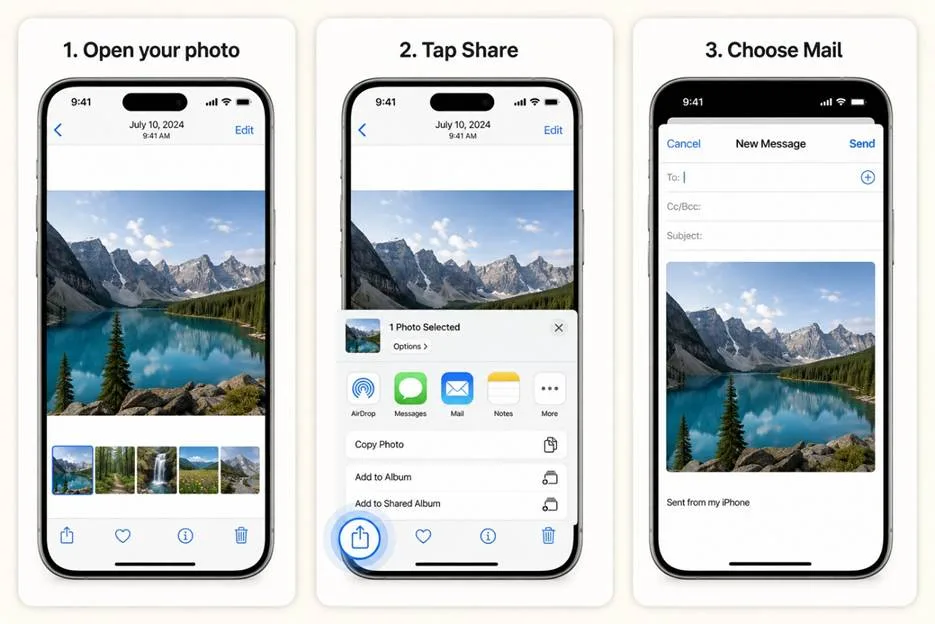
The second is often simpler for how to email photos from an iPhone: open the Photos app, tap the photo you want, tap the Share button (the square with the arrow), and pick Mail. Your photo drops straight into a new email, ready to address and send.
How to send multiple photos in one email
Sending a few pictures at once is just as simple. On a computer, hold Ctrl (or Cmd on a Mac) while you click each photo, so they're all selected, then attach them together.
On an iPhone, tap Select in the Photos app and tap every picture you want before hitting Share. Knowing how to send multiple photos in an email is what turns "here's one snapshot" into "here's the whole afternoon." When you attach photos to an email this way, they all travel in the same message.
How to send a large amount of photos via email
Most email providers have a size limit of around 25 MB, so how to send a large amount of photos via email usually means not attaching them all directly. Instead, upload them to Google Drive, Google Photos, or iCloud, then paste the share link into your email. The person clicks the link and sees every photo.
Pro tip: If you feel uncomfortable doing all this, download Guidy and have a live assistant that points exactly where to click.
If you still want to attach them, you can compress photos s well: choose a "small" or "medium" size when your email offers it, which shrinks the files without much visible change.
As for how many pictures you can send in an email, a few photos is usually fine, but a whole album is better shared as a link.
Author’s note: Sending photos with a shared link is the best way to preserve image quality, since a link keeps the originals intact.
When a photo won't attach (quick fixes)
If a photo won't attach, it's usually one of three things:
- file may be too big,
- your internet may be slow, so give it a moment to upload, or
- the format may be unusual.
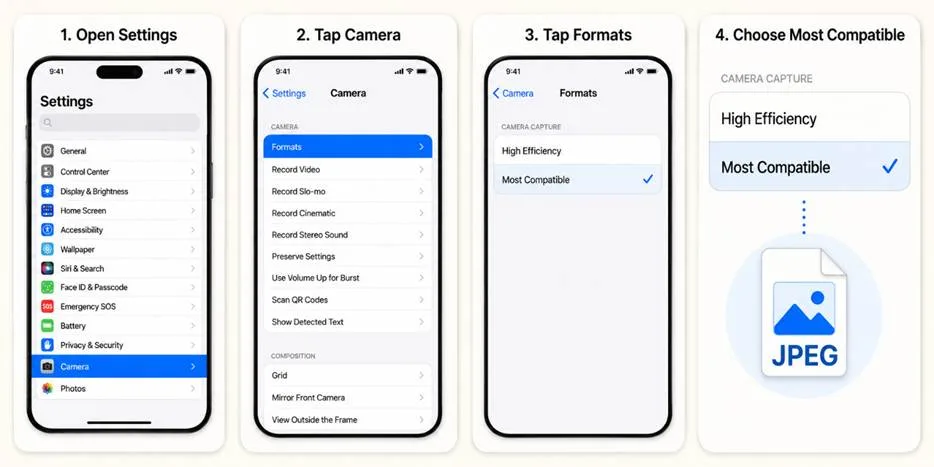
iPhone photos sometimes save as HEIC files, which some older computers dislike, so if someone can't open yours, set your iPhone to save as JPEG under Settings, then Camera, then Formats, then Most Compatible.
And if you're asking why you can't email photos from your iPhone at all, make sure that Mail is signed in and connected to Wi-Fi. Once you've got the hang of how to attach a photo to an email, these are quick to sort out.
FAQ
How do I attach a photo when responding to an email?
Attaching to a reply works exactly like a new message: while you're writing your response, click the paperclip icon (or the photo icon), find your picture, and select it. It sends along with your reply. On a phone, tap in the reply body first, then tap the attachment icon.
How many pictures can you send in an email?
It depends on file size, not count, since most email caps attachments around 25 MB total. That's usually a handful of phone photos. For a larger amount of photos, share them as a Google Drive, Google Photos, or iCloud link instead, which has no real limit.
How do I compress photos for email?
When you attach a photo in Gmail or Outlook, look for a size option and choose "small" or "medium," which compresses the photo automatically. On an iPhone, choosing "Actual Size" keeps it full, so pick a smaller size to shrink it. Compressing lets you fit more per email.
Why can't I email photos from my iPhone?
Usually it's the connection or the format. Make sure Mail is signed in and you're on Wi-Fi, and try sending fewer photos at once. If the recipient can't open them, set your camera to save as JPEG (Settings, Camera, Formats, Most Compatible) so the files work everywhere.
What's the best way to send photos without losing quality?
Share them as a link from Google Photos, Google Drive, or iCloud rather than as email attachments. A link keeps the full-resolution originals, while emailed attachments are often shrunk. For one or two photos, attaching at "actual size" also preserves the quality.